

Type and hit enter
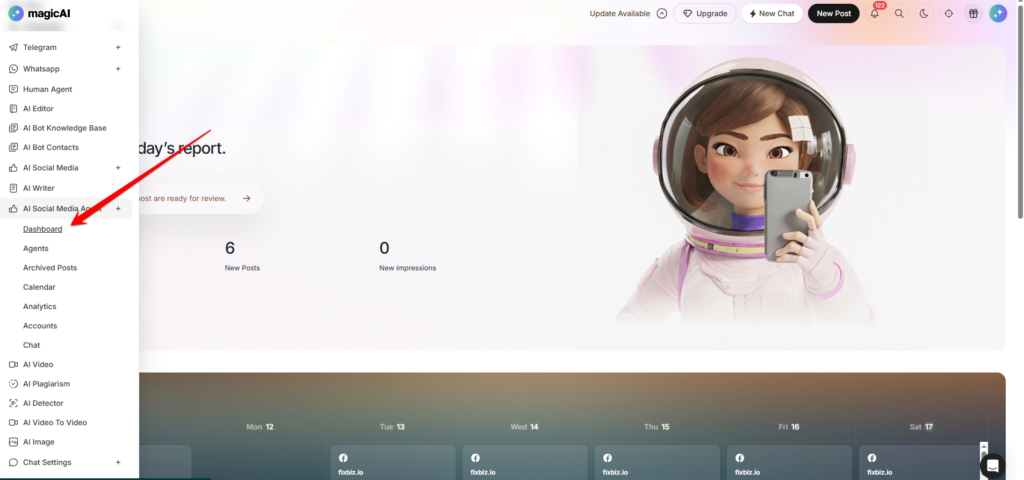
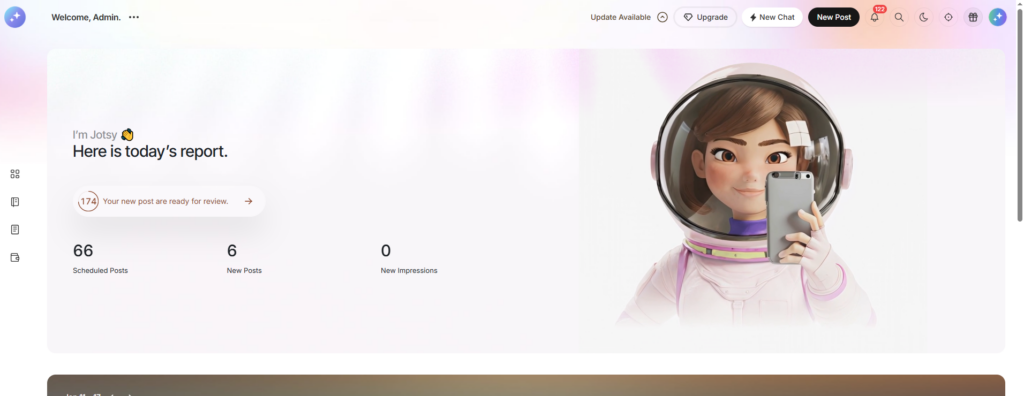
The Dashboard is your central hub for monitoring all activities related to your Social Media Agents. It provides a real-time overview of your content pipeline, agent performance, and engagement across all connected social accounts.
Upon logging in, you’ll see a clean, intuitive layout designed to give you key insights at a glance.
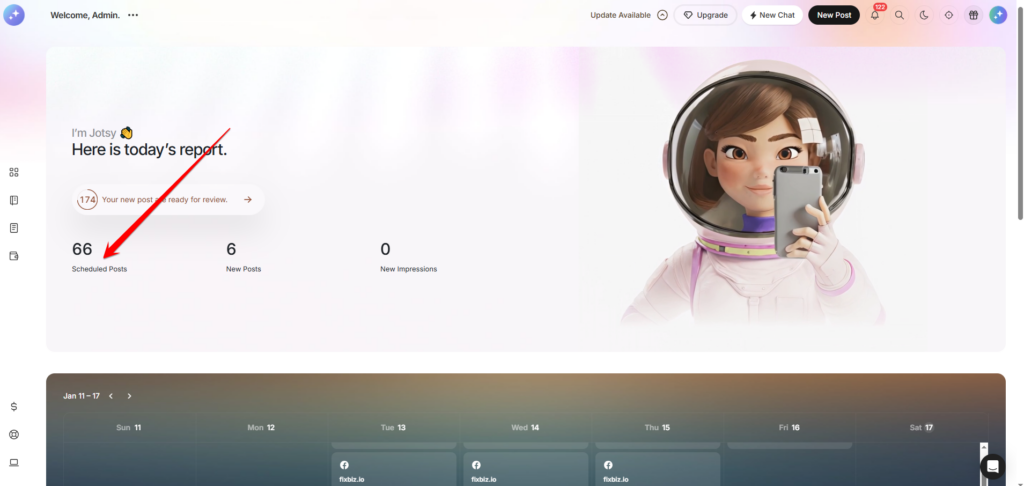
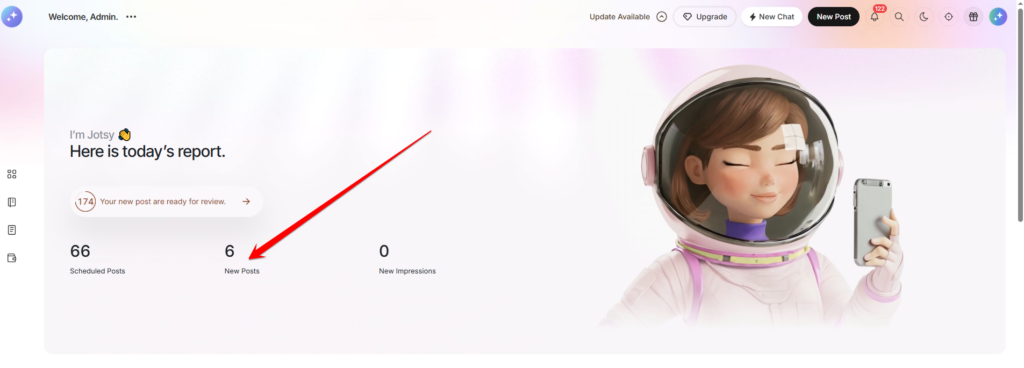
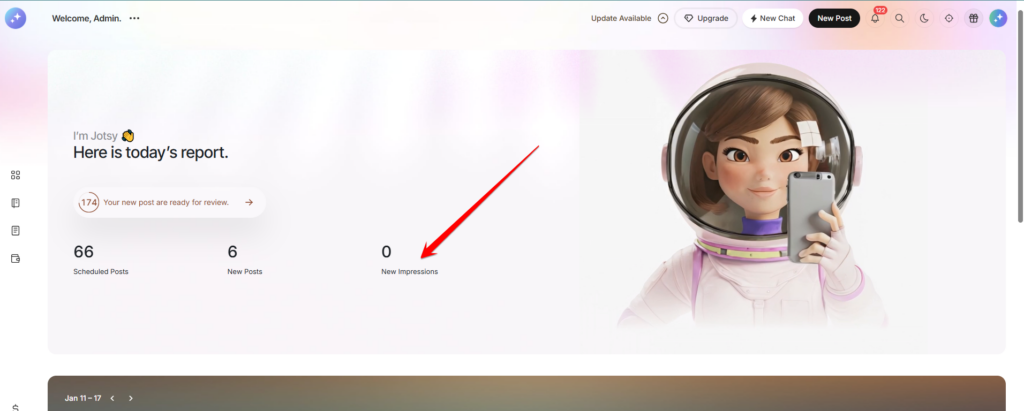
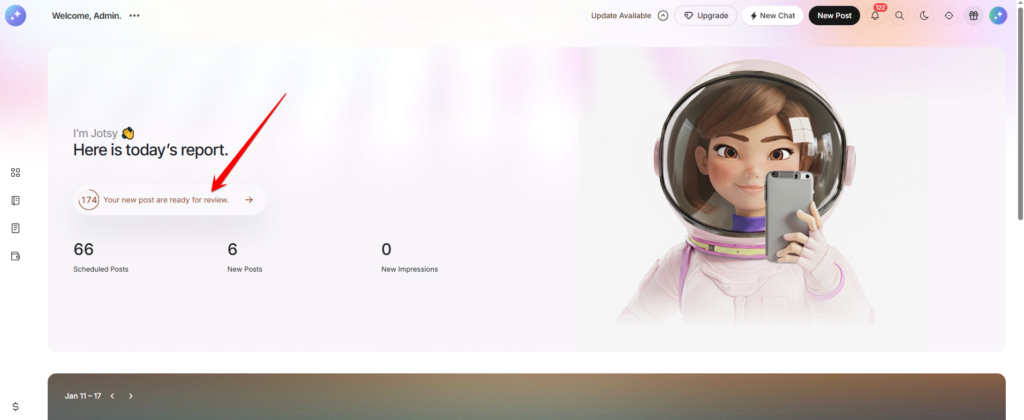
At the top of your dashboard, you’ll find essential metrics providing a quick snapshot of your social media activity.
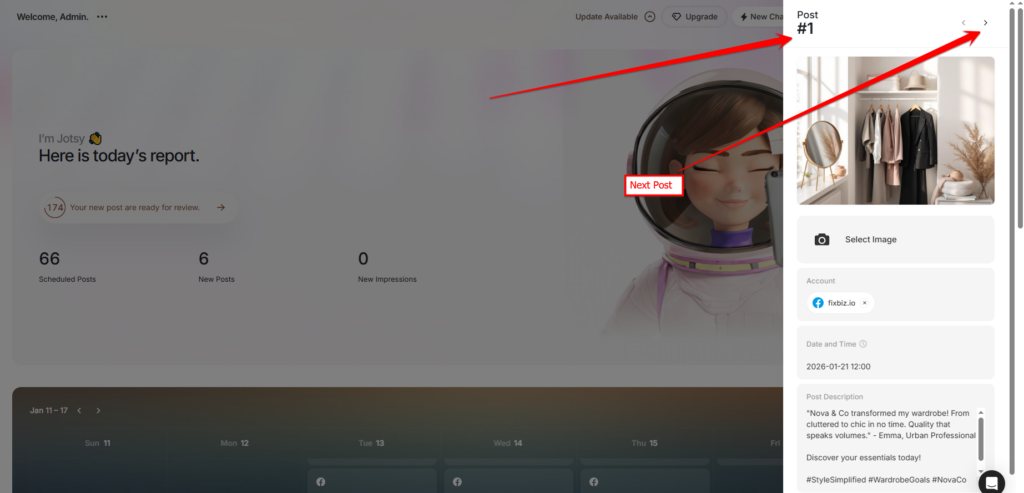
Functionality: Each post includes a preview and options to Approve, Edit, or Reject.
To the right of your “Posts Ready to Review” section, you’ll find a compact calendar view.
Purpose: This mini-calendar highlights days with scheduled posts, giving you a quick visual reference for your upcoming content.
Navigation: Click on any date to see scheduled posts for that day, or click the calendar icon to navigate to the full Calendar feature for detailed planning and management.
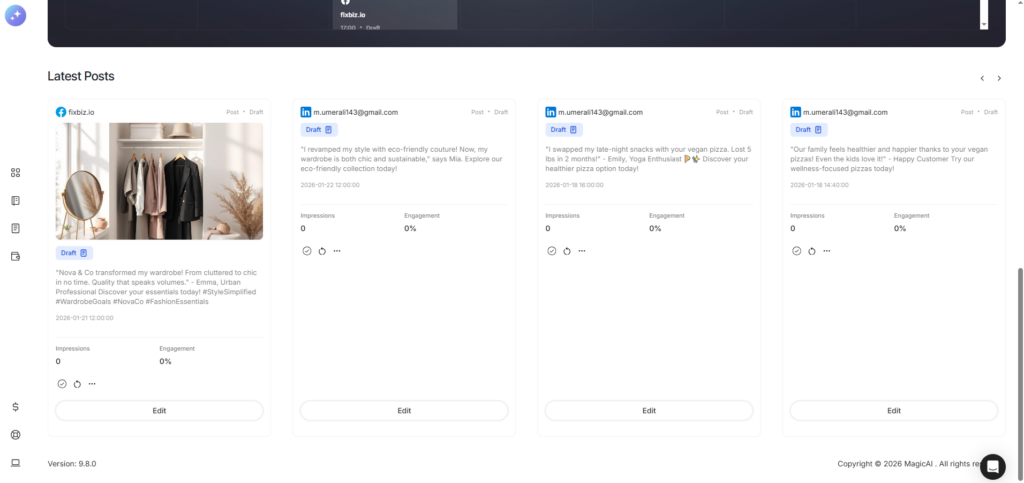
This section provides a live feed of the most recently published content by your Social Media Agents.
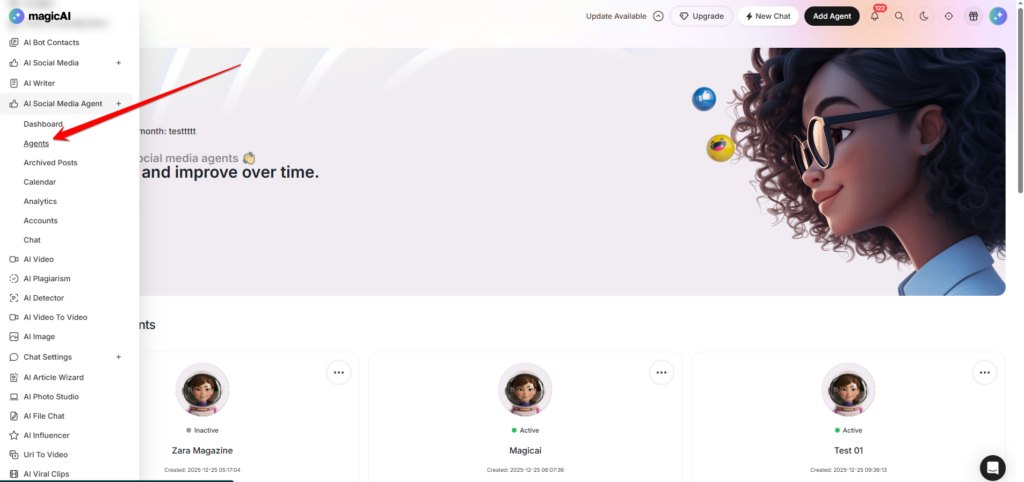
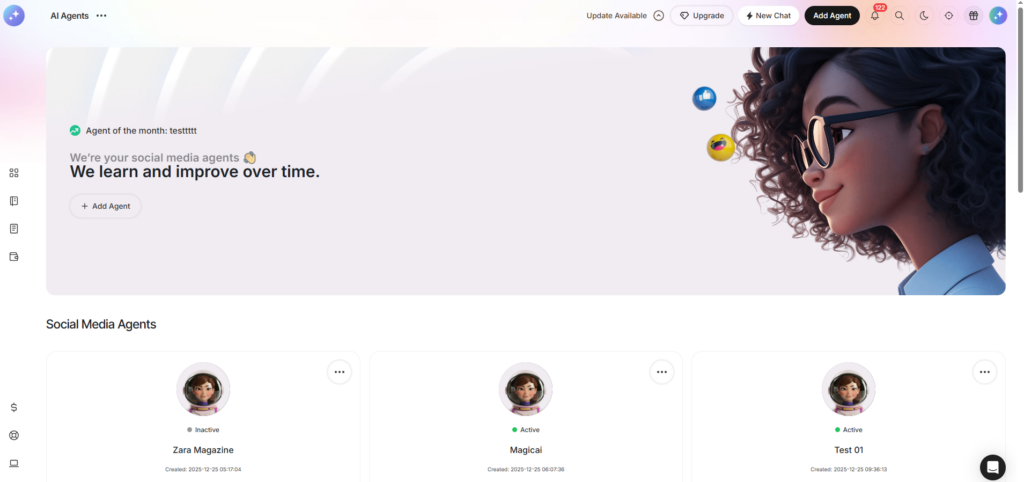
The Agents section is where you define the personality and strategy of your AI. You can manage existing agents—adding new ones as your brand grows or removing those that are no longer needed—to ensure your social presence stays focused.
In this view, you can see all your active AI personas. Each agent is tailored to a specific brand or goal.
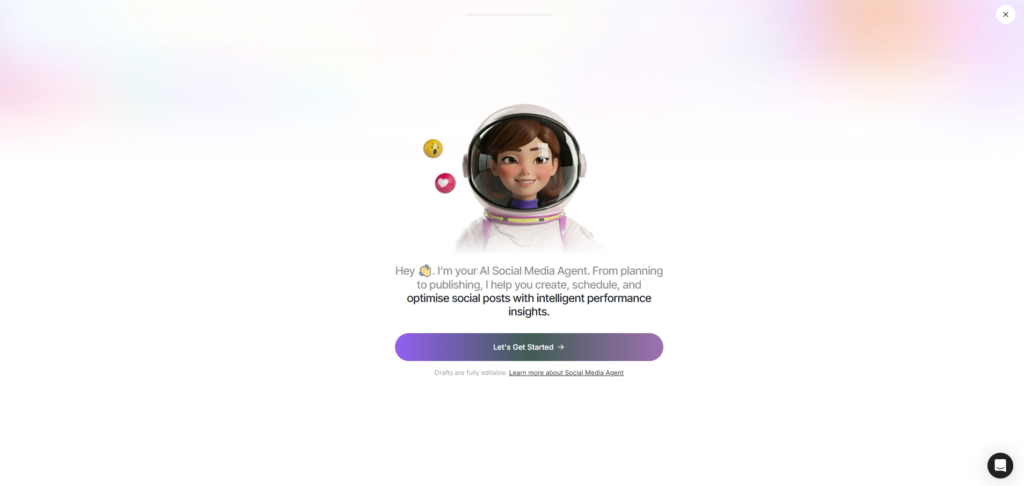
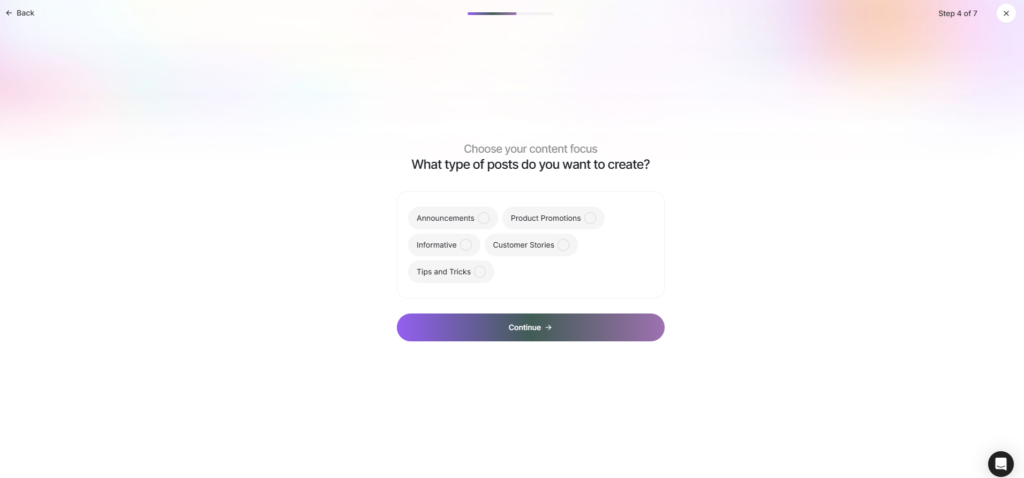
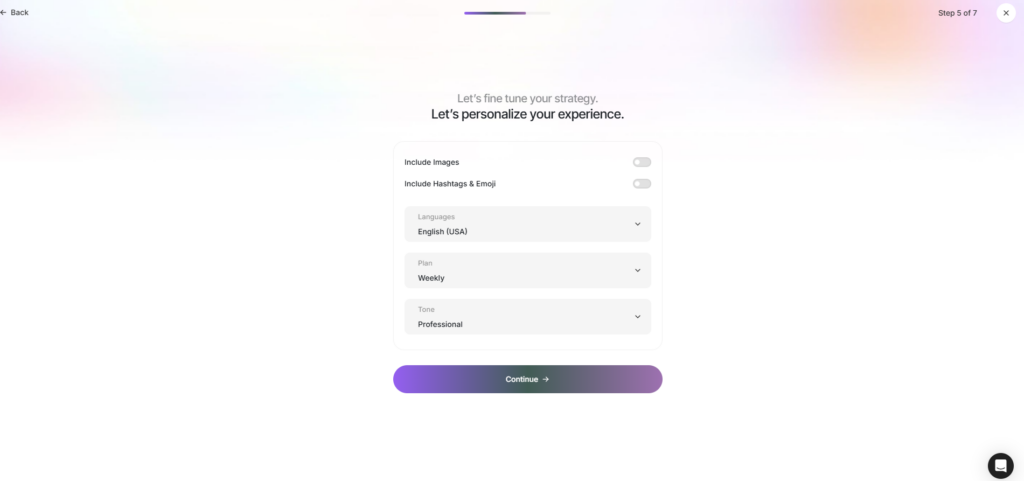
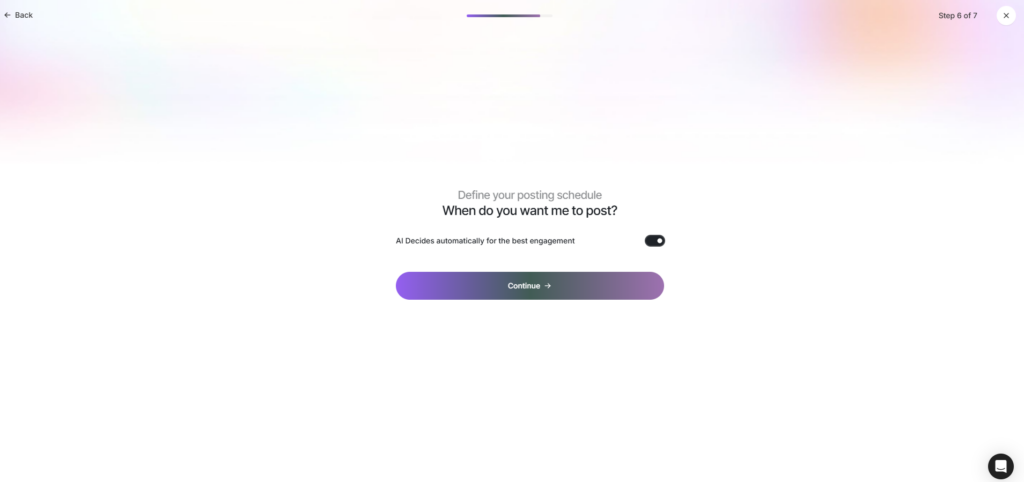
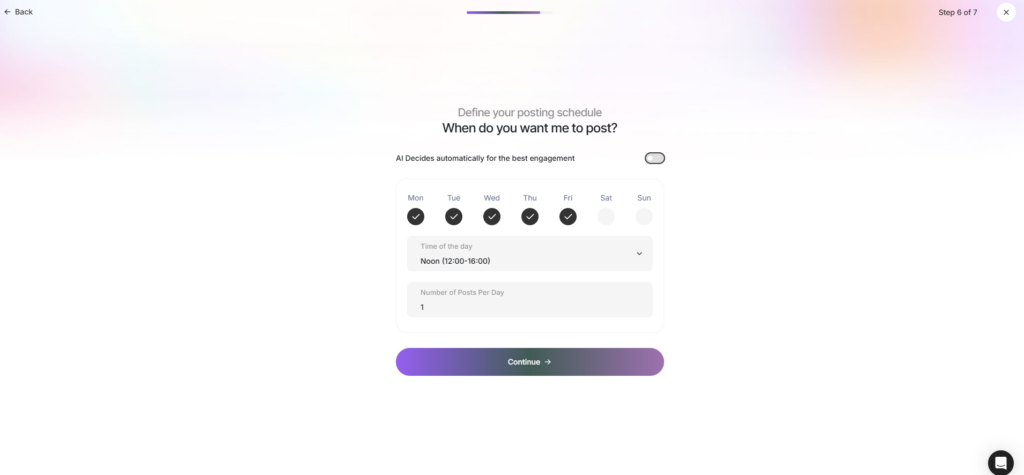
Setting up a new agent is a guided 7-step process. This ensures the AI deeply understands your brand before it starts generating content.
Begin the onboarding process. This step initializes the agent’s profile and prepares the AI for customization.
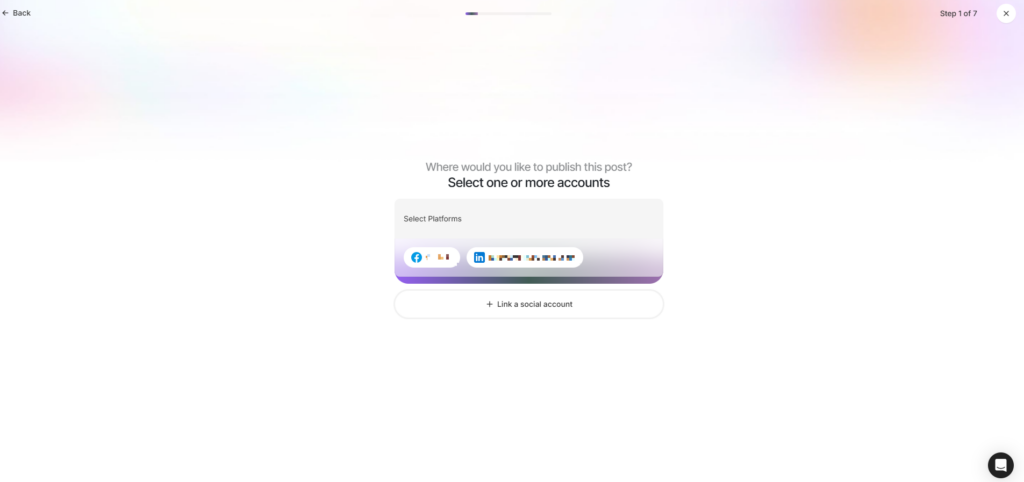
Choose where this agent will live. You can select platforms like LinkedIn, X (Twitter), Instagram, or Facebook.
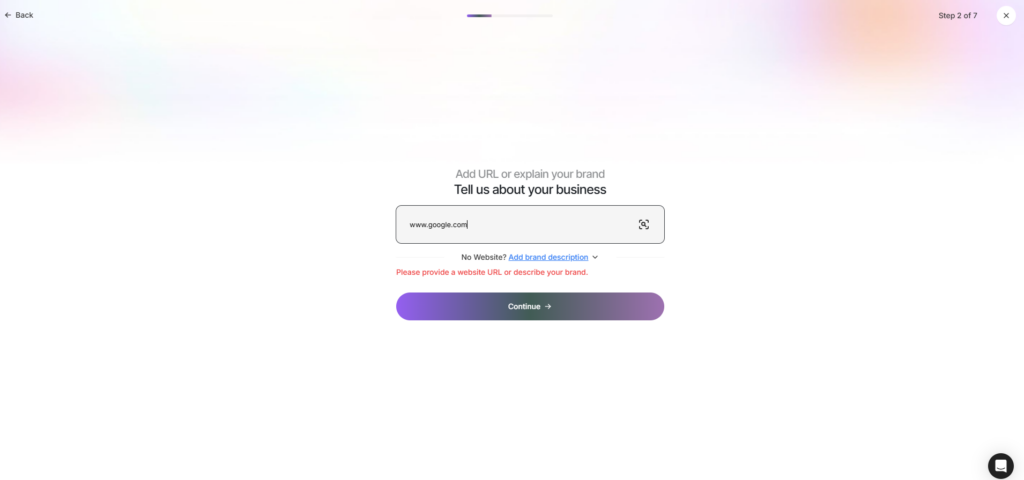
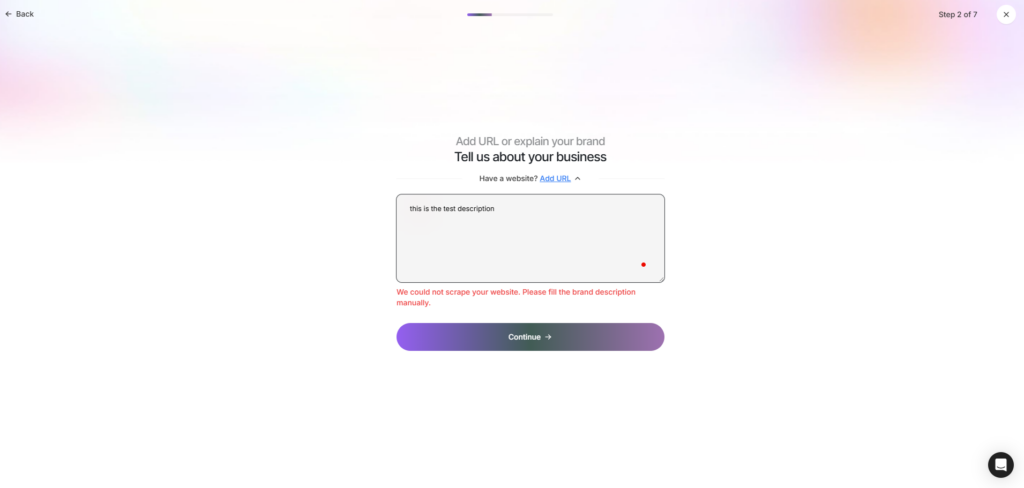
Provide the foundation for your content. You can either:
Enter your Website URL (the AI will crawl the site for info).
Provide a detailed Brand Description.
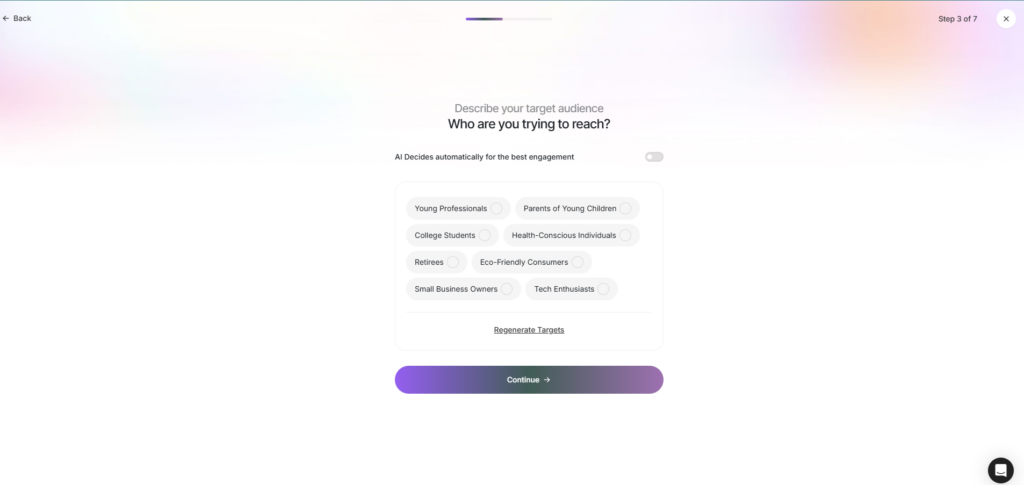
Define who you want to reach. You have two options:
Manual: Input specific demographics and interests.
AI Auto-Select: Let the AI analyze your brand and automatically identify the highest-converting audience.
Choose the Type of Posts the agent should focus on (e.g., Educational, Promotional, Behind-the-Scenes, or Industry News).
Fine-tune the “look and feel” of your posts. Here you can toggle:
Media: Include/Exclude images.
Flavor: Enable/Disable hashtags and emojis.
Language & Tone: Set the primary language and choose a persona (e.g., Professional, Witty, or Bold).
Plans: Select the posting frequency plan that fits your needs.
Decide how your content reaches the world:
Custom Schedule: Set specific days and times.
AI Optimization: Allow the AI to post automatically at times of peak engagement for your specific audience.
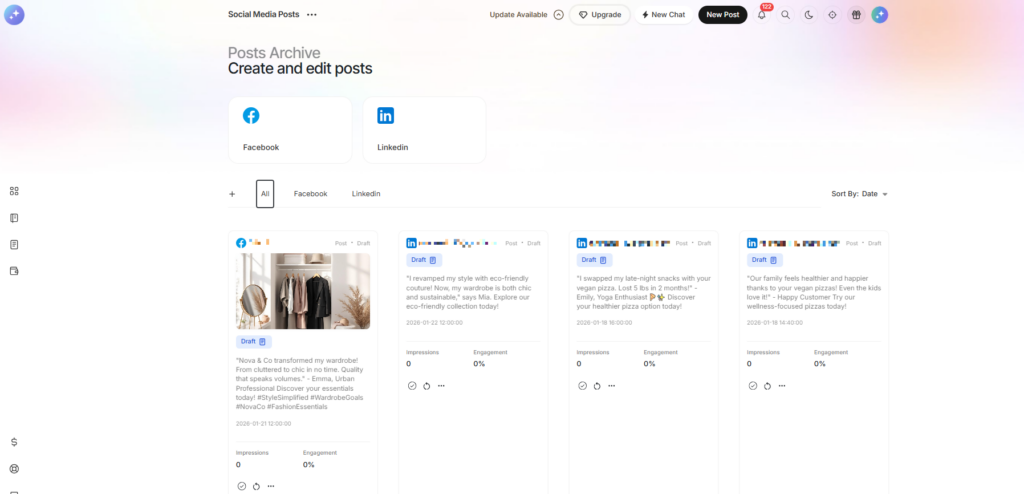
The Archived Posts section serves as your platform’s historical library. Every post that has completed its journey—from generation to publication—is stored here. This allows you to review past performance, maintain a record of your brand voice, and repurpose successful content.
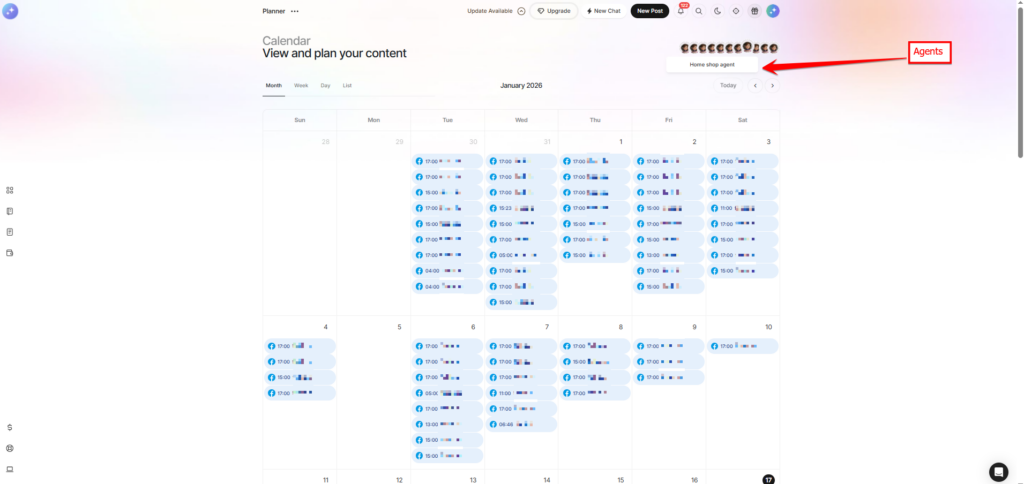
The Calendar is your visual roadmap for social media success. It provides a comprehensive, bird’s-eye view of your entire content strategy, allowing you to track which Agent is posting, on which Platform, and at what Time.
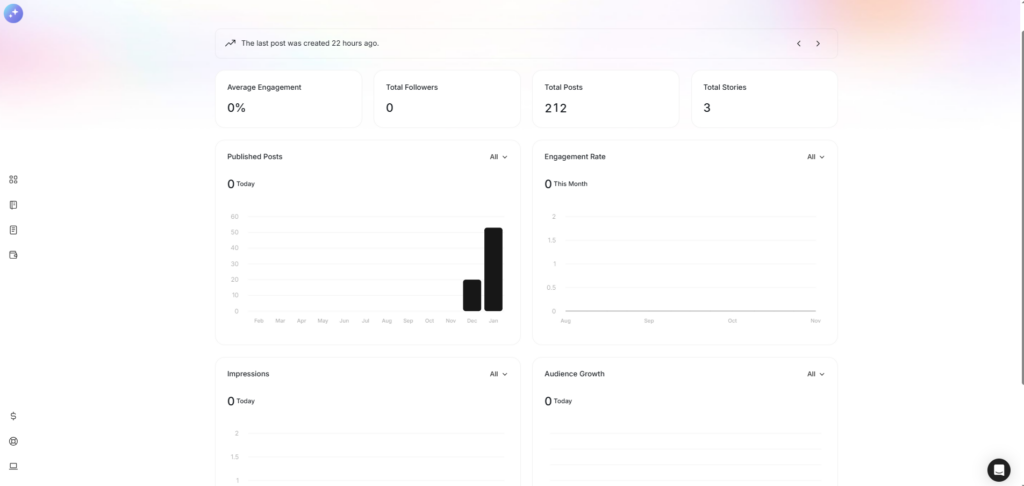
The Analytics section provides a data-driven look into your social media performance, allowing you to measure the impact of your AI Agents. By tracking these key metrics, you can refine your content strategy, understand your audience’s behavior, and maximize the ROI of your social presence.
Average Engagement: View the mean number of interactions (likes, comments, and shares) your content receives per post to gauge audience interest.
Total Followers: Monitor your overall community size across all connected platforms to track your brand’s reach.
Total Posts: Keep track of the cumulative volume of content published by your agents.
Total Stories: Specifically track the number of temporary stories shared, allowing you to measure your “of-the-moment” content frequency.
Content Performance Graph: A visual representation comparing the number of Published Posts against the Engagement Rate to identify which posting volumes yield the best results.
Growth & Visibility Graph: A detailed chart mapping Impressions alongside Audience Growth to visualize how brand awareness translates into new followers.
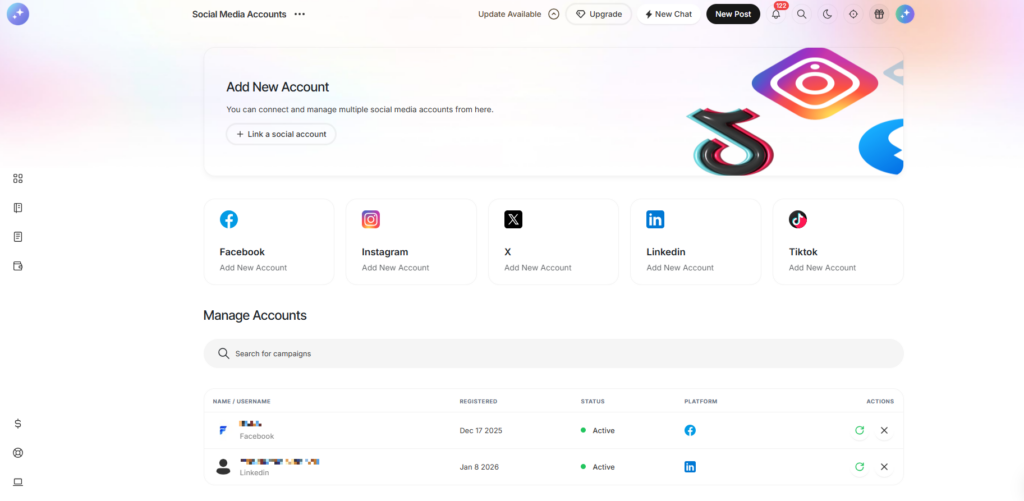
The Accounts section serves as the central management hub for your platform integrations, displaying a comprehensive list of all social media profiles currently connected to your agents while providing a streamlined option to link additional accounts as your brand grows. Within this view, you can monitor the real-time connection status of each profile—such as LinkedIn, X, or Instagram—and use the “Connect More” feature to authorize new platforms, ensuring your AI agents have the necessary access to execute your content strategy across your entire digital footprint.
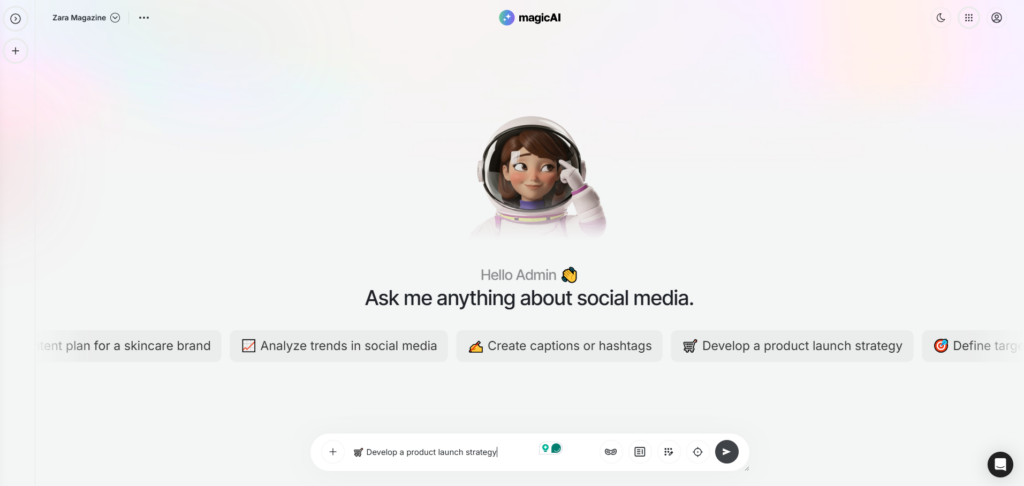
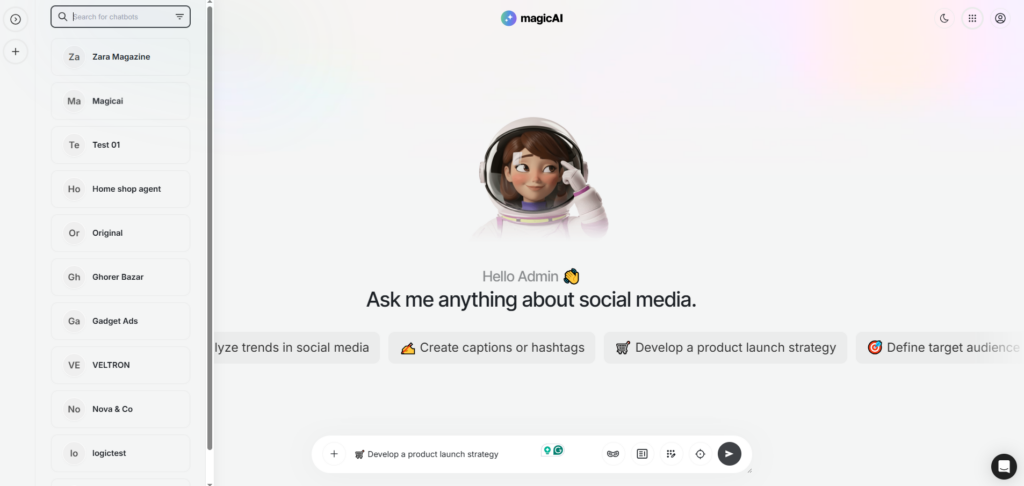
The Chat section provides a direct conversational interface where you can interact with your AI in real-time to brainstorm ideas, refine content strategies, or ask specific questions about your social media presence. This powerful tool allows you to give the AI nuanced instructions, request immediate post drafts on trending topics, or troubleshoot your agent’s current goals through a simple chat-based experience. By leveraging this feature, you can treat your Social Media Agents as true collaborative partners, ensuring that every piece of content they produce is perfectly aligned with your evolving brand vision and immediate marketing needs.
Social media management shouldn’t be a burden for your users. With Social Media AI Agents, you are providing them with a partner that works around the clock to create, manage, and optimize their growth.
If you are ready to offer a smarter, faster solution that helps your customers grow while saving time, this upgrade is the competitive edge you’ve been waiting for.
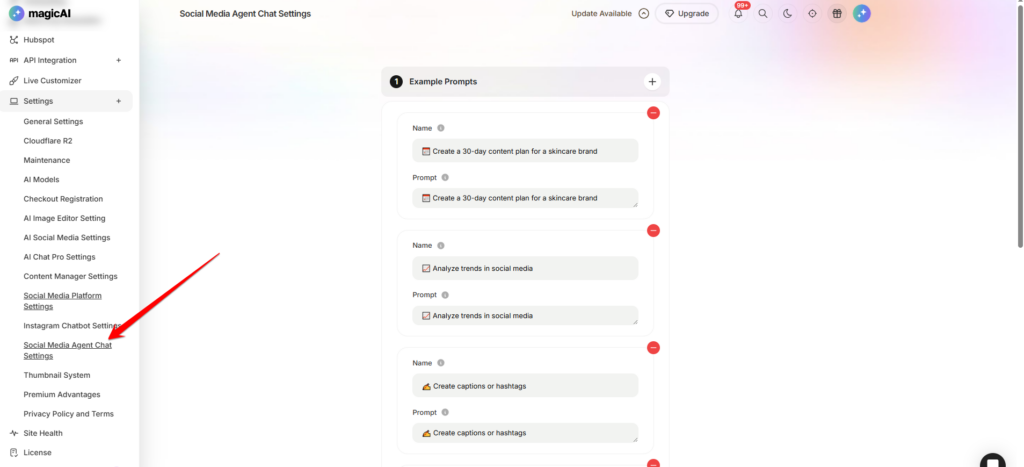
As an administrator, you have the authority to configure Example Prompts that appear within the Social Media Agent interface. These prompts serve as a guide for users, helping them understand how to best communicate with the AI to get high-quality results.
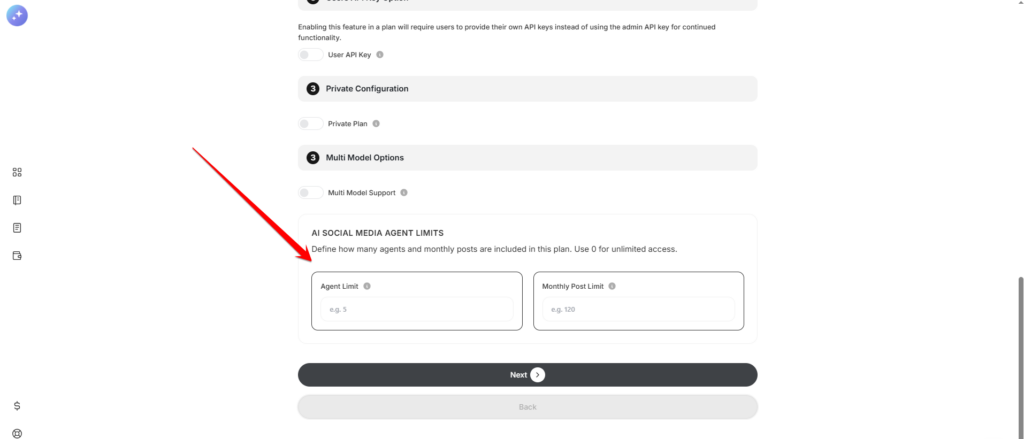
As an administrator, you have full control over feature accessibility through plan customization. When creating or editing a service plan, you can define specific usage boundaries to ensure the platform remains balanced and aligned with your pricing tiers.
Agent Setup Restrictions: Set a hard limit on the maximum number of individual Social Media Agents a user can create within their account.
Monthly Posting Quotas: Define the total number of posts a user is allowed to publish or schedule across all platforms each month.
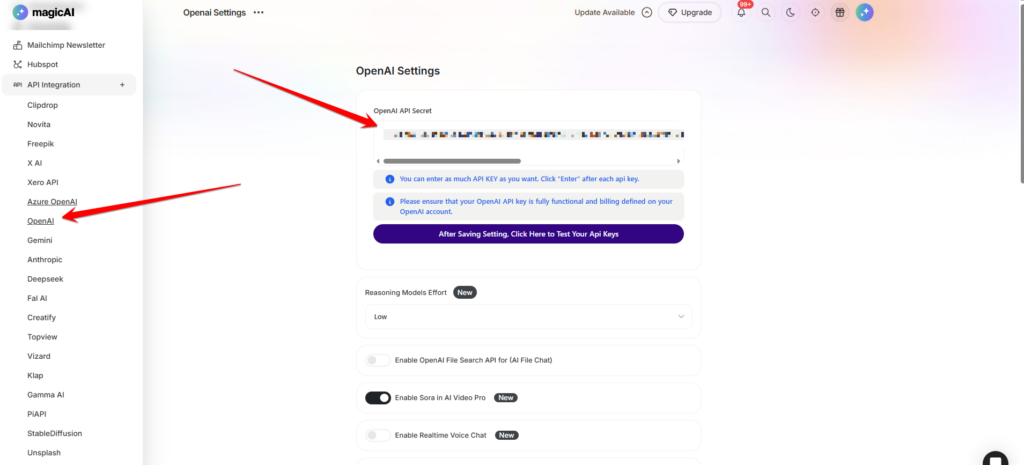
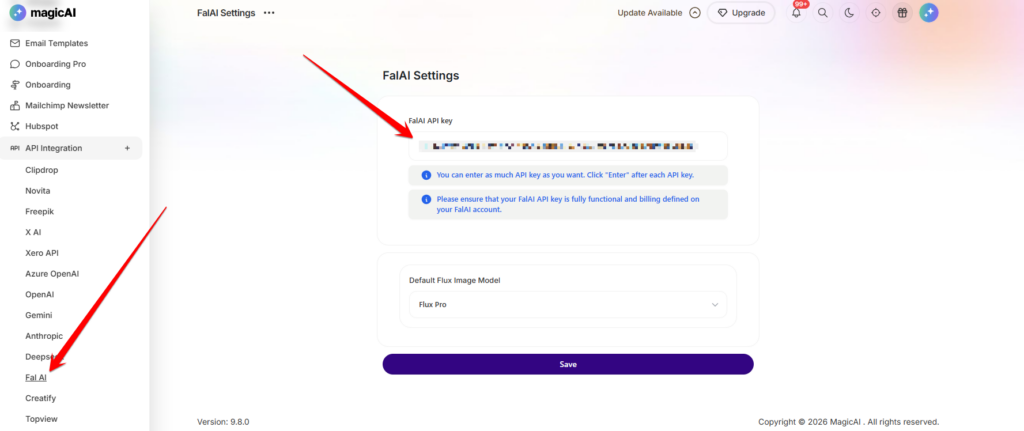
To power the advanced intelligence and creative capabilities of the Social Media Agents, the system integrates with industry-leading artificial intelligence providers. Administrators must configure these connections to ensure the agents can generate high-quality text and visual content.
OpenAI Integration: The add-on utilizes OpenAI API keys to drive the conversational chat, brand analysis, and text generation features. This ensures your agents maintain a sophisticated and human-like tone across all posts.
FAL AI Integration: For high-fidelity image generation and visual assets, the add-on leverages FAL AI API keys. This allows the agents to create unique, eye-catching visuals tailored to your specific brand descriptions.
API Management: Within the admin panel, you can securely input and update these keys to maintain uninterrupted service for your users.
We’re so excited to see the amazing content you’ll create! We truly hope you enjoyed exploring the Social Media Agents add-on and that it makes your journey toward digital growth smoother, faster, and much more fun. Happy posting! ✨
Adding {{itemName}} to cart
Added {{itemName}} to cart
🤖 Social Media Agents