Creating a subscription plan
Before you begin, make sure you have set up at least one payment gateway. Otherwise, you cannot create a membership plan, as your plan IDs cannot be created.
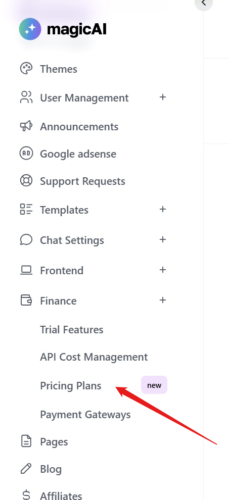
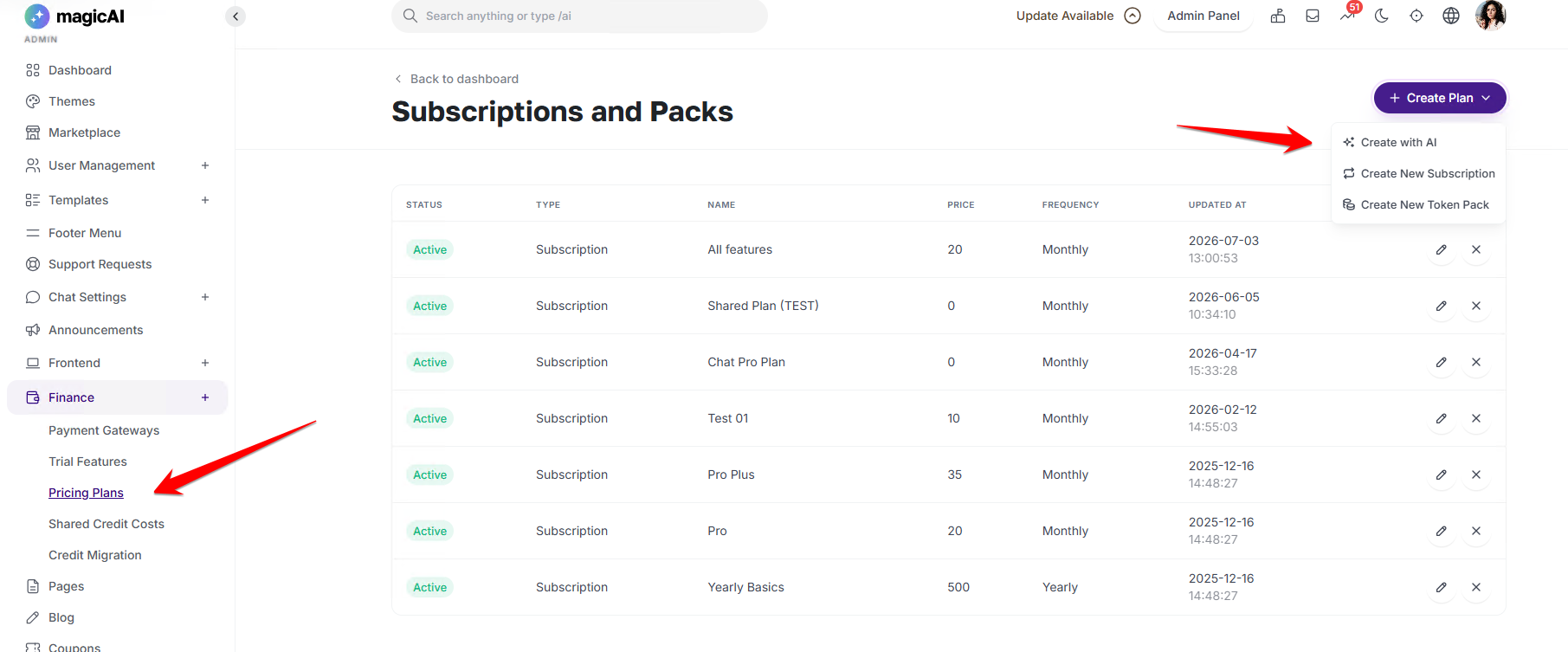
- Navigate to your MagicAI Dashboard
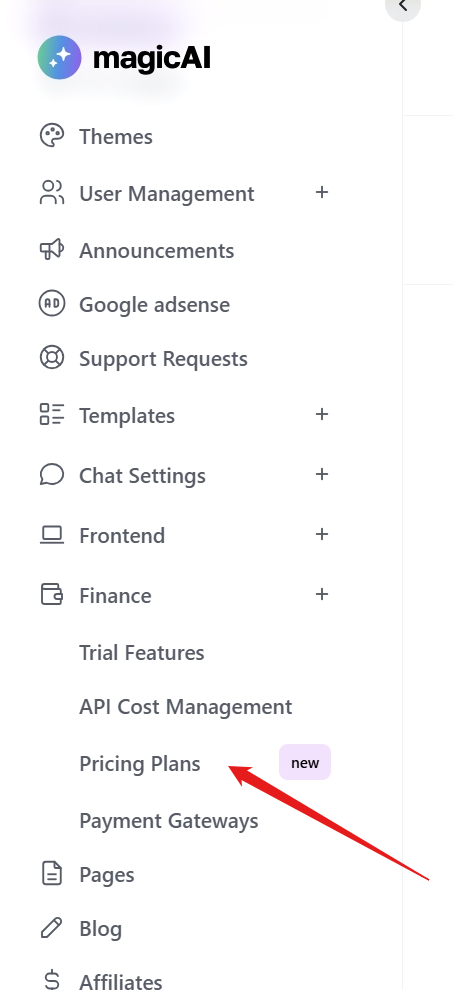
- Click “Finance > Pricing Plans”
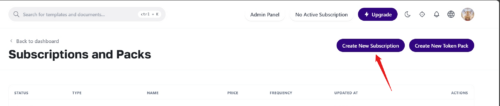
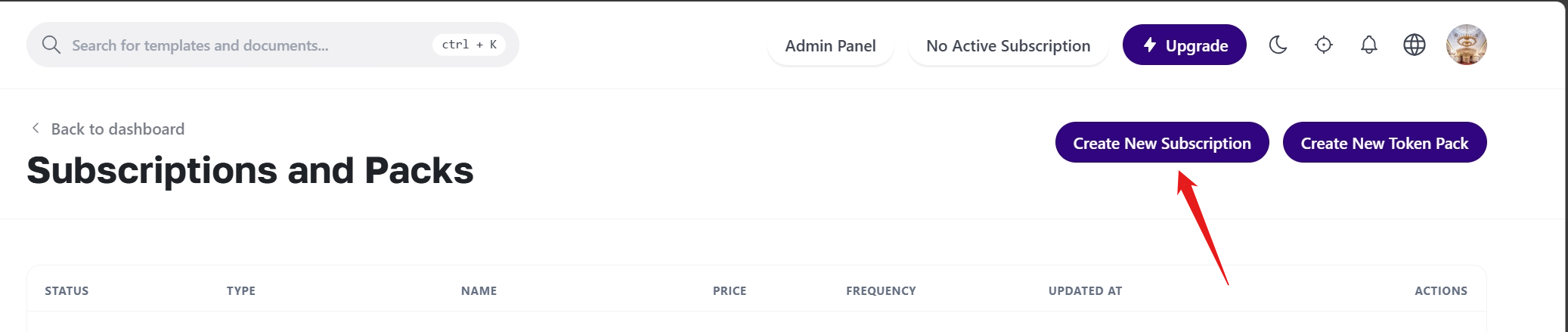
- Click “Create New Subscription”
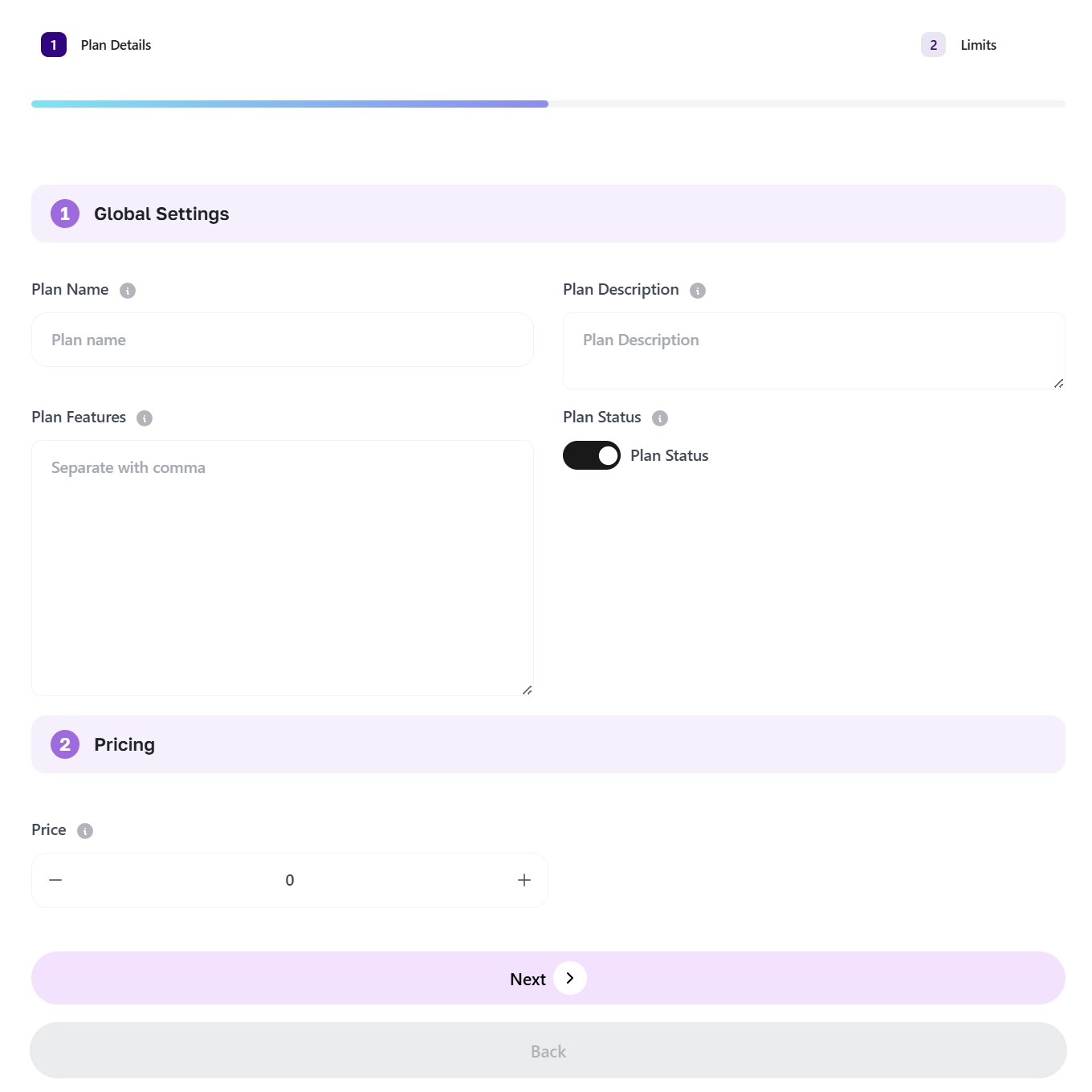
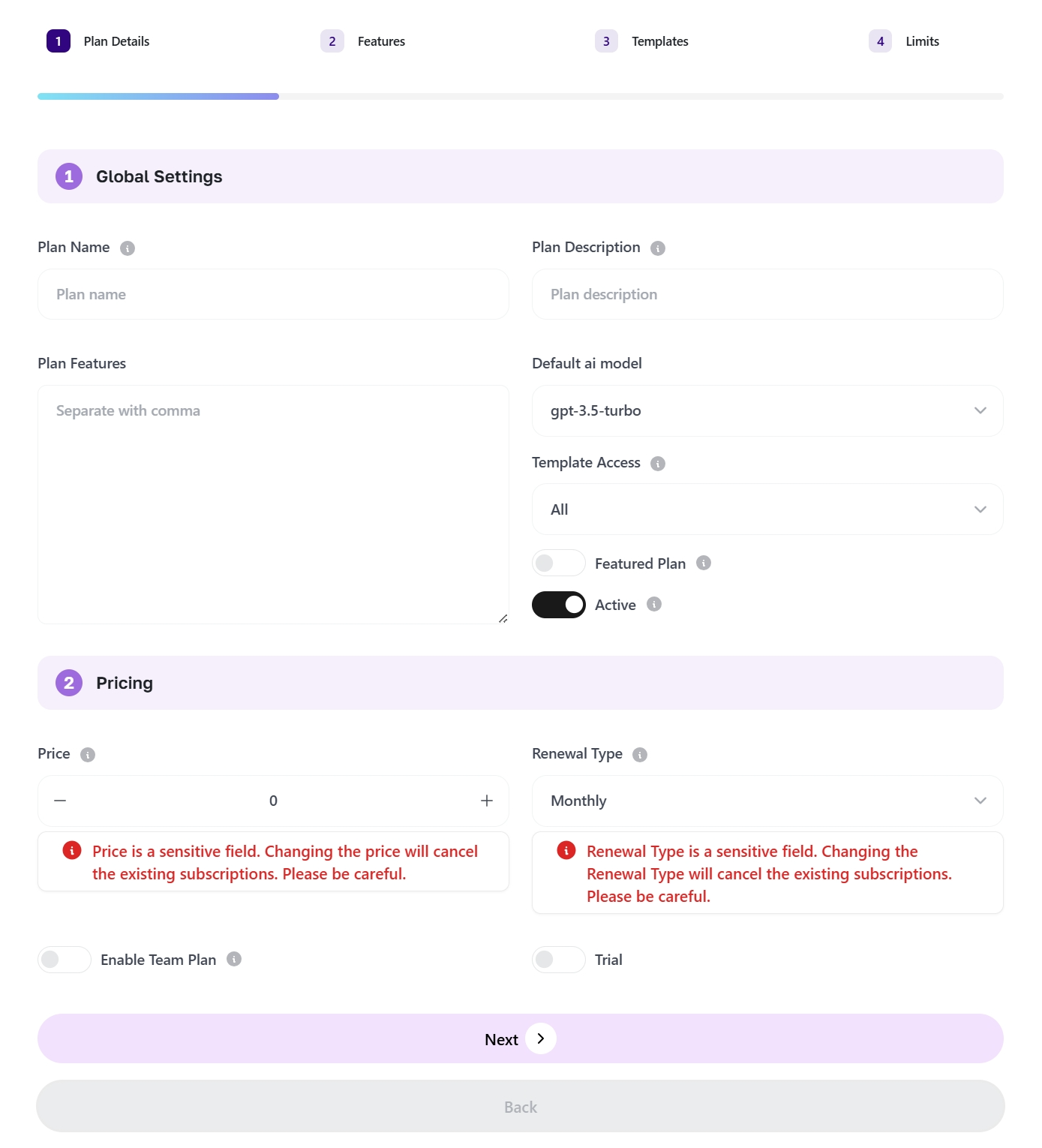
- Step #1 – Plan Details
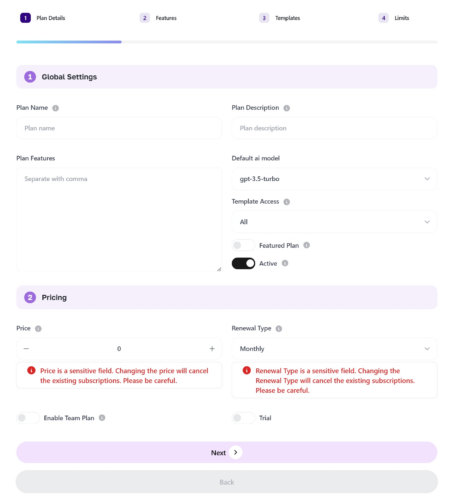
- Plan Name: Type a name for your plan.
- Plan Description: Enter a description for your plan.
- Plan Features: Enter features for your plan.
Note: In the next steps you will select the AI tools and features available to users who subscribe to this plan, and they will already be shown in the feature list. Therefore, you can enter other additional features here. - Default AI Model: Select the default AI model available to users who subscribe to this plan.
- Template Access: Select the AI Writer template group available to users who subscribe to this plan.
- Featured Plan: Enable this option if you want the plan to be featured on the frontend. (This will add border around the plan’s container)
- Active: Sets whether to show this plan publicly after you create it.
- Price: Enter a price for your plan.
- Renewal Type: Choose how often the plan renews. Think carefully when choosing, as changing this later will cancel existing subscriptions.
- Team Plan: You can use this option to make this plan available only to a specific group of users.
- Trial: You can use this option to give users a free trial for a certain number of days.
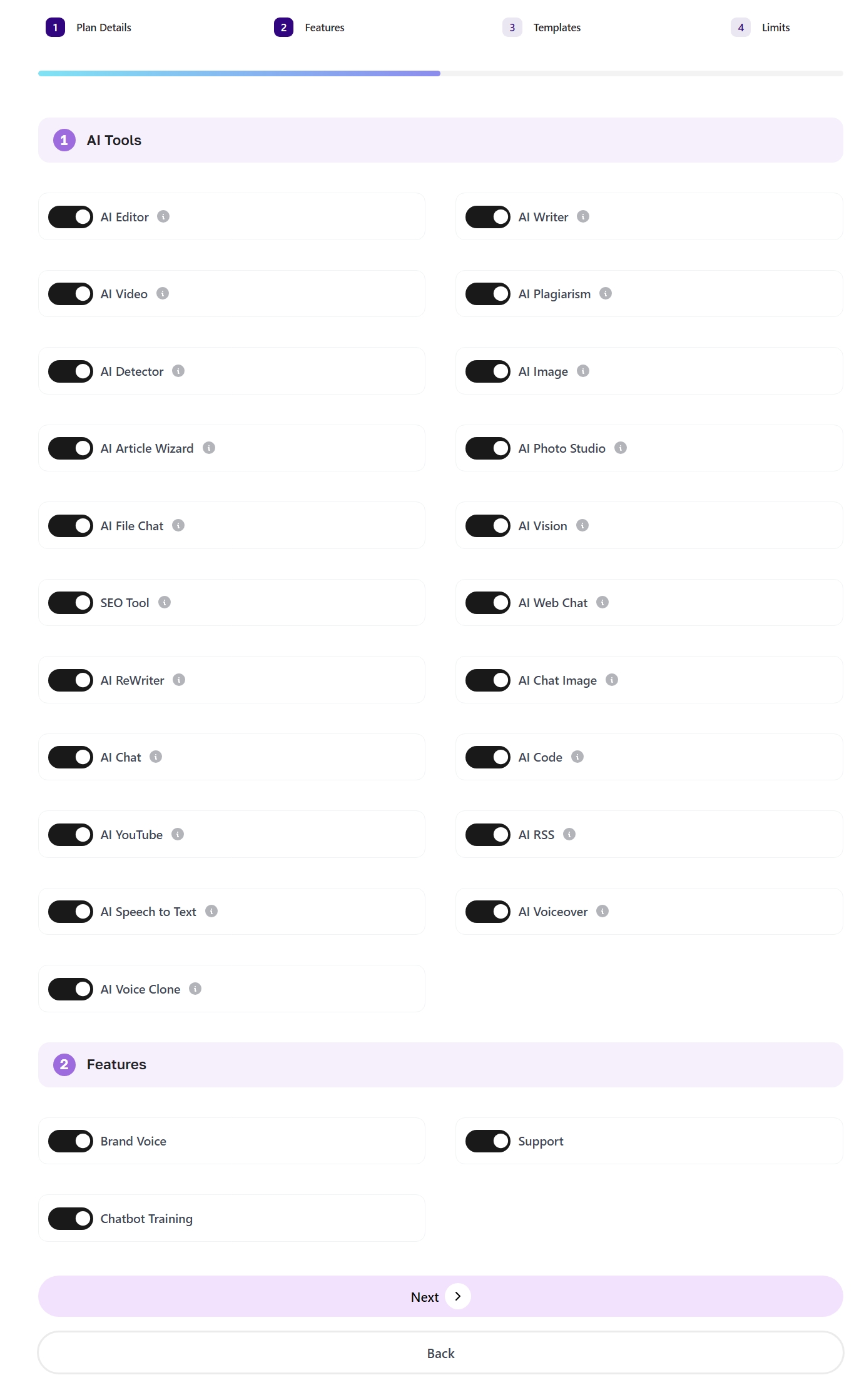
- Step #2 – Features
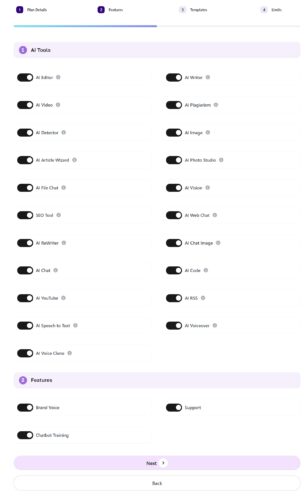
- Select the features available to users who subscribe to this plan.
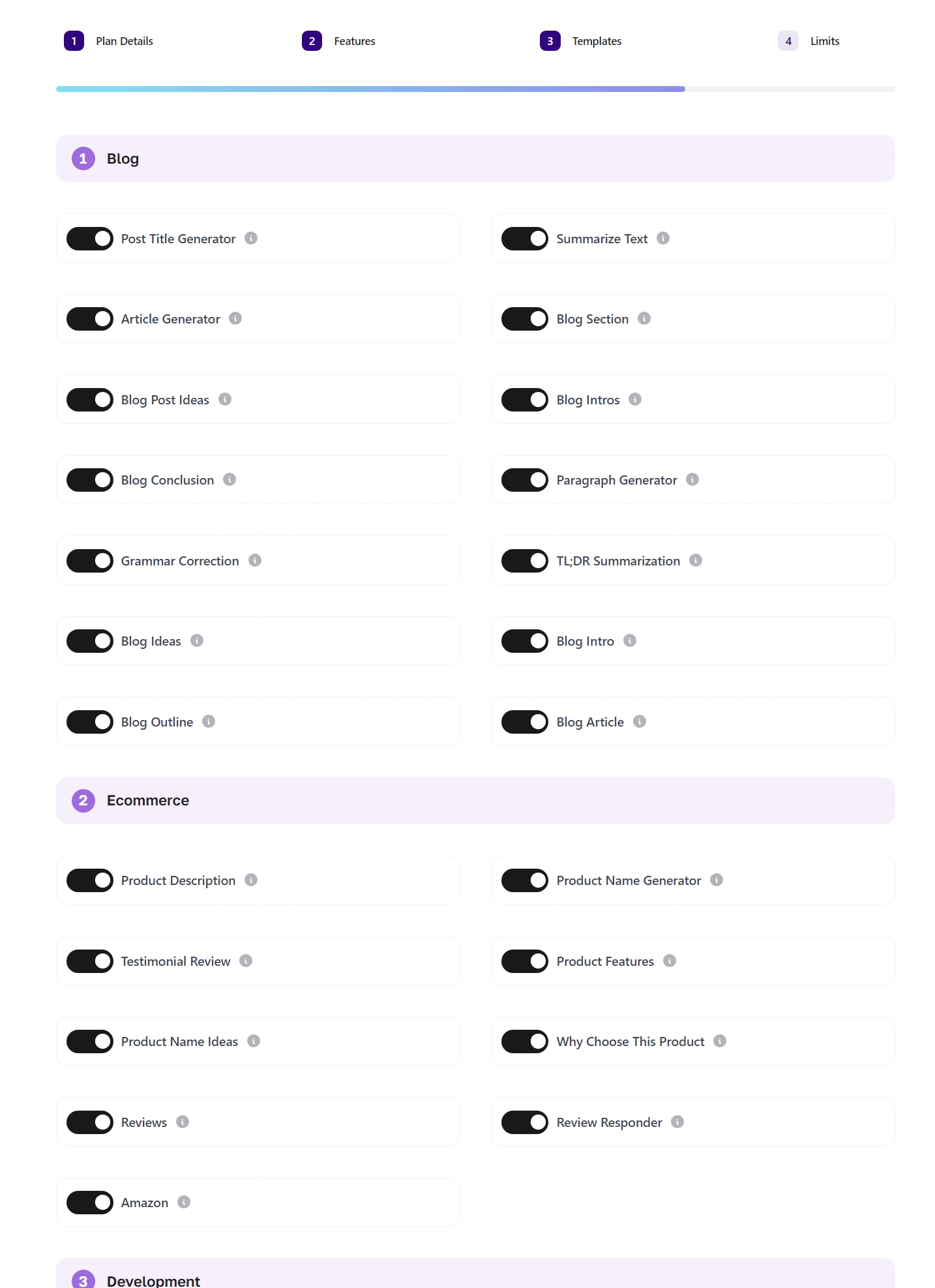
- Step #3 – Templates
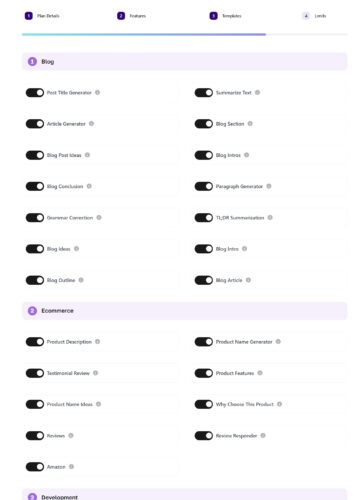
- Select the AI Writer templates available to users who subscribe to this plan.
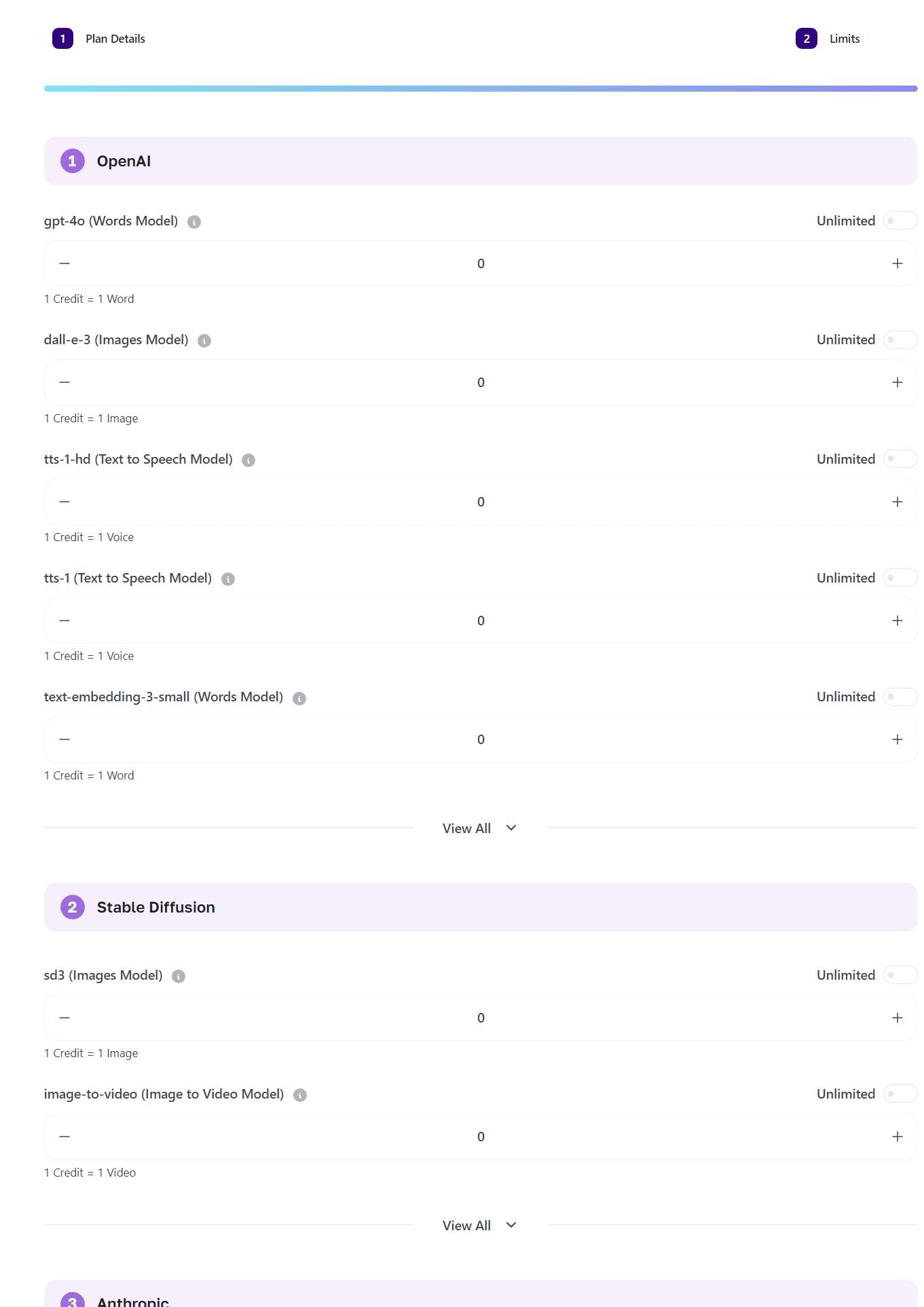
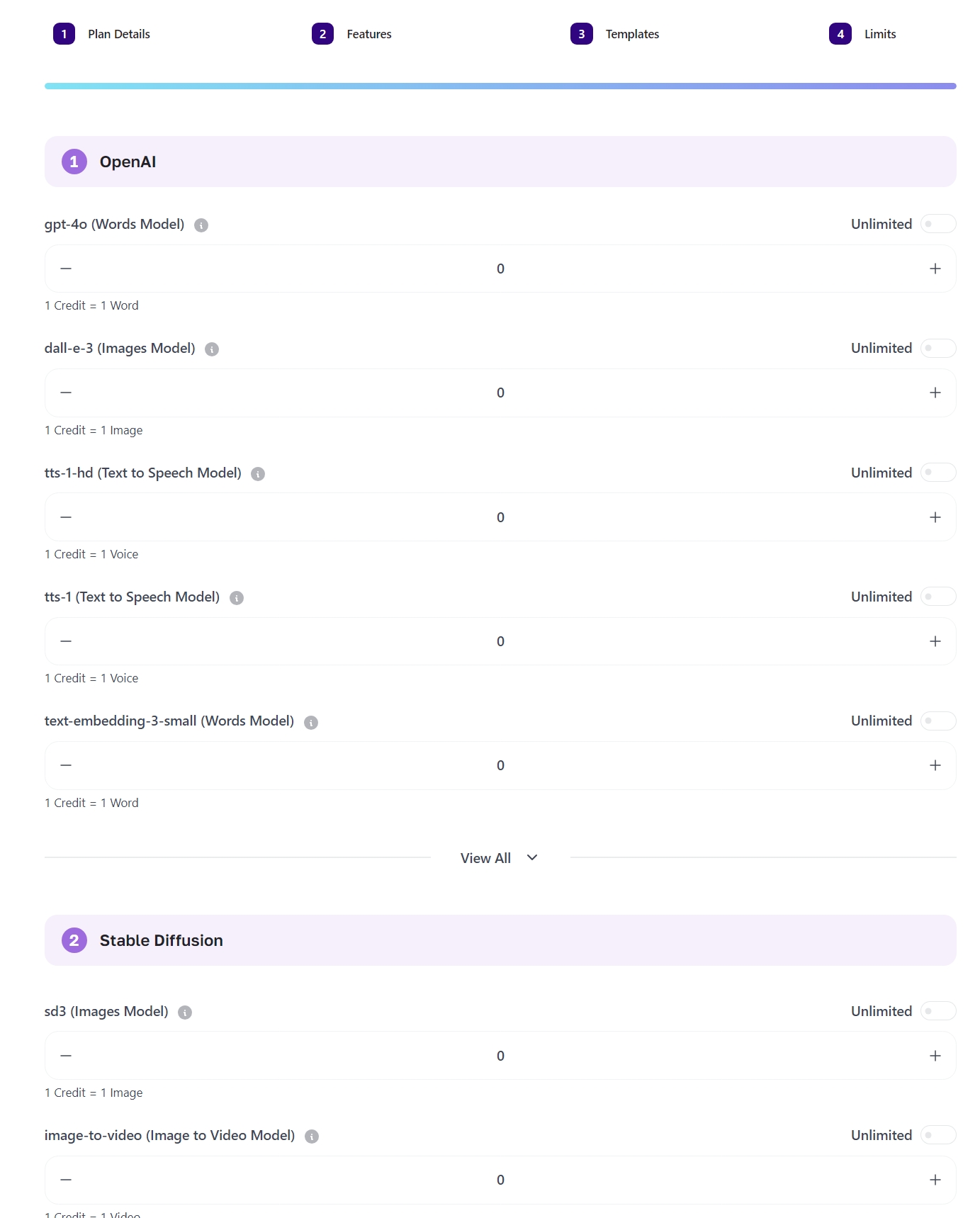
- Step #4 – Limits
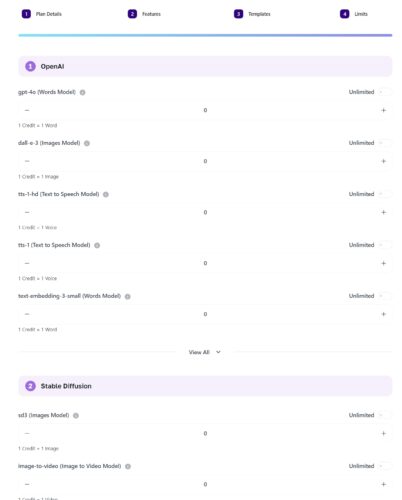
- Choose which tools users who subscribe to this plan can use and how many credits they will have.
- That’s all! You have successfully created a plan.
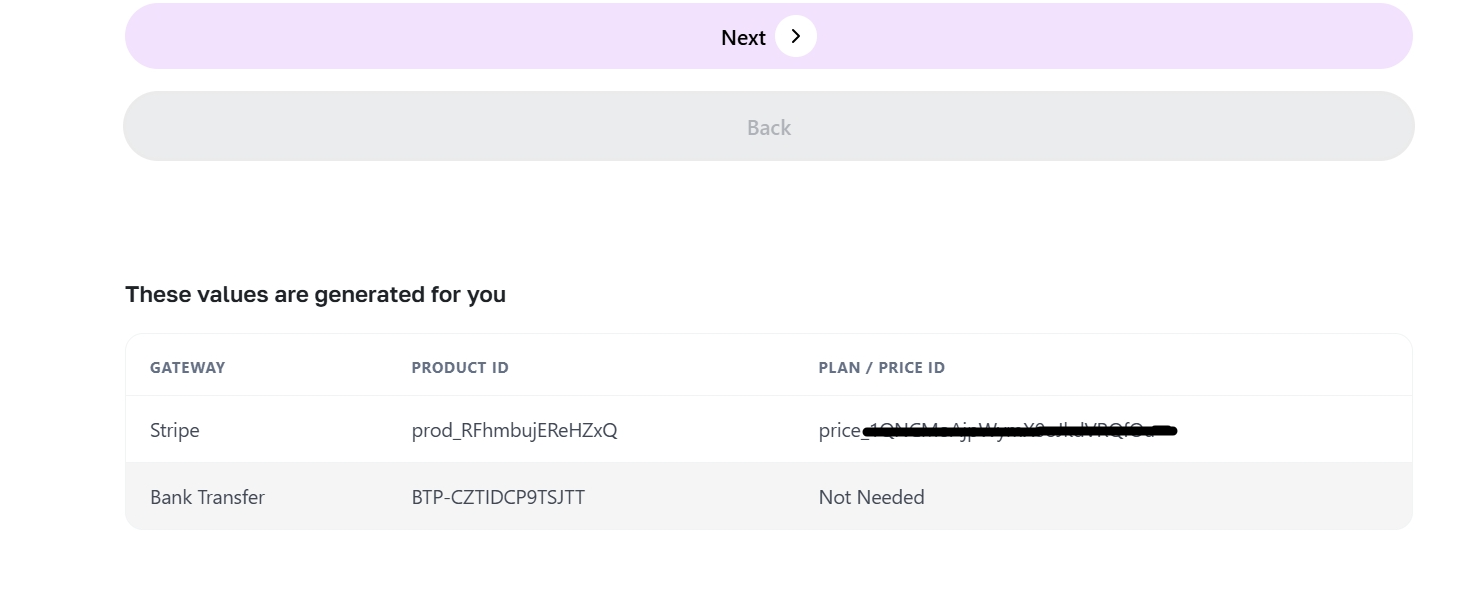
Note: If you have successfully set up your payment gateways, Product ID and Price IDs will appear at the bottom of the subscription creation page after you click the save button.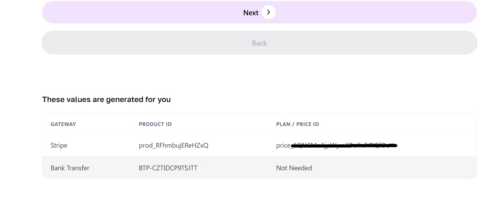
- Step #1 – Plan Details
Create plan with AI
The AI Plan Builder appears as a side panel when you click “Create with AI” from the Pricing Plans page. It gives you three ways to create a plan without manually filling in every field.
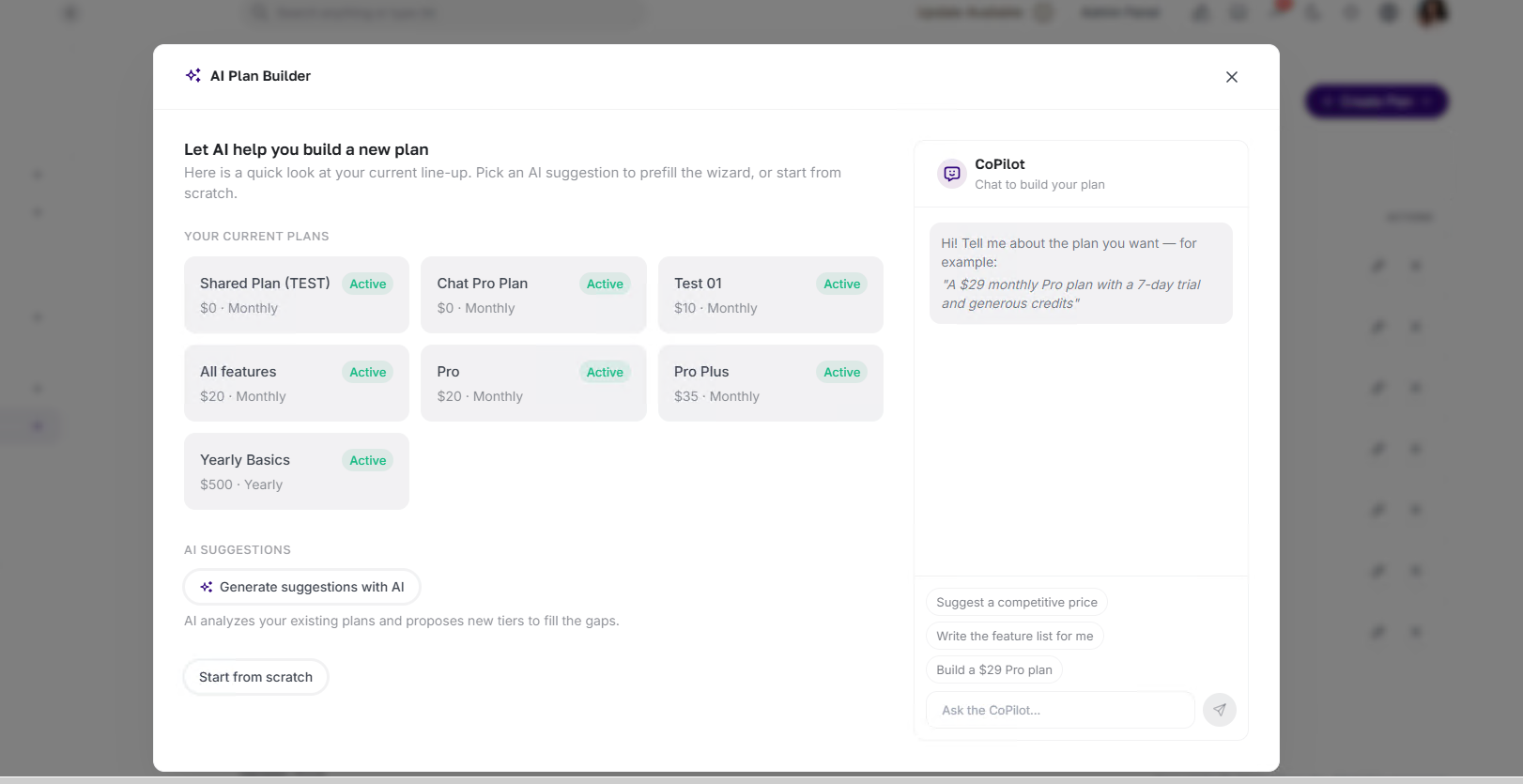
Your current plans
The panel shows a read-only summary of all existing active plans, including price and billing frequency, for context before you create a new tier.
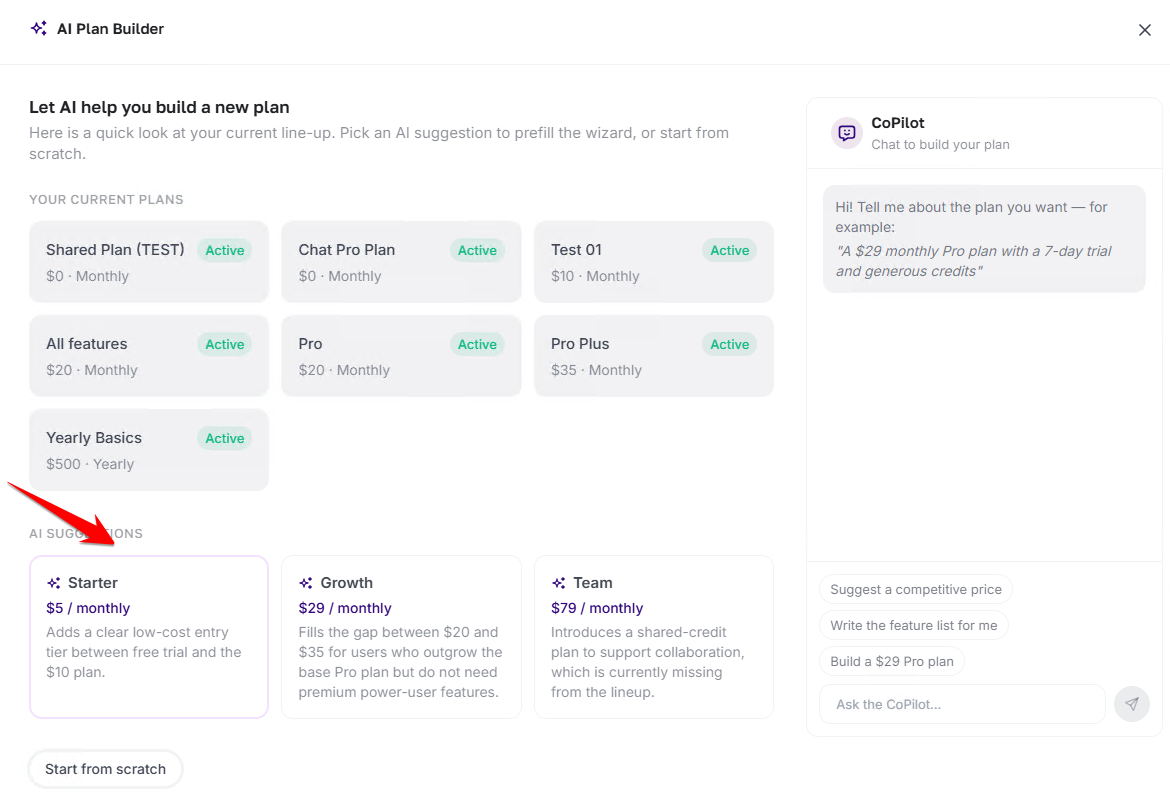
AI Suggestions
Click “Generate suggestions with AI.” The AI analyzes your existing plan lineup and proposes new tiers to fill pricing gaps. Click any suggestion to pre-fill the Create New Subscription wizard with the suggested name, price, features, and limits — review and save from there.
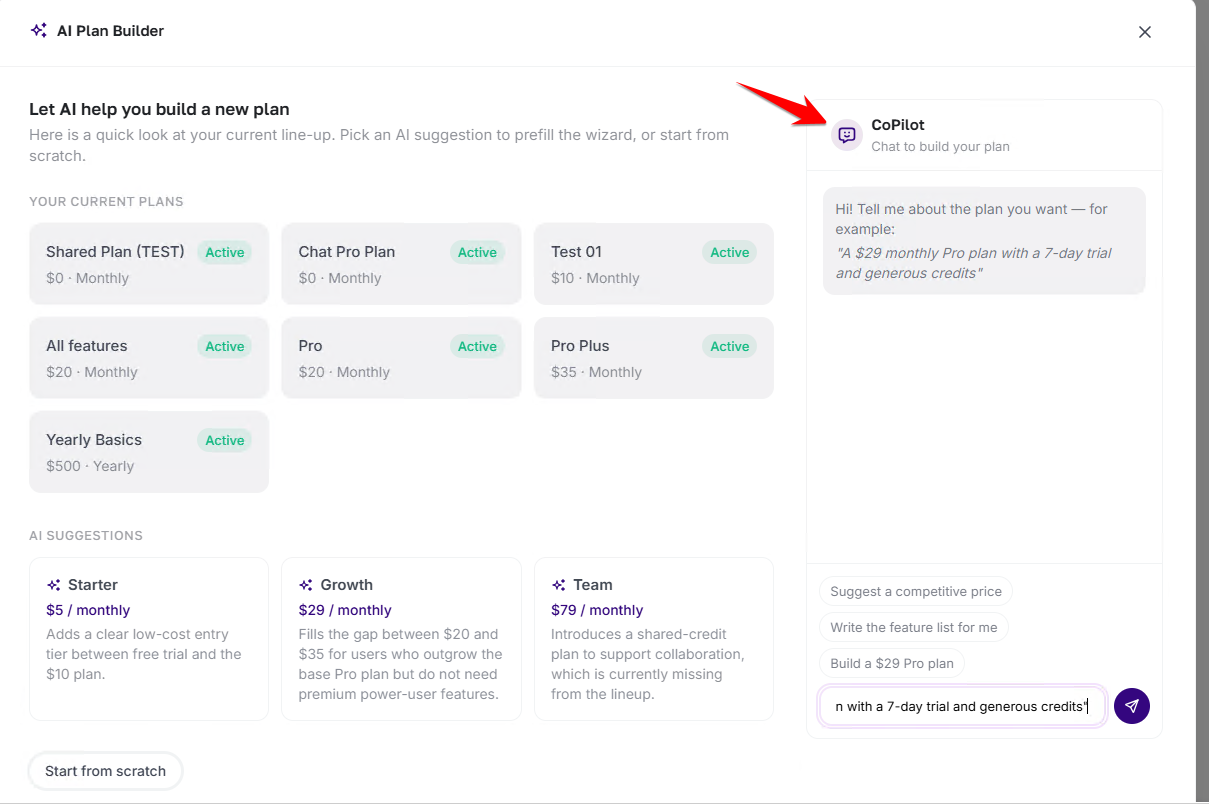
CoPilot
Type a plain-language description of the plan you want into the chat field, and the AI configures it for you. Examples:
- A $29 monthly Pro plan with a 7-day trial and generous credits
- Suggest a competitive price
- Write the feature list for me
- Build a $29 Pro plan
CoPilot interprets your description, configures the plan fields, and opens the wizard pre-filled. You can keep refining through the chat before saving.
Start from scratch
Click “Start from scratch” to open the Create New Subscription wizard with all fields empty.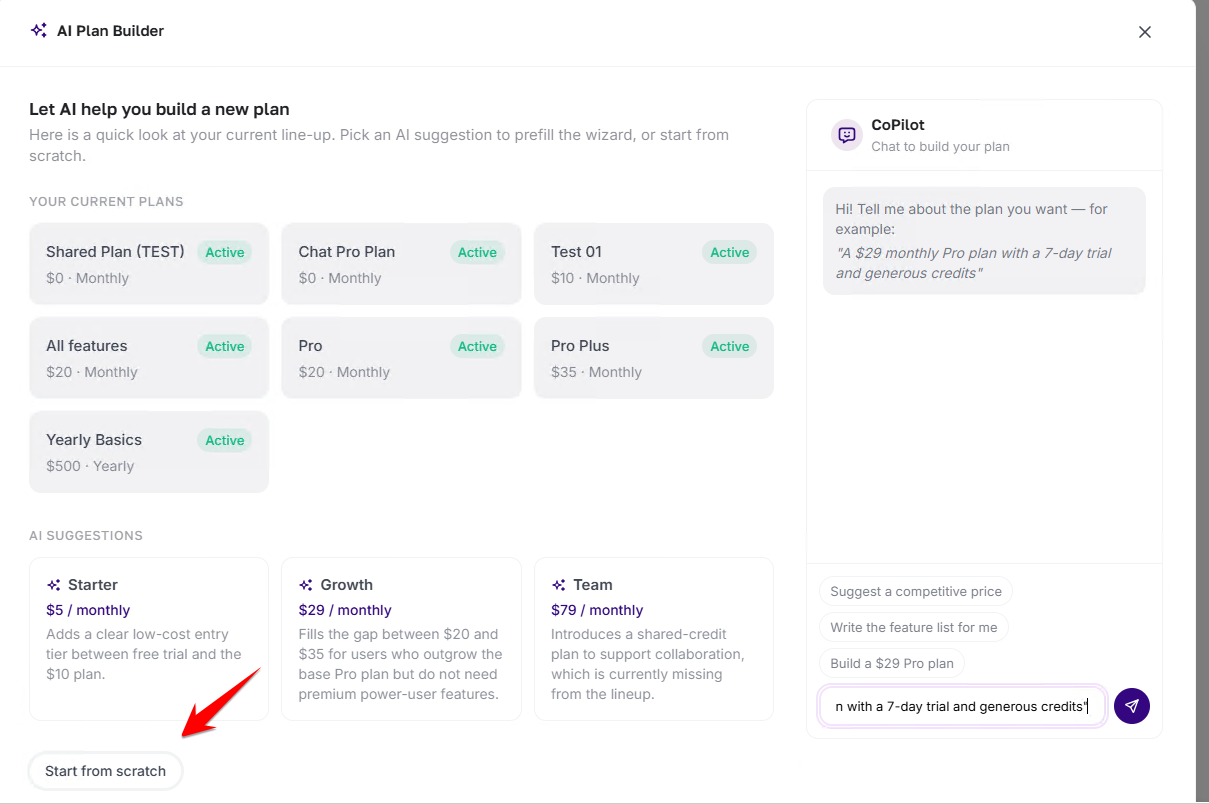
What is a token pack?
Token packs are packs containing a certain amount of tokens that can be purchased by users who do not want to purchase a subscription and want to use MagicAI for a short time. A user does not need a subscription to purchase a token pack.
Creating a token pack
- Navigate to your MagicAI Dashboard
- Click “Finance > Pricing Plans”
- Click “Create New Token Pack”

- Step #1 – Token Pack Details
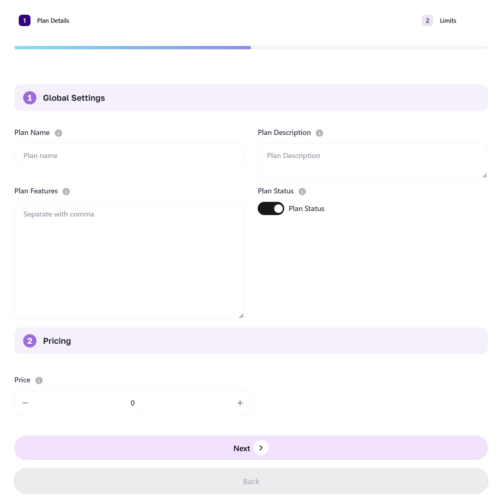
- Plan Name: Type a name for your token pack.
- Plan Description: Enter a description for your token pack.
- Plan Features: Enter features for your token pack.
- Plan Status: Sets whether to show this plan publicly after you create it.
- Price: Enter a price for your token pack.
- Step #2 – Token Pack Limits
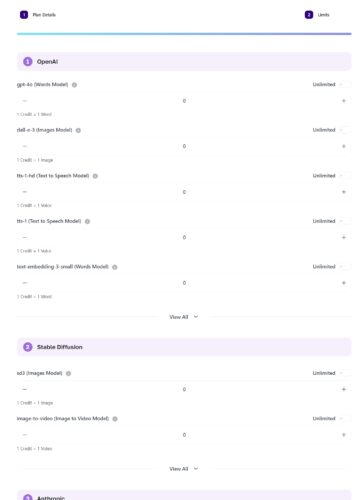
- Set how much credit for models will be given to users who buy this token pack.
- That’s all! You have successfully created a token pack.