
Skip links
🔧
Need help with installation?
Send an email to [email protected] to get a quote.

Video Dubbing

Table of Contents

Video Dubbing translates and re-voices existing videos into multiple languages automatically. Users provide a video via URL or direct upload, select a target language and speaker configuration, and the system produces a fully dubbed version with the original audio replaced by AI-generated speech in the chosen language. The tool is accessible from the side menu under Video Dubbing. Powered by ElevenLabs and HeyGen.

Requirements

  • Prerequisite: Video Dubbing must be installed and active on your workspace.
  • Installation: Install Video Dubbing from the Marketplace.
  • API Keys: Requires an API key for at least one provider — ElevenLabs or HeyGen, or both.
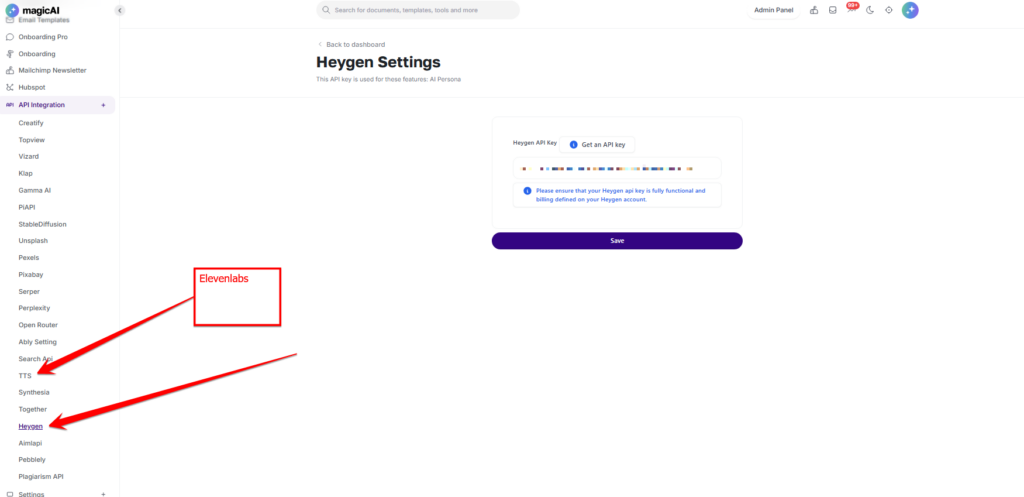
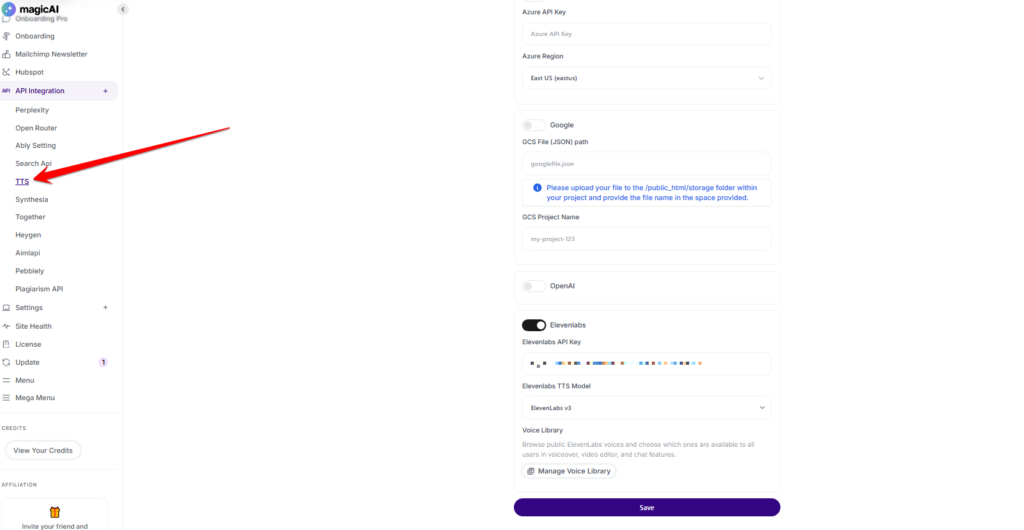
  • ElevenLabs API Key: Add at API Integration→ AI Voiceover Settings (TTS Settings).
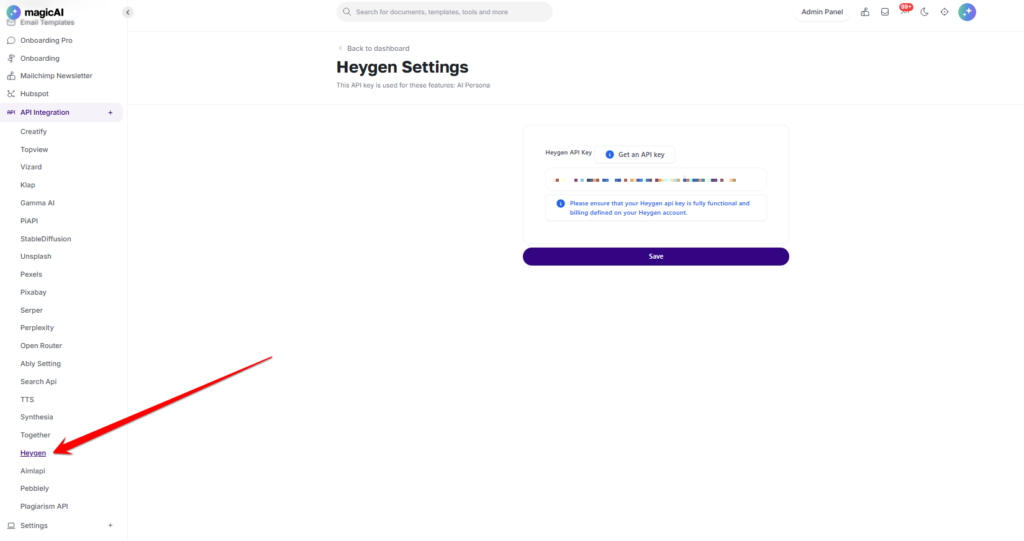
  • HeyGen API Key: Add at API Integration→ HeyGen Settings.
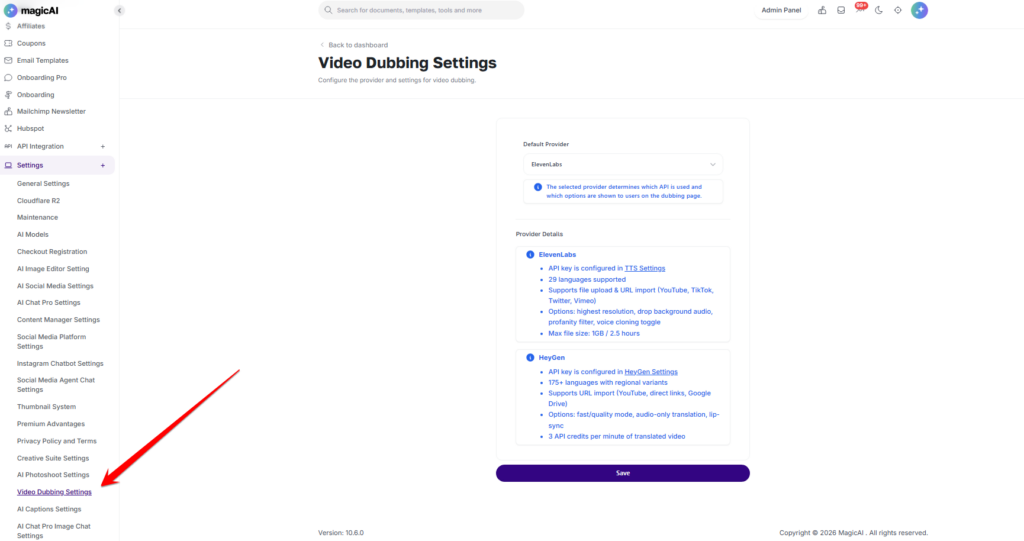
  • Configure: Default provider and provider-specific options are managed at Settings → Video Dubbing Settings.
  • Plan Access: Enable or disable Video Dubbing per pricing tier via Finance → Pricing Plans.

Activation

Before users can dub videos, complete the following steps:

  • Step 1 — Install: Go to Marketplace and install Video Dubbing.
  • Step 2 — Add API Keys: Add keys for the provider(s) you want to offer:
    ElevenLabs: Go to Settings → AI Voiceover Settings (TTS Settings) and enter your ElevenLabs API key. Supports 29 languages, file upload and URL import (YouTube, TikTok, Twitter, Vimeo).
    HeyGen: Go to Settings → HeyGen Settings and enter your HeyGen API key. Supports 175+ languages with regional variants, URL import (YouTube, direct links, Google Drive), fast/quality mode and lip-sync.
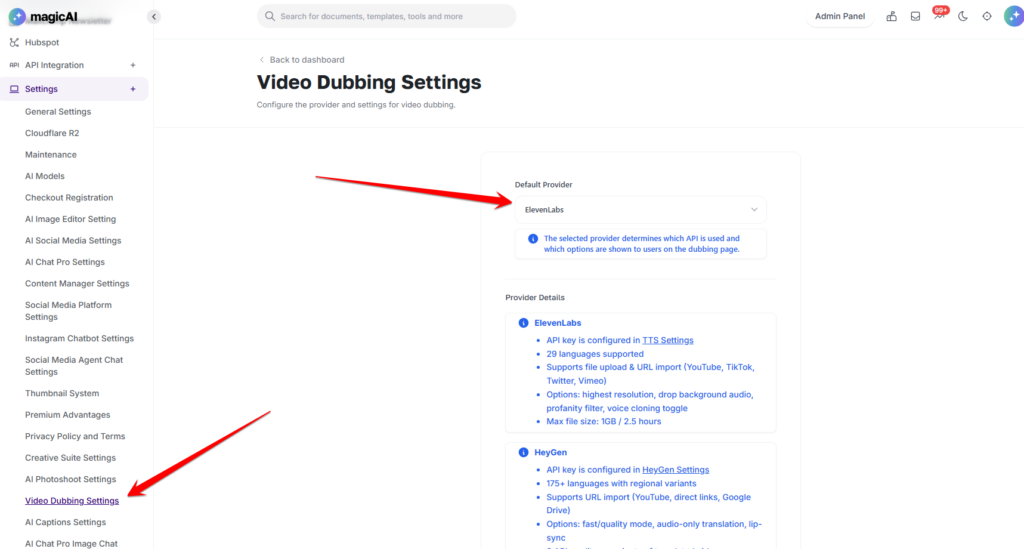
  • Step 3 — Select Default Provider: Go to Settings → Video Dubbing Settings and select whether ElevenLabs or HeyGen is the default provider. The selected provider determines which API is used and which options are shown to users on the dubbing page.
  • Step 4 — Enable on Plans: Go to Finance → Pricing Plans, select each plan that should include Video Dubbing, and enable it.

Getting Started

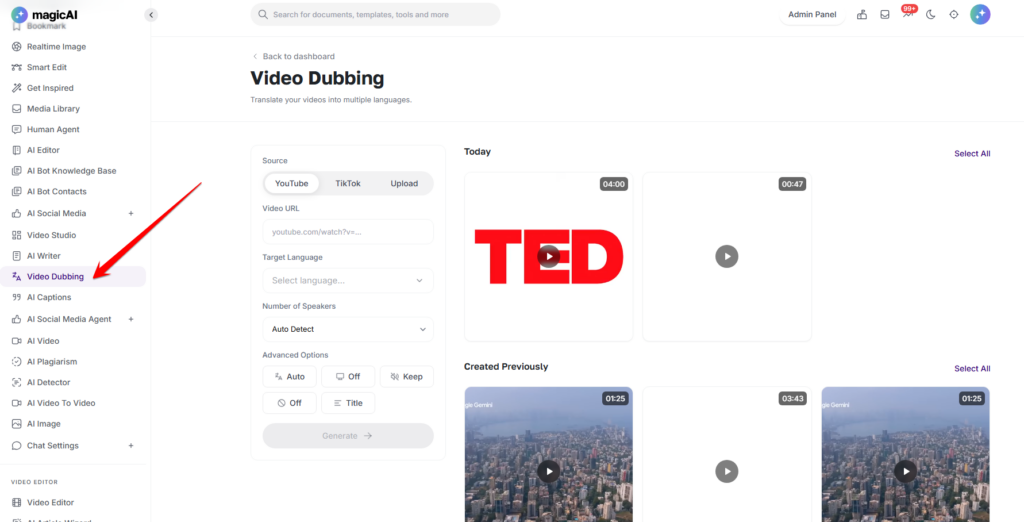
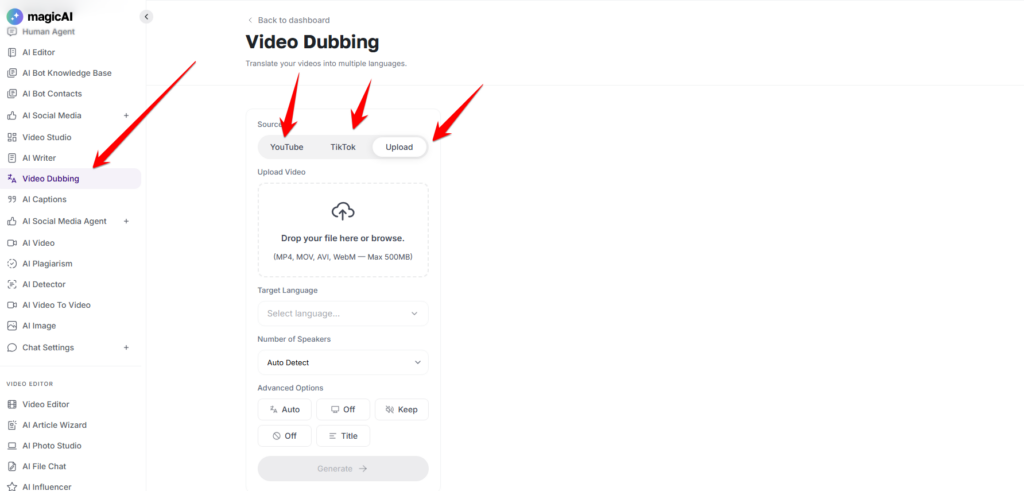
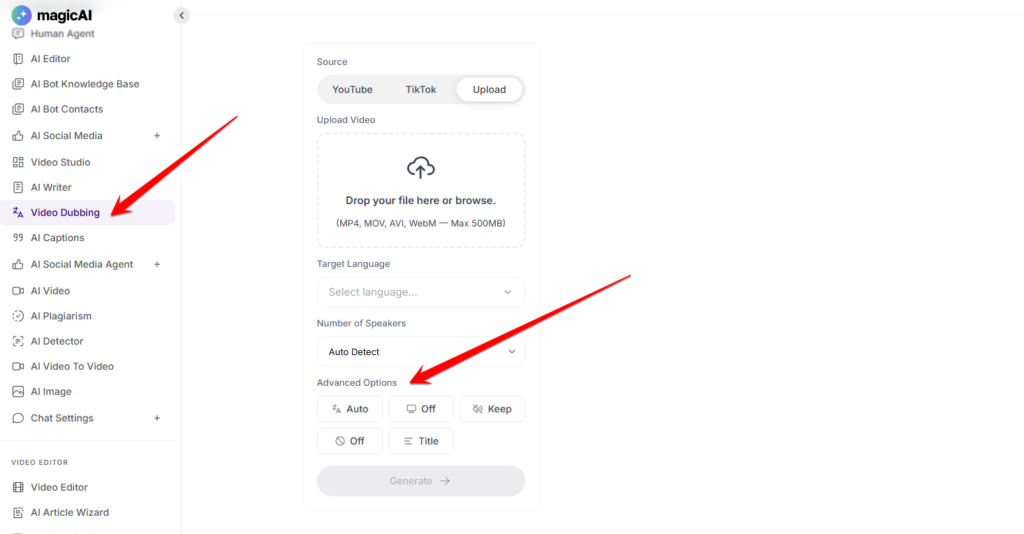
Navigate to Video Dubbing from the side menu. The page displays the dubbing configuration panel and previously dubbed videos. Monthly usage is tracked and shown at the top of the page.

How to Dub a Video

1. Provide a Video Source

Choose a source type from the three tabs:

  • YouTube — paste a YouTube video URL
  • TikTok — paste a TikTok video URL
  • Upload — upload a video file directly from your device
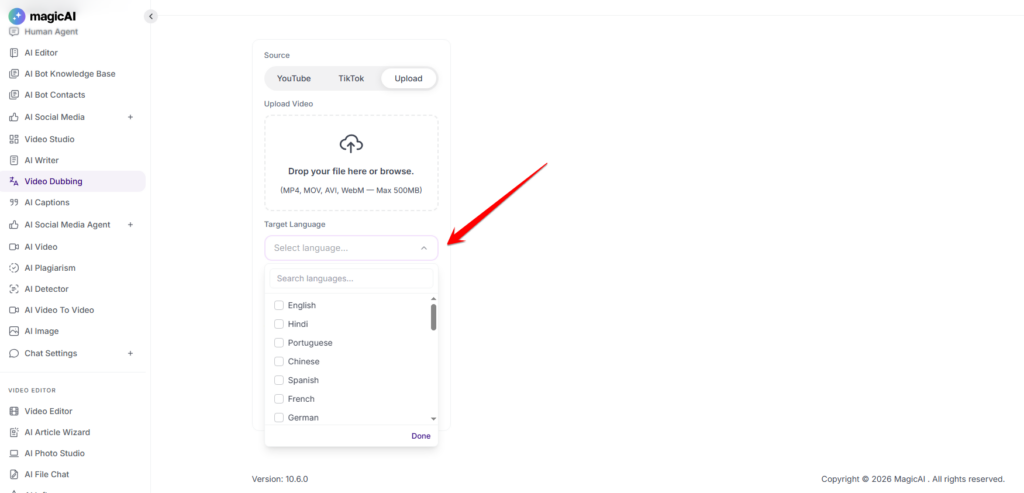
2. Select a Target Language

Choose the language to dub the video into from the Target Language dropdown. Supported languages vary by provider:

  • ElevenLabs: 29 languages — English, Hindi, Portuguese, Chinese, Spanish, French, German, Japanese, Arabic, Russian, Korean, Indonesian, Italian, Dutch, Turkish, Polish, Swedish, Filipino, Malay, Romanian, Ukrainian, Greek, Czech, Danish, Finnish, Bulgarian, Croatian, Slovak, Tamil
  • HeyGen: 175+ languages with regional variants
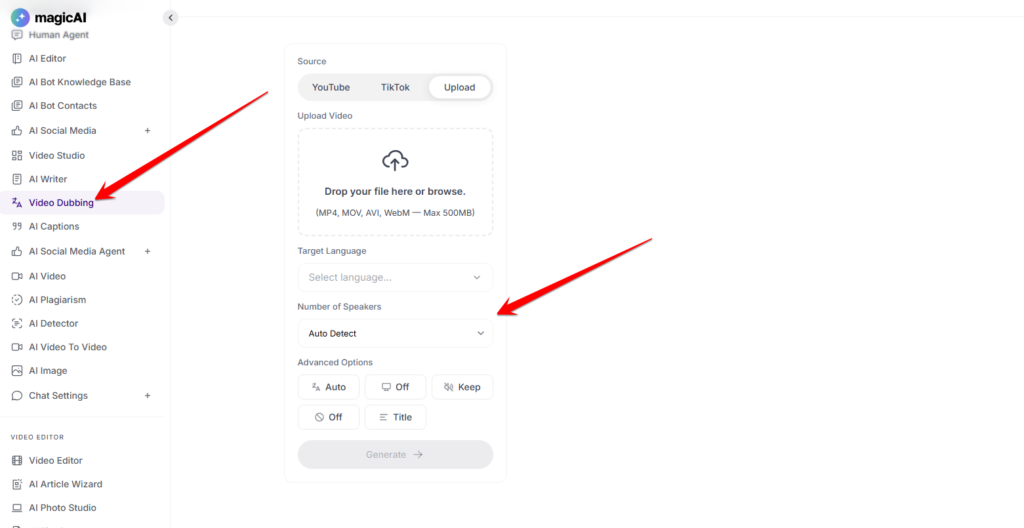
3. Set the Number of Speakers

Select the number of speakers using the Number of Speakers field. Options: Auto Detect (the system identifies speakers automatically), or manually set between 1 and 10. This preserves voice dynamics in multi-speaker content such as interviews, podcasts, and conversations.

4. Configure Advanced Options

Expand Advanced Options for additional controls. Options shown depend on the active provider:

  • Source Language — set the original language manually, or leave on Auto
  • Resolution — highest resolution toggle (ElevenLabs) or quality/fast mode (HeyGen)
  • Background Audio — Keep or drop original background music and ambient sound (ElevenLabs)
  • Profanity Filter — On or Off to filter spoken profanity in dubbed output (ElevenLabs)
  • Audio-only Translation — translate audio without video processing (HeyGen)
  • Lip-sync — align dubbed speech to speaker mouth movements (HeyGen)
5. Add a Title and Generate

Enter a title in the Title field to identify the dubbed video, then click Generate. The dubbed video is processed and added to the Created Previously section below, where it can be previewed and downloaded.

Previously Dubbed Videos

All previously dubbed videos are listed below the generation panel with a thumbnail, duration, and target language label (e.g. “Dubbed to Turkish”, “Dubbed to Hindi”). Click any video to preview or download it.

Admin Controls

All Video Dubbing settings are managed at Settings → Video Dubbing Settings:

  • Default Provider — Select ElevenLabs or HeyGen as the active dubbing provider. The selected provider determines which API is used and which options are shown to users.

Provider capabilities at a glance:

  • ElevenLabs — API key in TTS Settings. 29 languages. File upload + URL import (YouTube, TikTok, Twitter, Vimeo). Options: highest resolution, drop background audio, profanity filter, voice cloning.
  • HeyGen — API key in HeyGen Settings. 175+ languages with regional variants. URL import (YouTube, direct links, Google Drive). Options: fast/quality mode, audio-only translation, lip-sync.

Click Save after making any changes.

To generate the HeyGen API key, have a look at the documentation.

⚠️ Note: Plan-based access and monthly dubbing allowances are managed via Finance → Pricing Plans.