



Type and hit enter
Creative Suite Annotation is a child extension for Creative Suite that allows users to mark specific areas on images, attach targeted instructions, and send context-aware edit requests directly to the AI image editing engine. It enables more precise, region-specific edits by letting users visually guide the AI through drawn selections and comments.
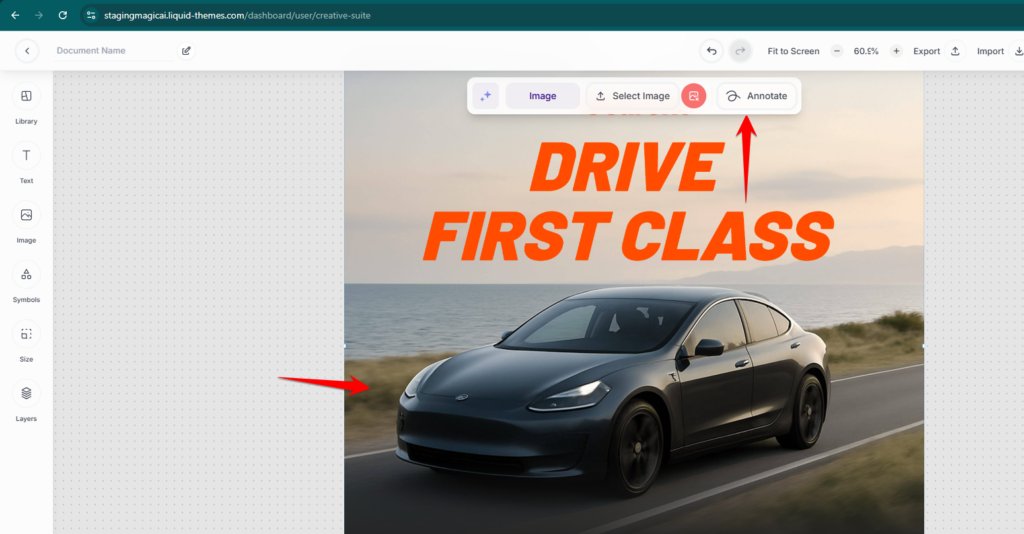
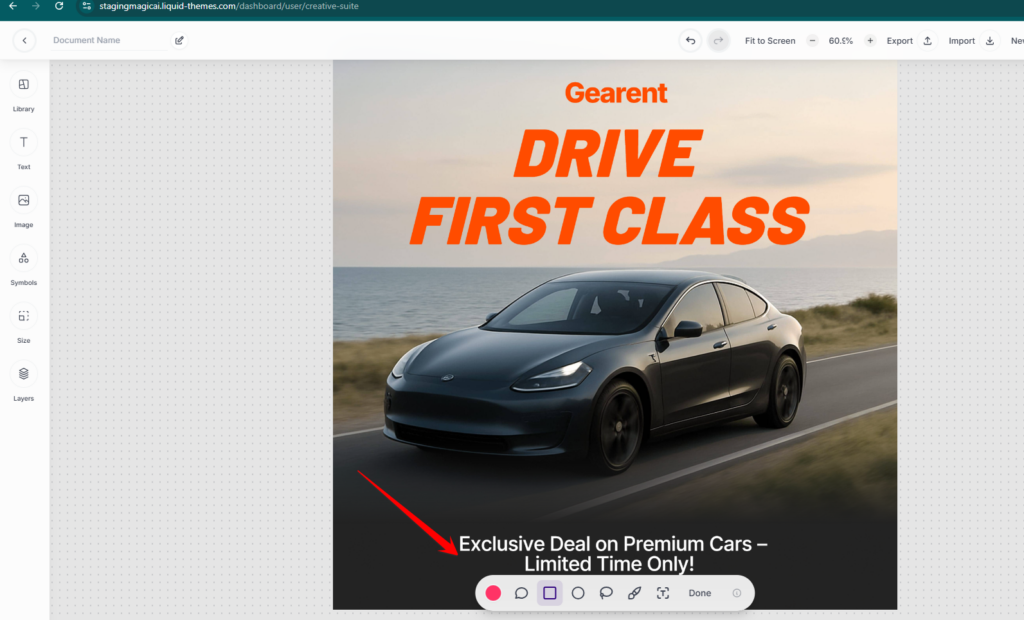
Select an image element on your Creative Suite canvas. A contextual toolbar will appear at the top of the selected image with three tabs: Image, Select Image, and Annotate. Click Annotate to enter Annotation Mode. The canvas will switch to annotation view and the annotation toolbar will appear at the bottom of the screen.
Once in Annotation Mode, the bottom toolbar provides the following tools:
Users can create multiple annotations visually, but only one annotation can be selected for submission at a time. The UI clearly indicates the active/selected annotation. Once ready, click Done to confirm and submit the targeted edit instruction to the AI endpoint.
After placing and selecting an annotation, users add a prompt describing the desired edit for that region. The system sends the annotated mask along with the prompt to the AI edit endpoint. The AI processes only the selected region, leaving the rest of the image intact. Each annotation submission counts as one AI edit request and deducts credits accordingly. Requests are blocked if the user has insufficient credits.
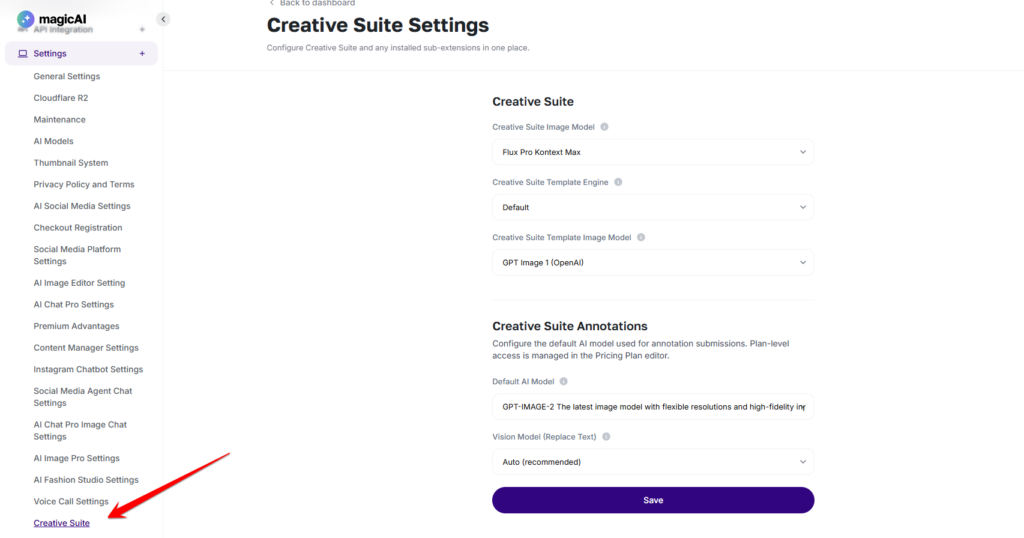
Default AI Model: Select the default AI model for annotation submissions at Settings → Creative Suite → Creative Suite Annotations → Default AI Model (e.g., GPT-IMAGE-2).
Vision Model (Replace Text): A separate vision model can be configured for text-replacement operations within annotations (e.g., Auto/recommended).
Plan-Based Access: Enable or disable Annotation Mode per pricing plan via Finance → Pricing Plans.
⚠️ Note: Only one annotation can be submitted per request. If image edit models do not support masks or positional coordinates, annotations are rendered client-side before the final image is sent to the AI edit endpoint.
Adding {{itemName}} to cart
Added {{itemName}} to cart