

Creative Suite includes a built-in AI Template Generation feature that lets users create fully designed, on-brand templates from a plain-text description. Powered by a configurable AI engine and image model, it interprets a natural language prompt, generates a structured JSON-based design layout, and populates it with AI-generated images — delivering a ready-to-edit canvas in seconds.
Requirements
- Prerequisite: Creative Suite must be installed and active on your workspace.
- No separate installation required — AI Template Generation is a core feature of Creative Suite, accessible directly from the Creative Suite dashboard.
- Configure: Template Engine and Template Image Model are set at Settings → Creative Suite.
Generating a Template
Navigate to Creative Suite from the side menu. The homepage defaults to the Start with AI Template tab. From here:
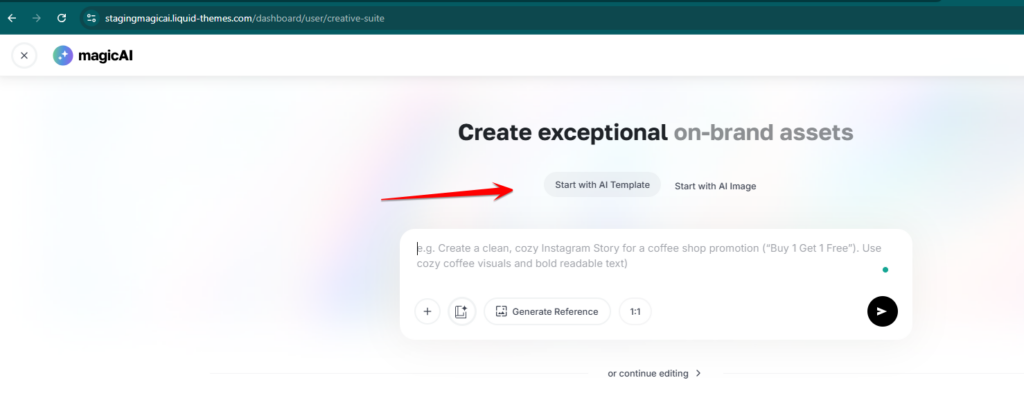
Type a description of the design you want in the prompt field (e.g., “Create a clean, cozy Instagram Story for a coffee shop promotion. Use cozy coffee visuals and bold readable text”). Select an Aspect Ratio from the dropdown — available options are 1:1 (Square), 16:9 (Landscape), 9:16 (Portrait), 5:4 (Landscape), and 4:5 (Portrait). Optionally, upload a reference image using the upload icon, or click Generate Reference to let the AI suggest a visual reference. Click the ▶ Generate button to start the generation process.
The system routes the prompt through the configured Template Engine (AI provider), generates a JSON-based design structure, and fills image placeholders using the configured Template Image Model. The result opens directly in the Creative Suite canvas editor, ready to be customized.
Alternatively, users can click or Start with a Blank Template to open the canvas without AI generation.
Output
Each AI template generation produces a fully structured, editable design on the Creative Suite canvas, including text layers, image placeholders populated with AI-generated images, layout elements based on the described design intent, and a correct aspect ratio matching the selected option.
Admin Controls
Admins configure the AI Template generation pipeline at Settings → Creative Suite under the Creative Suite section:
- Creative Suite Template Engine — Selects the AI provider used to interpret the text prompt and generate the template layout structure. Available options are Default, OpenAI, Anthropic, Gemini, DeepSeek, and X.AI. The “Default” option automatically uses the first available configured provider.
- Creative Suite Template Image Model — Selects the AI image model used to generate images for template placeholders. Available options include GPT Image 1 (OpenAI), GPT Image 1.5 (OpenAI), GPT Image 2 (OpenAI), Flux Pro Kontext (FalAI), Nano Banana Pro (FalAI), Nano Banana 2 (FalAI), and Flux Schnell (FalAI). GPT Image models are recommended for best results.
- Creative Suite Image Model — A separate setting that controls the default AI model used for image editing tools within the canvas (Edit with AI, Reimagine, Remove Background). Available options include Flux Pro Kontext Max, Flux Pro Kontext Max Multi, and Flux Pro Kontext Text to Image.
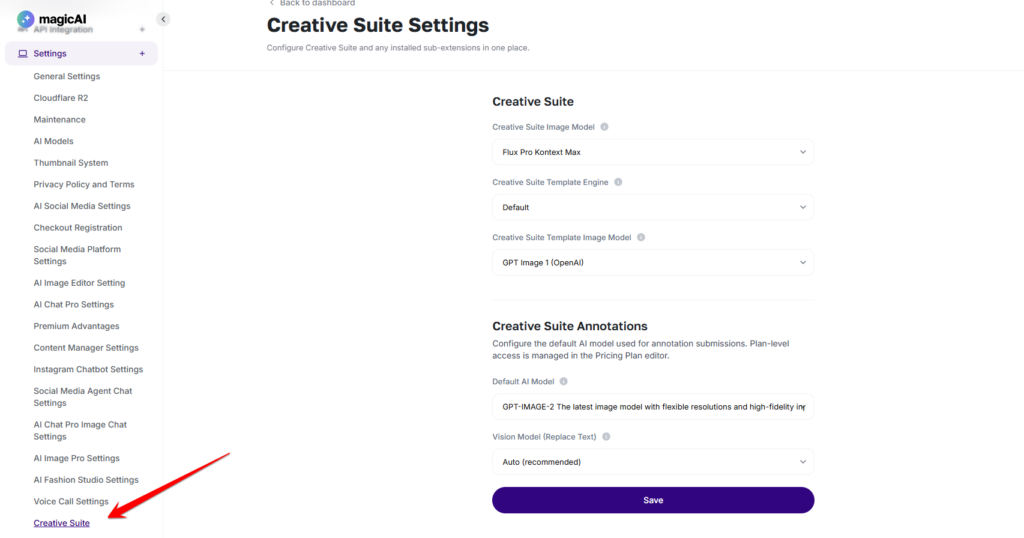
Click Save after making any changes.
⚠️ Note: The Template Engine and Template Image Model work together — the engine generates the design structure, while the image model fills the visual placeholders. Ensure both are configured with active API credentials for the selected providers.