

Type and hit enter
AI Captions automatically generates styled, animated captions for uploaded videos. Users upload a video, select a caption style from a visual template library, and the system produces a captioned version ready for social media. The tool is accessible from the side menu under AI Captions. Powered by Captions.AI.
Before users can generate captions, complete the following steps:
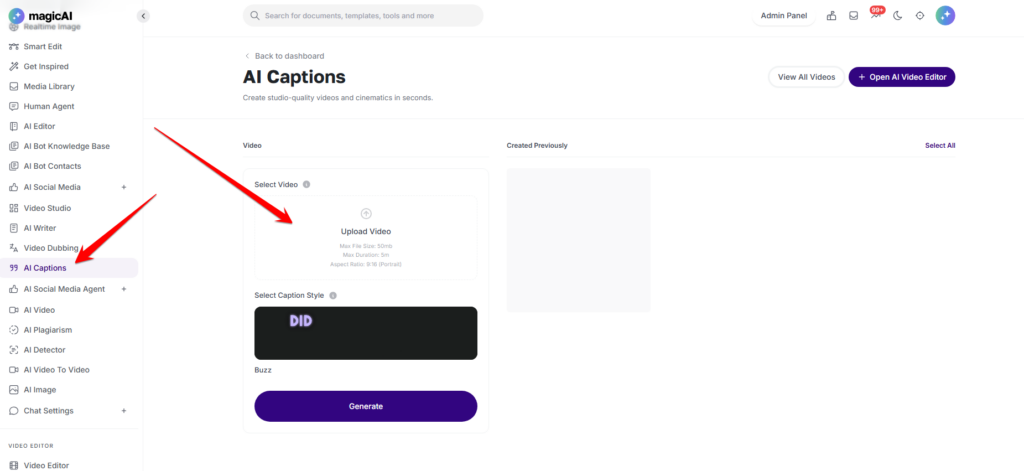
Navigate to AI Captions from the side menu. Click Open AI Video Editor to access captioned videos in the Video Editor. Previously captioned videos appear in the library below the upload area.
Click Select Video or Upload Video to select a video file from your device. The file must be under 50 MB, under 5 minutes in duration, and in 9:16 portrait aspect ratio.
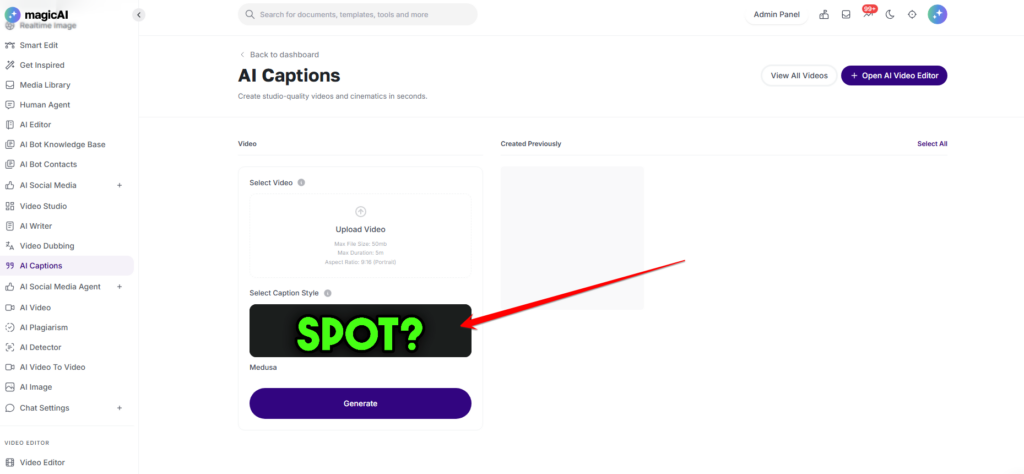
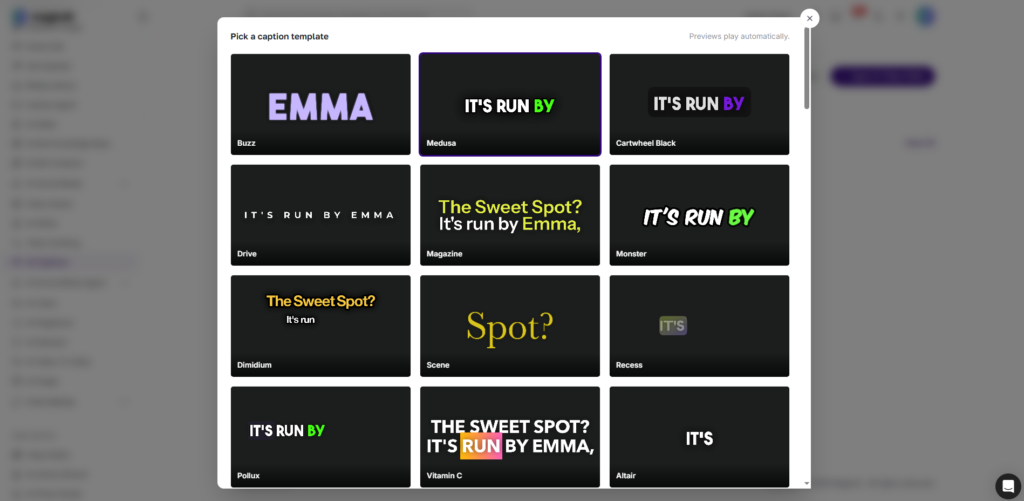
Choose a style from the Select Caption Style panel. Available styles:
“did you hear about” — bold pop-up word format, high-energy, common in viral and short-form content
Line by Line — traditional subtitle format, clean and readable for longer or more conversational content
Additional styles appear in the panel as the library expands.
Click Generate. The system sends the video to the Captions.AI API, which transcribes the audio and applies the selected caption style. The captioned video is added to the library and opens in the Video Editor for final review, adjustment, and export.
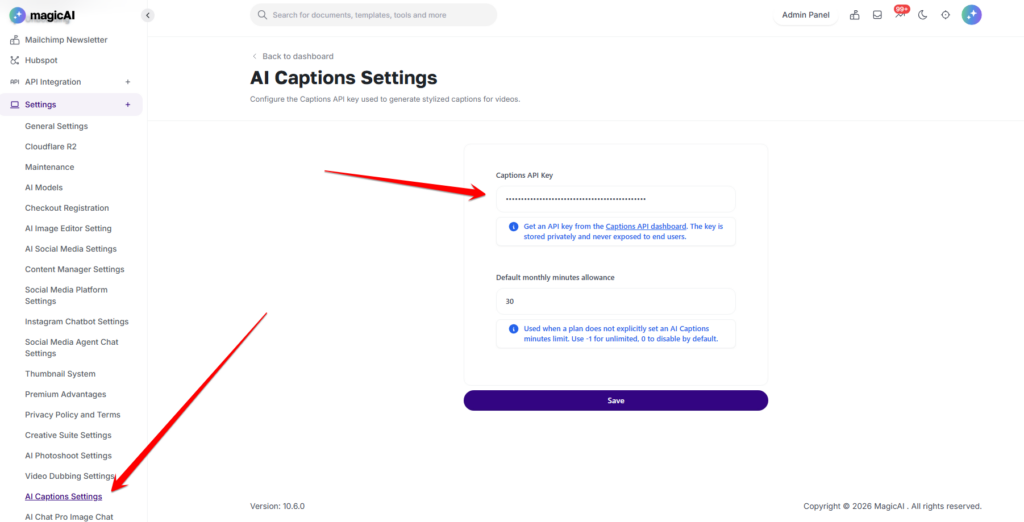
All AI Captions settings are managed at Settings → AI Captions Settings:
Captions API Key — Enter your Captions.AI API key. Obtained from the Captions API dashboard. Stored privately, never exposed to end users.
Default monthly minutes allowance — Fallback minutes limit when a plan has no explicit AI Captions limit set. Use -1 for unlimited, 0 to disable by default.
Click Save after making any changes.
To generate an AI Captions API key, have a look at the documentation.
Adding {{itemName}} to cart
Added {{itemName}} to cart