

Type and hit enter
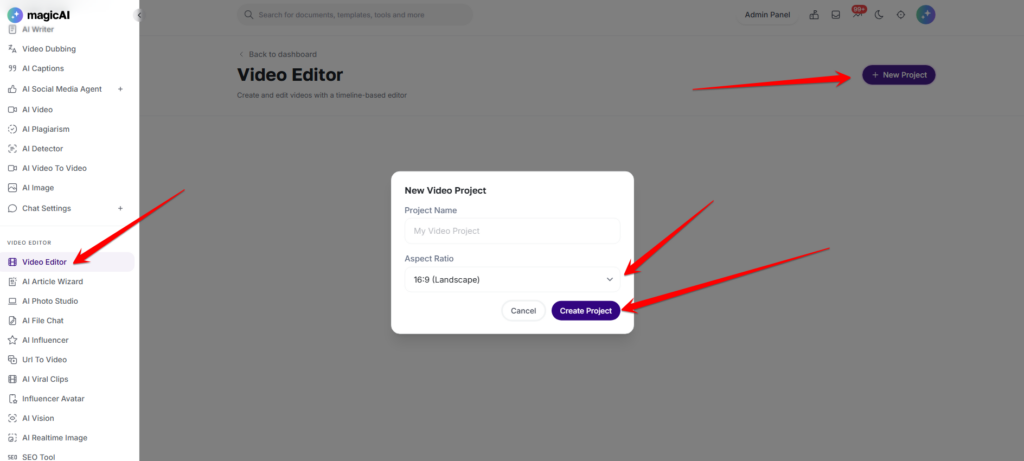
The Video Editor is a timeline-based video editing tool built directly into the dashboard. Users create and edit video projects without leaving the platform. It is accessible from the side menu under Video Editor.
To make Video Editor available to users:
Navigate to Video Editor from the side menu. The page displays all existing projects with their aspect ratio, name, and creation date. Click New Project to create a new editing session.
When starting a new project, set the Aspect Ratio to match the target platform:
Give the project a name, then open the timeline editor.
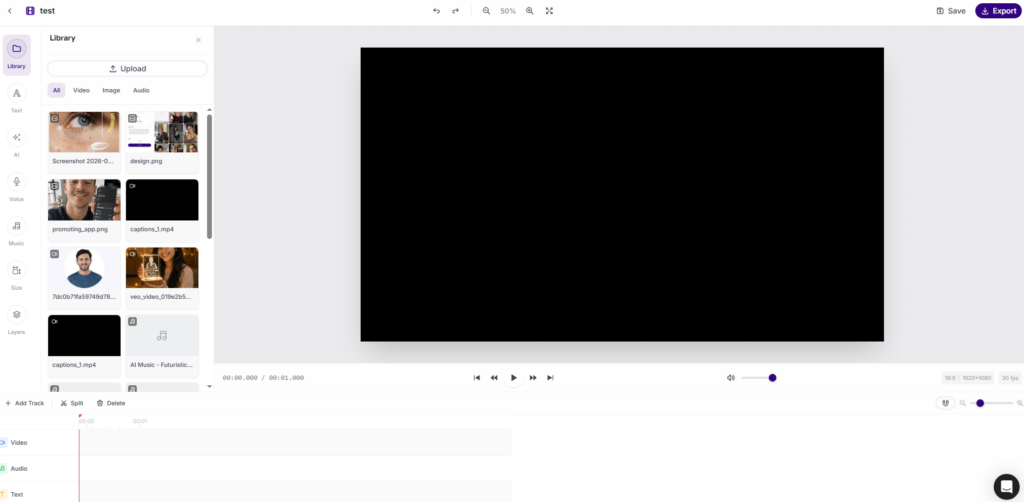
The Video Editor uses a timeline-based interface where users can:
Add, trim, and arrange video clips on the timeline
Layer multiple tracks for video, audio, and other elements
Preview the edit in real time
Name and save projects for continued editing later
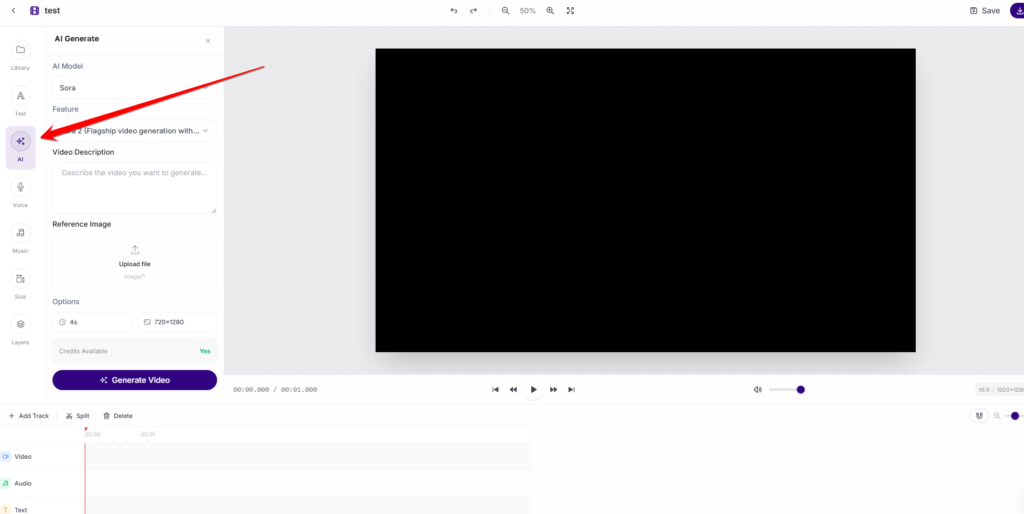
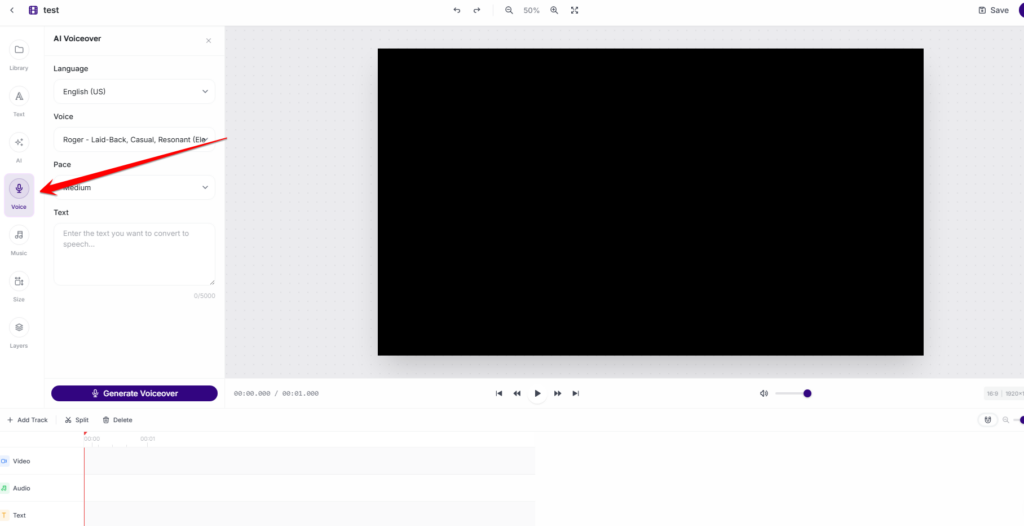
The Video Editor includes an optional side panel with three AI-powered tabs. Each tab becomes available only when the corresponding extension is installed and active on the workspace:
The AI tab appears when AI Video Pro is installed. It allows users to generate new video clips using AI directly within the editor — without switching tools. Generated clips are placed directly on the timeline.
The Voice tab appears when AI Voiceover is enabled. It allows users to generate voiceovers and add them as audio tracks directly on the timeline, without leaving the editor.
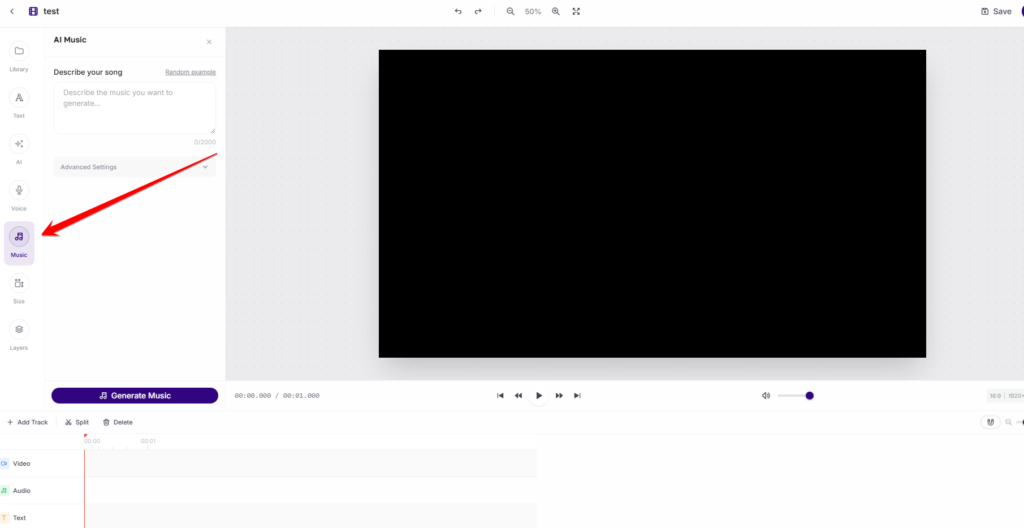
The Music tab appears when AI Music or AI Music Pro is installed. It allows users to generate background music tracks and add them directly to the timeline within the editor.
All created projects are listed on the Video Editor home screen with their aspect ratio label, project name, and creation date. Projects are saved automatically and can be returned to at any time.
Video Editor has no dedicated settings page. Access is managed entirely via Finance → Pricing Plans. Enable or disable the feature per pricing tier.
To enable the AI-powered panels inside the editor, install and configure the relevant extensions:
⚠️ Note: Each AI panel inside the editor is independent. Installing one does not activate the others. All three can be active simultaneously.
Adding {{itemName}} to cart
Added {{itemName}} to cart