


Type and hit enter
The Shared Credit Pool System gives every plan a single, global balance of credits that users spend across all AI models and tools. Previously credits were tracked separately for each model and engine (the “Separated / Per Model” system), so a user could have credits for one model but none for another. With a shared pool, one balance covers everything — text, images, video, audio, and more — and each model simply consumes a different number of credits based on its cost index. The feature is managed entirely from the admin panel. No Marketplace installation is required.
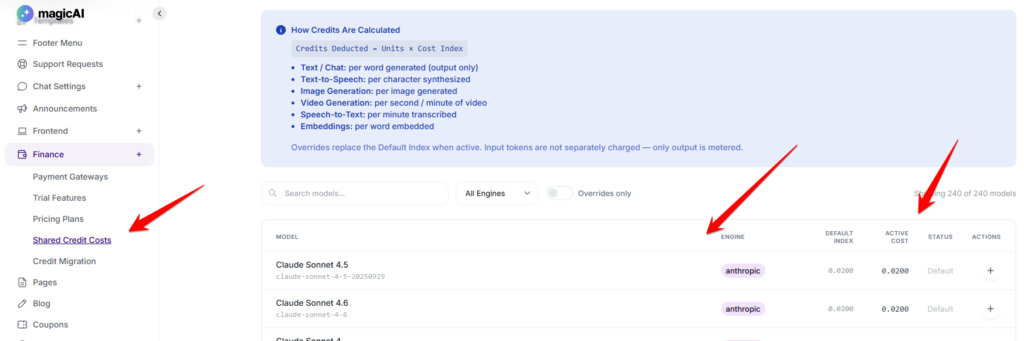
Credits are deducted using a simple formula:
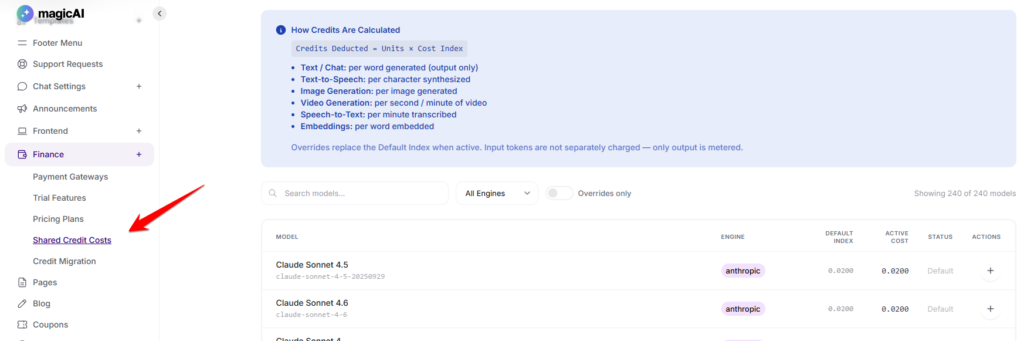
The units depend on the type of operation:
The cost index is a per-model multiplier (its Default Index) that you can override. Only output is metered — input tokens are not separately charged. When an override is active, it replaces the model’s Default Index.
Before users can spend from a shared pool, complete the following steps:
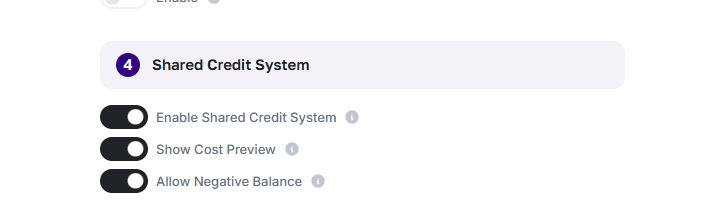
Once the system is enabled and at least one plan uses the shared pool, users on that plan draw from a single credit balance for every AI action. If Show Cost Preview is enabled, they see the estimated credit cost before each operation. If Allow Negative Balance is enabled, operations can continue even when the balance is insufficient. You can fine-tune how much each model costs at any time from Finance → Shared Credit Costs.
Go to Finance → Shared Credit Costs. The page lists every available model (240+) with its Engine, Default Index, Active Cost, and Status.
Filter the list by engine (Anthropic, OpenAI, Gemini, Fal AI, and many more) using the engine tabs, or switch on Overrides only to show just the models you’ve customised. Each row shows the model name, its model ID, and its current cost.
Click Add Override on a model’s row. In the Add Cost Override window you’ll see the Model, its Engine, and the Current Default Cost. Enter your new value in Override Cost, toggle Active on, and click Save Override. The override replaces the Default Index for that model everywhere the shared pool is used. Toggle the override off to fall back to the default at any time.
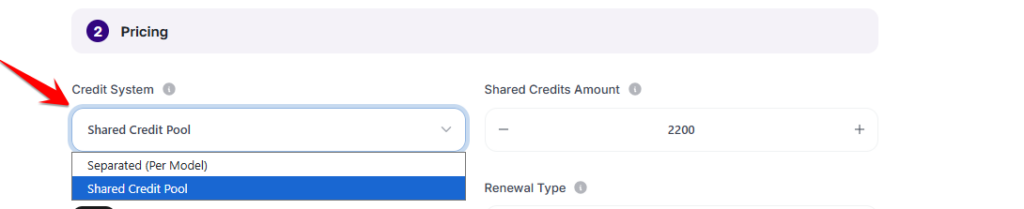
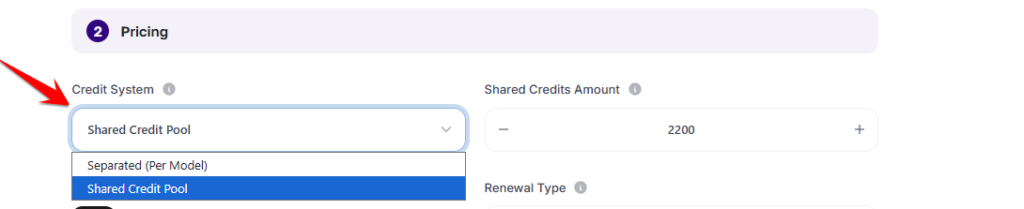
Go to Finance → Pricing Plans and edit a plan. In the Pricing step, set Credit System to Shared Credit Pool (instead of Separated (Per Model)). A Shared Credits Amount field appears — enter the number of credits the plan includes. Use Reset Credits on Renewal to control whether the balance refills each billing cycle. Save the plan.
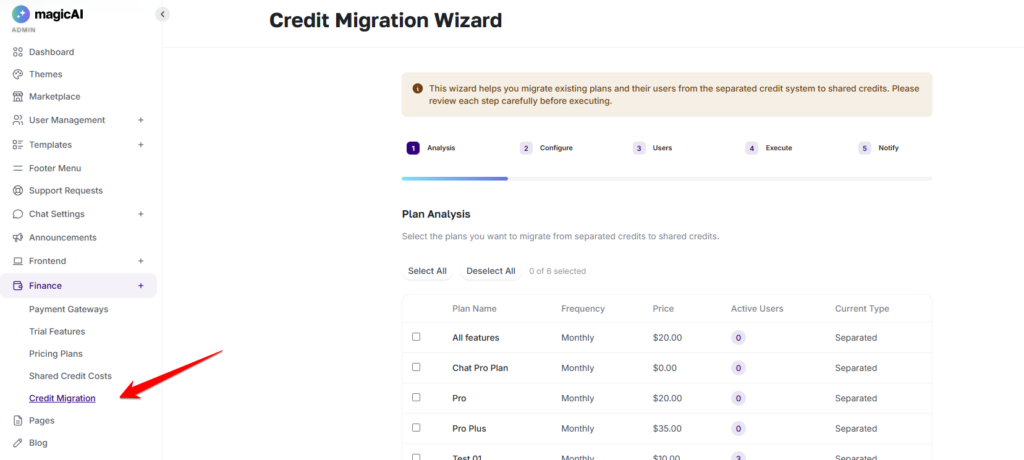
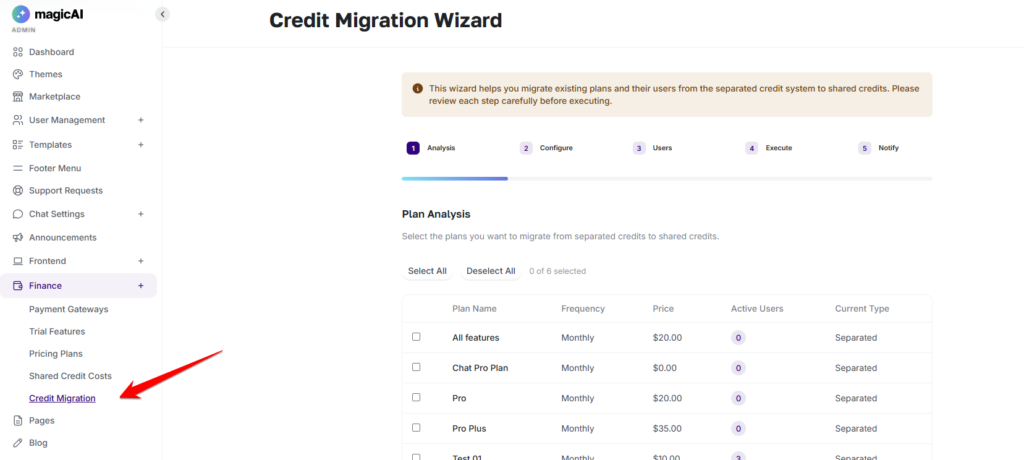
Note: Price and Renewal Type are sensitive fields — changing them cancels existing subscriptions. Switching the credit system on an existing plan may also require migrating affected users’ balances via Finance → Credit Migration.
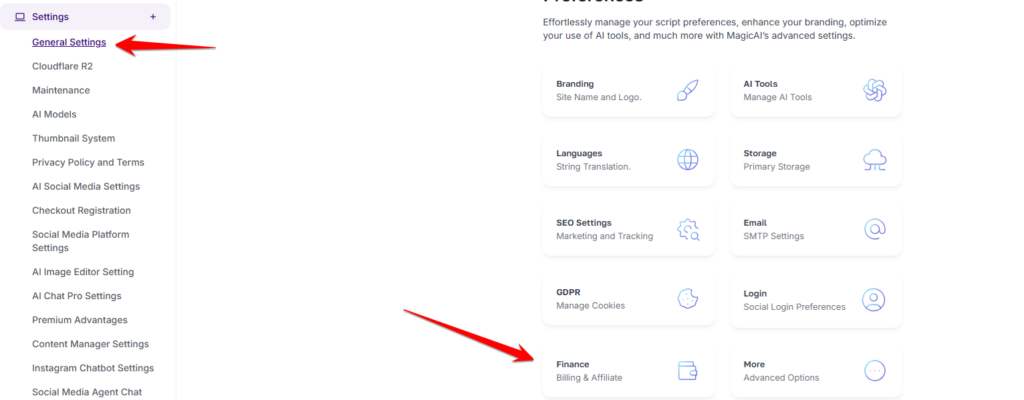
The Shared Credit Pool System is configured across three areas of the admin panel.
Settings → General Settings → Finance → Shared Credit System — Three toggles control the system:
Click Save after making changes.
Finance → Shared Credit Costs — Set the credit cost of every model. Each model has a Default Index; use Add Override to set a custom Override Cost and toggle it Active. Filter by engine or show overrides only.
Finance → Pricing Plans — For each plan, set Credit System to Shared Credit Pool and define the Shared Credits Amount, plus whether credits reset on renewal.
Finance → Credit Migration — Move existing per-model balances into the shared pool when transitioning from the older system.
Adding {{itemName}} to cart
Added {{itemName}} to cart