

The AI Chat Pro feature introduces a sleek, modern layout for AI conversations within MagicAI. It offers a fully redesigned user experience and can be enabled in various modes depending on how you want to present AI Chat across your platform.
Key Features of AI Chat Pro
✅ Redesigned, modern chat interface
✅ Flexible display modes for dashboard and landing page
✅ Seamless integration into your MagicAI platform
✅ Guest user message limit control for frontend use
AI Chat Pro — New Features
AI Deep Research
AI Chat Pro now includes a built-in Deep Research mode, powered by OpenAI (O3, O4 Mini) and Google Gemini. It enables users to perform long-form, multi-step research directly from the chat interface.
How to use: Click the telescope 🔭 icon in the chat input to activate Deep Research mode. Your query will be processed through research-capable AI providers and results will be displayed inside the Canvas view with structured sections, headings, and references.
What you get:
- Final answer / research report
- Sources & citations (clickable links)
- Reasoning / thinking process (step-by-step, summarized)
Notes:
- Deep Research runs inside Canvas, not standard chat bubbles
- Usage limits and access can be controlled per pricing plan by the admin
- Demo mode users will see a warning before using this feature
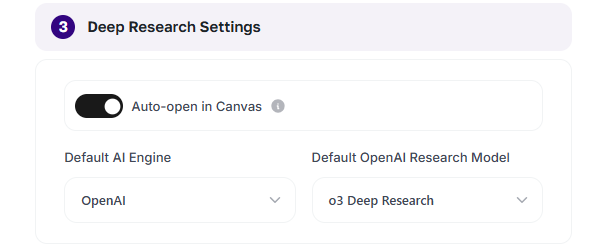
Deep Research Settings
Admins can manage Deep Research behaviour by:
- Enabling or disabling automatic Canvas option, which opens the research result in Canvas automatically after completion
- Setting the default AI engine used for Deep Research
- Selecting the default research model for processing research requests
AI Council
AI Council allows a single user prompt to be processed simultaneously by multiple AI providers (OpenAI, Gemini, Anthropic, Grok, etc.) and returns a single, consolidated consensus answer.
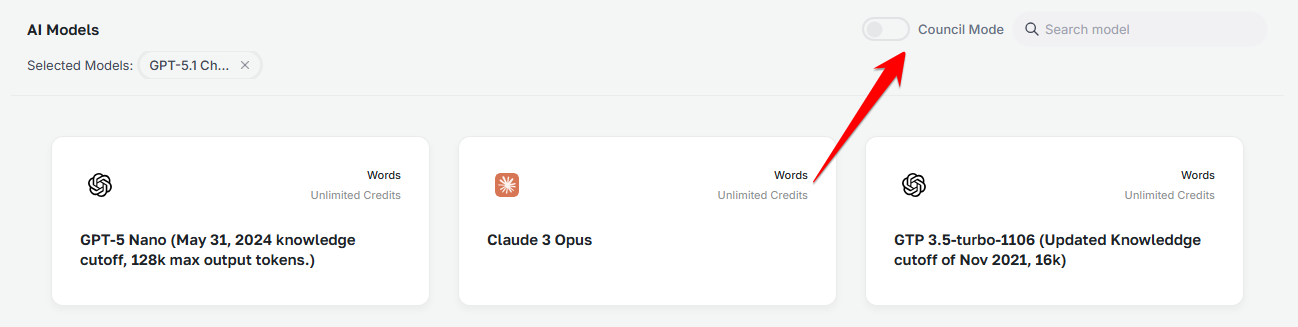
How to use: Click on the model selection and switch the AI Council toggle. This will allow you to select more than 2 models. Once your models are selected, send your message — each model is queried in parallel, and a synthesis layer produces a final answer.

What you get:
- Consensus Answer — a synthesized final output highlighted at the top
- Individual Model Responses — collapsible per-model outputs showing response time and content
- Confidence Score — agreement percentage across models
- Disagreement Highlights — contradictions flagged in red
- Unique Discoveries — insights found by only some models
Admin Controls:
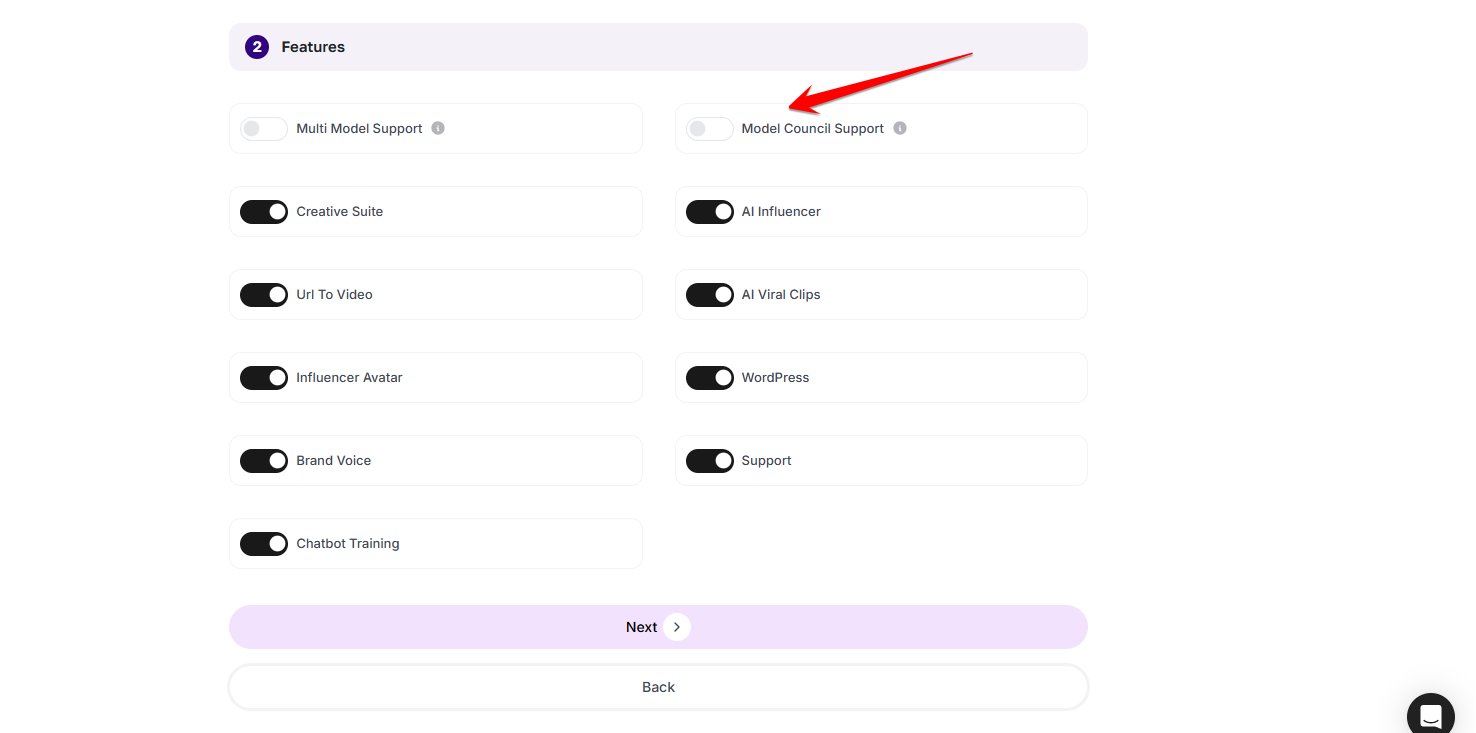
- Enable/Disable AI Council per pricing plan
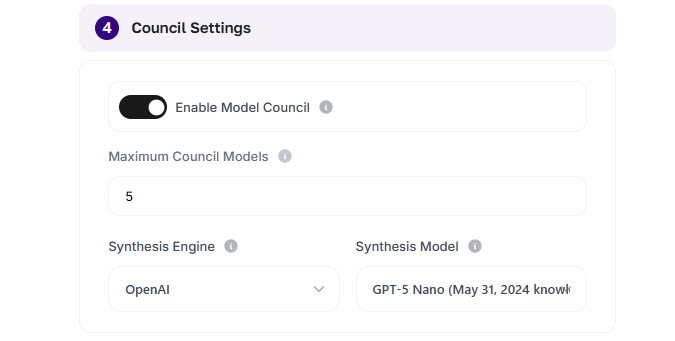
- Choose the synthesis model
- Set max models per council session
- Demo mode: limited to 3 models, 1 council request per IP per day
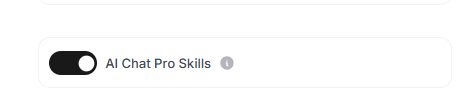
Skills Integration
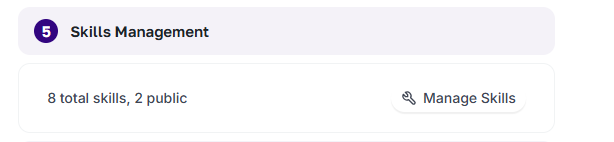
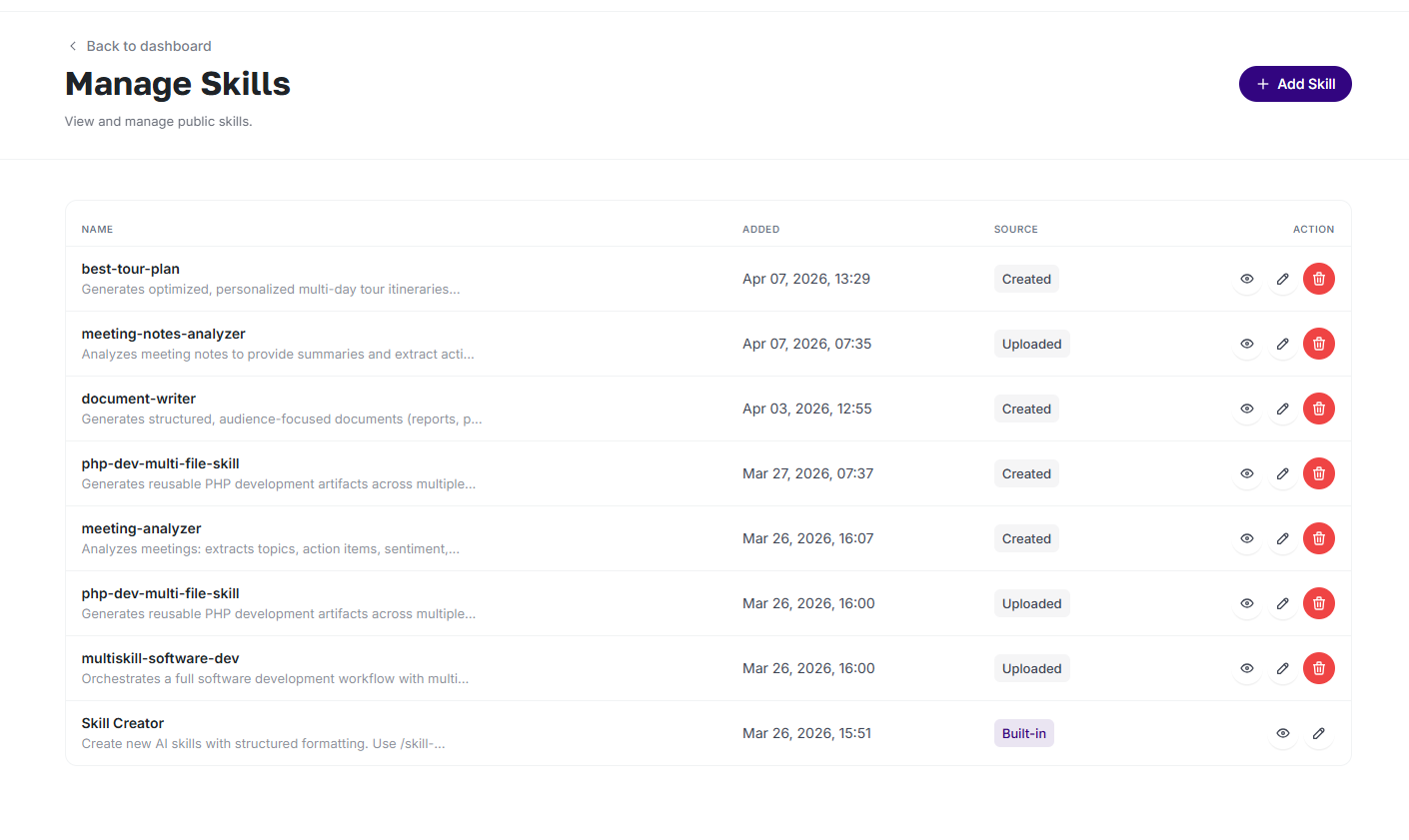
AI Chat Pro now supports a Skills system — reusable AI capabilities that can be created, shared, and installed like portable plugins.
Creating a Skill: Use /skill-creator in the chat input. The AI will guide you through building a structured skill with a name, description, and instructions. You can then click Add to save it to your personal skills list, or download it as a .skill file to share.
Using a Skill:
- Type / in the chat input to see a list of available skills and select one manually
- Or enable Auto mode — the AI will automatically decide when a skill is relevant and apply it
- The active skill name is shown in the chat/prompt area when in use
Importing a Skill:
- Upload a .skill file directly
- Import from a GitHub URL
- Preview the skill name, description, and file structure before confirming
Skill Structure: A skill is a folder containing a SKILL.md file (with YAML frontmatter and Markdown instructions) plus optional bundled resources (scripts, references, assets). Skills are lightweight, portable, and compatible with OpenAI, Gemini, and Anthropic.
Admin Controls:
- Enable/Disable Skills per pricing plan
- GitHub and file upload import are restricted in demo mode
Smart Highlight
When the AI responds, Smart Highlight automatically detects key entities in the text — such as movies, apps, places, celebrities, products, and companies — and makes them clickable.
How it works: Clicking a highlighted entity opens a side drawer with additional details: title, description, image (if available), and metadata. You can also ask follow-up questions about the entity directly from the drawer.
Highlight Rules:
- Only high-confidence entities are highlighted (threshold >0.8)
- Only the first occurrence per entity is highlighted
- Maximum 3 highlights per response to avoid clutter
- No highlights inside code blocks or technical content
Admin Controls:
- Enable/Disable Smart Highlight
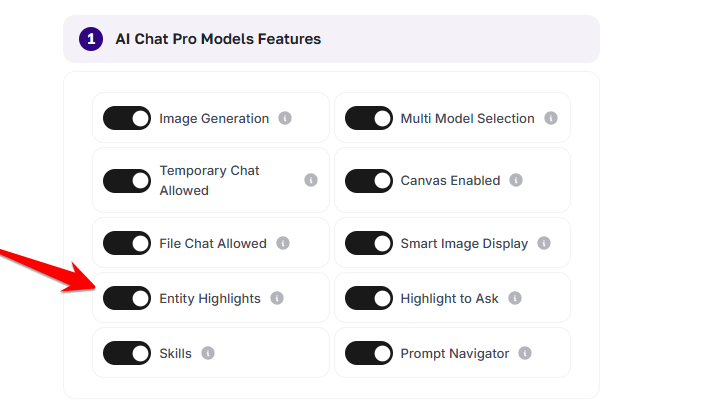
- Set max highlights per response
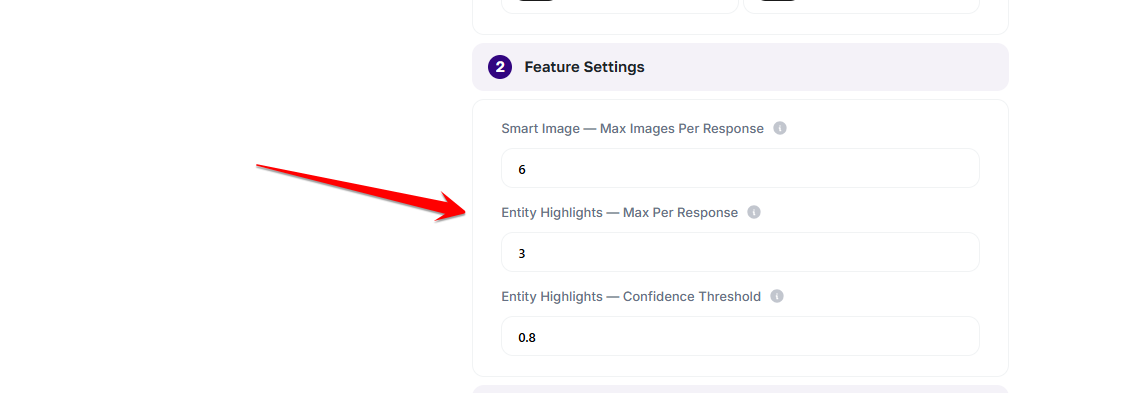
- Adjust the confidence threshold

Smart Highlight to Ask
Highlight to Ask lets users select any text in the chat and instantly ask a follow-up question about it, without copying and pasting.
How to use: Highlight/select any text in the chat interface. A small popover will appear with an “Ask a Follow-up” action. Click it to insert the selected text into the input bar as context for your next message.
Behaviour:
- The highlighted text appears as a distinct element inside the chat input
- If the text is very long, it is intelligently truncated
- You can delete the inserted text from the input if needed
- The AI prioritises the highlighted content when generating its response
- Works on mobile (long-press to select)
Smart Image Display
AI Chat Pro now intelligently decides when to include images in responses. Images appear only when they genuinely add value — for visual topics like travel, interior design, movies, fashion, and products — and are skipped for text-focused tasks like coding, calculations, or copywriting.
How it works: The system classifies each query as “visual” or “non-visual” and fetches relevant images automatically when appropriate. Up to 3 images are shown inline; clicking any image opens a full lightbox gallery with image sources and links.
User controls:
- Say “show images” to force image inclusion
- Say “no images” to force text-only mode
Admin Controls:
- Enable/Disable Smart Image Display globally
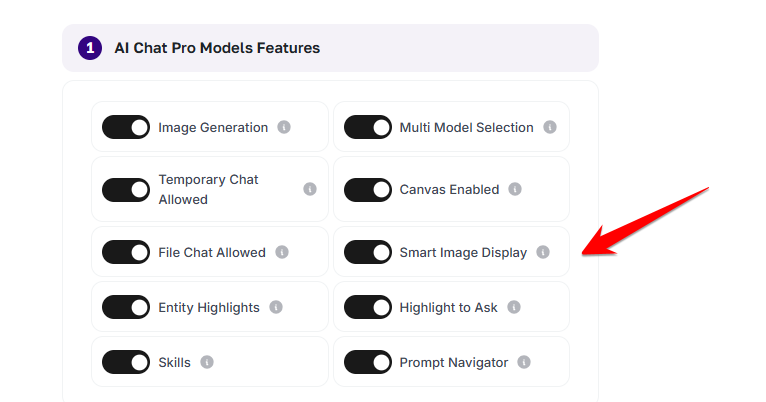
- Set max images per response
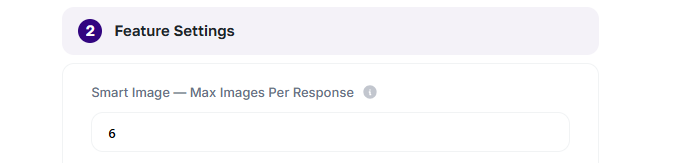
- Enable/Disable per assistant
- Disable on demo mode
Chat Summary Navigation
For long conversations, a vertical navigation panel appears on the right side of the chat once the conversation reaches 5 or more prompts. Each dot represents a user prompt, and clicking it smoothly scrolls to that point in the conversation.
Features:
- Hover over a dot to preview the prompt text
- Current position is highlighted as you scroll
- Up to 25 navigation dots shown; scrolls within the panel if more
- Automatically updates as new prompts are added
- Can be enabled/disabled from AI Chat Pro Settings
- On mobile: a collapsible button reveals the prompt navigation panel
Rearranged Chat Pro Inputs
The chat input area has been redesigned for a cleaner, more focused experience — similar to ChatGPT’s interface.
What changed: All attachment and feature options are now grouped behind a + button, which opens a context menu. Available options include:
- Deep Research
- Skills
- Upload
- Canvas
- Web Search
- Brand Voice
- Prompt Library
- Realtime Search
After activating an option, the related tool appears inline in the input area (or opens a modal for Skills, Brand Voice, Library, and Upload). Tools can be individually removed from the input when no longer needed.
Available Modes
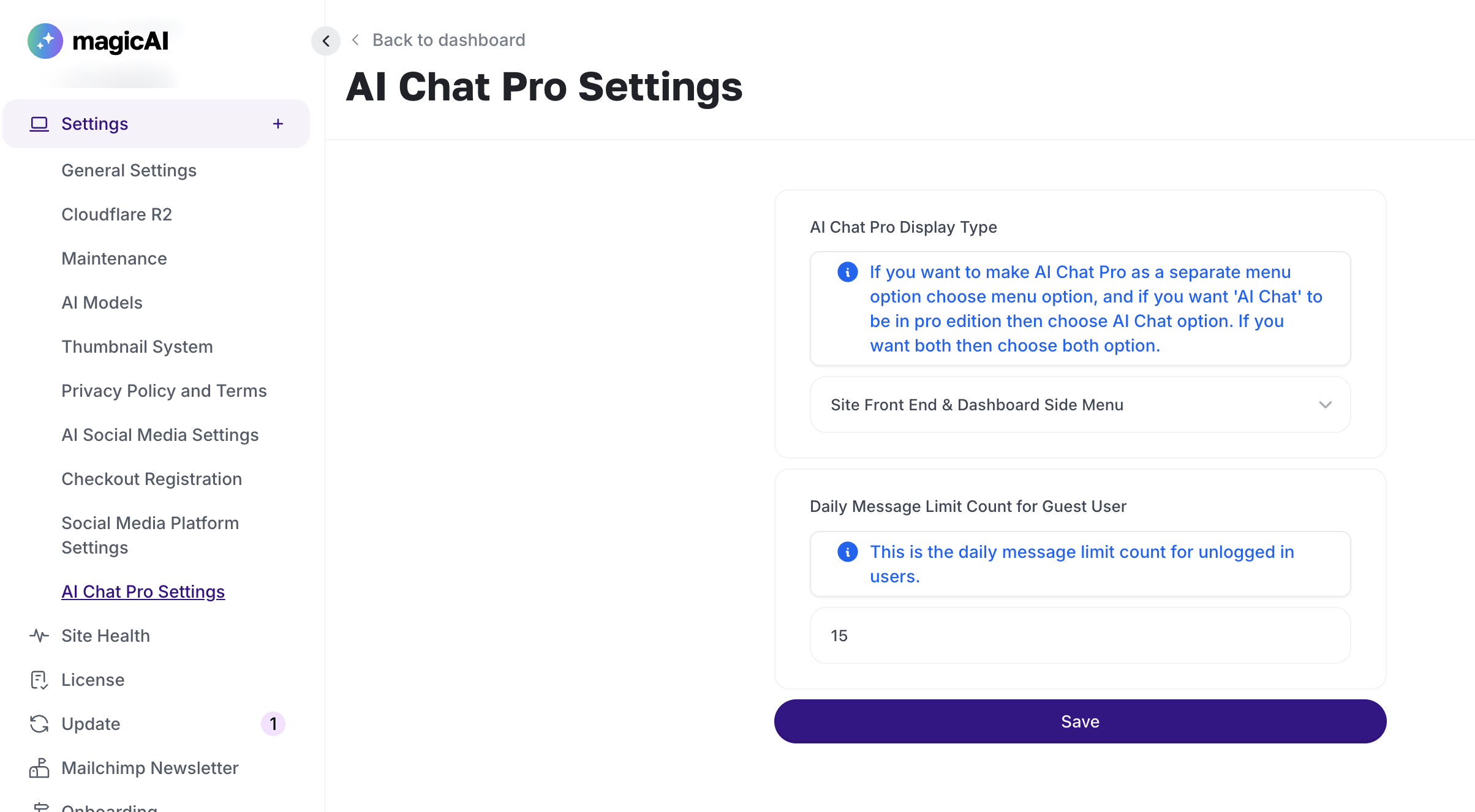
AI Chat Pro includes four flexible modes, each designed to fit different use cases:
1. Dashboard Side Menu
- Adds AI Chat Pro as a separate item in the MagicAI dashboard menu.
- Useful when you want to offer the new layout without replacing the original chat interface.
2. AI Chat (Replace Existing)
- Replaces the default AI Chat in MagicAI with the AI Chat Pro layout.
- Keeps everything within the dashboard but upgrades the look and feel.
3. Site Front End
- Replaces the landing page of your MagicAI site with AI Chat Pro.
- Ideal if you want to use your AI chat as the main user-facing interface.
4. Site Front End & Dashboard Side Menu
- Combines both options:
- Replaces the landing page with AI Chat Pro
- Adds AI Chat Pro to the dashboard menu
Perfect for platforms focused entirely on chat interactions.
🔒 Daily Message Limit for Guest Users:
When using Site Front End mode, you can use the Daily Message Limit Count for Guest User option to restrict how many messages a guest can send per day—perfect for managing traffic and encouraging registration.
How to Enable AI Chat Pro
- Go to the Marketplace in your MagicAI dashboard.
- Find and install the AI Chat Pro extension.
- Choose your desired mode from the extension settings.
- Save changes and you’re ready to go!