

Outbound & Follow-Up Calls extend the Phone Call Agent so agents place calls, not just answer them. Users dial a single number, schedule a call for later, run a batch call against a whole list, or let the agent call customers back automatically around key moments such as an appointment reminder or a post-booking survey. The same agent — its voice, language, instructions, and knowledge base — is used for outbound and follow-up calls.
Outbound and follow-up calling works with both providers, ElevenLabs and Twilio. The agent must have a phone number attached before it can place any call.
Requirements
- Prerequisite: — Phone Call Agent must be installed and active on your workspace. Outbound & Follow-Up Calls are part of Phone Call Agent and cannot run independently.
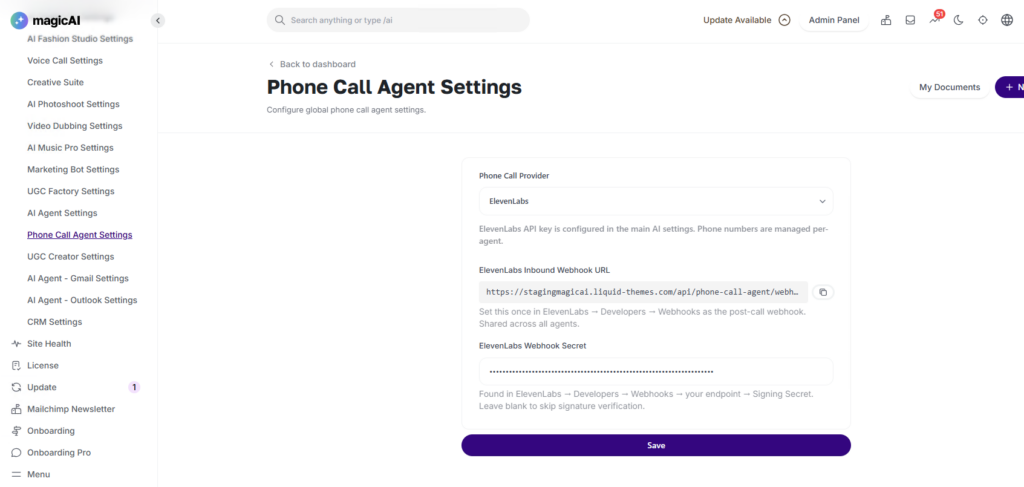
- Provider: — Works with both ElevenLabs and Twilio. The active provider is set globally at Admin → Phone Call Agent Settings.
- Booking Assistant: — Required for booking-based follow-up rules. Enable and configure the Booking Assistant on the agent in Step 1 — Configure.
Activation
Before your users can place outbound or follow-up calls, complete the following steps:
- Step 1 — Install: Go to Marketplace and install Phone Call Agent if it is not already active.
- Step 2 — Attach a Phone Number: In the agent editor, open Step 3 — Phone Numbers & Usage and attach a number to the agent. An agent with no number cannot place calls and does not appear in the From Agent dropdown.
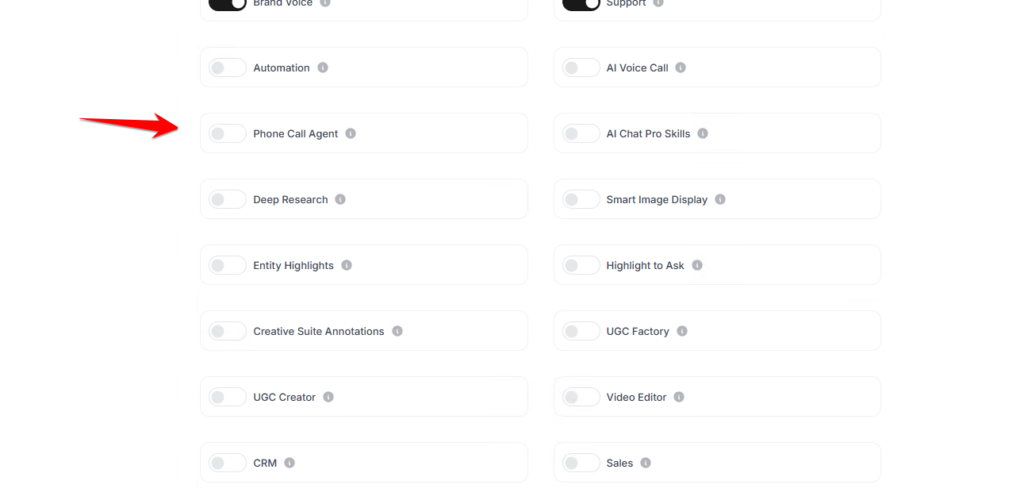
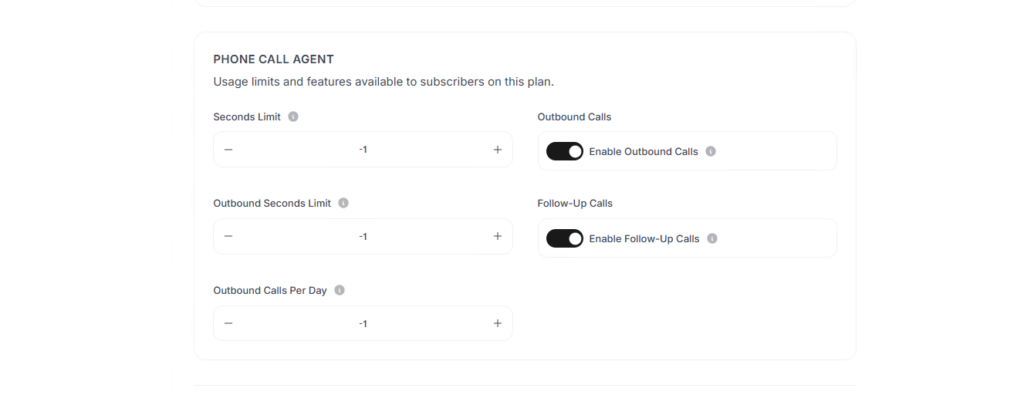
- Step 3 — Enable Outbound on Plans: Go to Finance → Pricing Plans, select each plan that should include outbound calling, and set Enable Outbound Calls, Outbound Seconds Limit, and Outbound Calls Per Day.
- Step 4 — Enable Follow-Up on Plans: In Finance → Pricing Plans, set Enable Follow-Up Calls on each plan that should include automatic callbacks. Follow-up calls are outbound calls, so outbound must also be enabled on the plan.
Outbound Calls
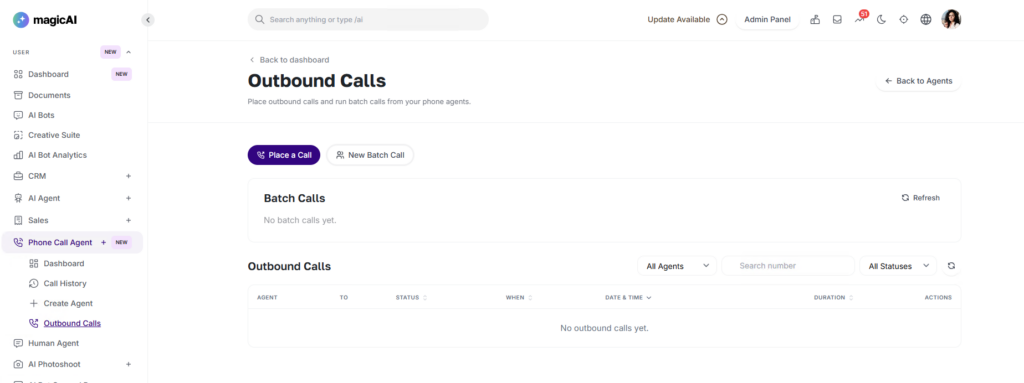
Outbound calling lets an agent place calls to a destination number. Navigate to Phone Call Agent → Outbound Calls from the side menu. From the Outbound Calls page, users place a single call with Place a Call, run a batch call with New Batch Call, and review the outbound call list with per-call logs.
Placing a Single Call
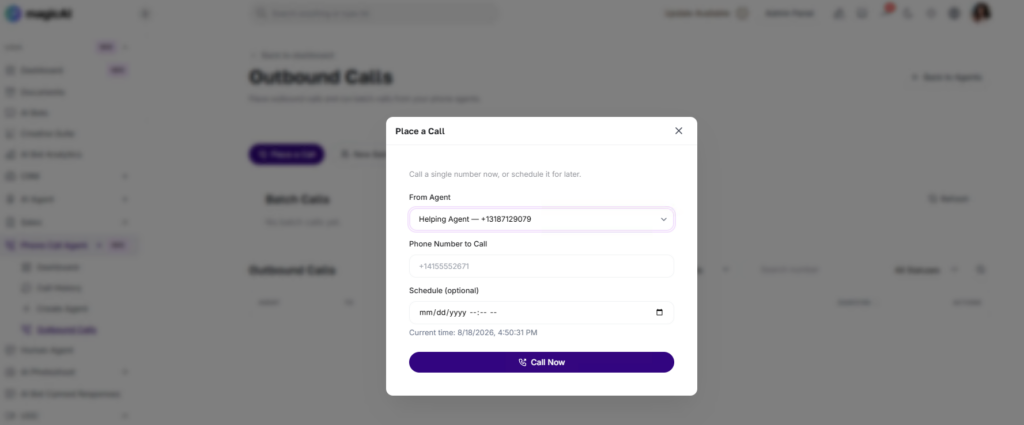
Users click Place a Call and complete the form:
- From Agent: Select the agent that will make the call. Only agents with a phone number attached appear.
- Phone Number to Call: Type the number in international format, for example +14155552671.
- Schedule (optional): Leave it empty to call now, or pick a future date and time to schedule it. A past date or time is treated as call now.
- Call Now: Click Call Now to place the call. A call-now call is placed within moments; a scheduled call sits as Pending until its time arrives, then is placed automatically.
Running a Batch Call
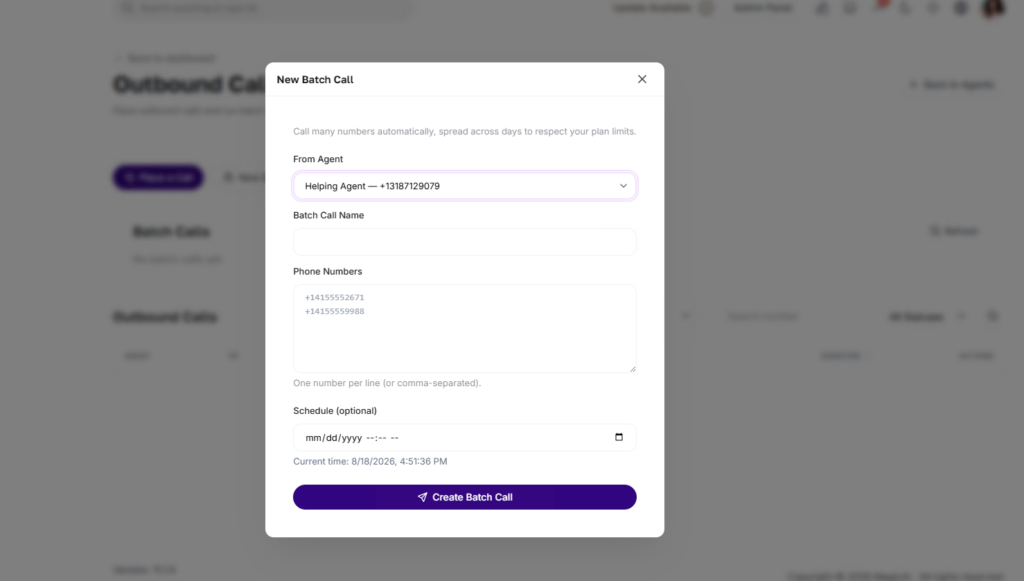
A batch call calls a list of numbers with one agent. Users click New Batch Call and complete the form:
- From Agent: Select the agent that will place the calls.
- Batch Call Name: Give the batch call a name.
- Phone Numbers: Enter the numbers in international format, one number per line or comma-separated.
Schedule (optional): Leave empty to start now, or pick a future date and time to schedule the batch. - Create Batch Call: The system creates one pending call per number.
Calls are placed automatically and spread across days when needed to respect the plan’s Outbound Calls Per Day limit, so a large list is worked through over time rather than all at once.
Editing a Batch Call
While a batch call is still running — not completed or cancelled — users can adjust it:
- Rename — change the batch call name
- Reschedule — move all not-yet-placed calls to a new time
- Change the number list — newly added numbers are queued; removed numbers are dropped only if they have not been dialed yet, and numbers already called are left untouched
Cancelling Calls and Batch Calls
- Cancel a batch call — all not-yet-placed calls are cancelled, and calls already placed are kept in history
- Cancel a single scheduled call — from the call’s Actions menu, only while the call is still Pending and has not been dialed
Call Status
Every outbound call carries a status so users can track it:
- Pending — scheduled or queued, not yet dialed
- Queued — handed to the provider and dialing
- Ringing / Answered — in progress
Completed — finished normally - Failed — could not be placed; the reason appears in the call log
- Missed — no answer
- Cancelled — cancelled before it was placed
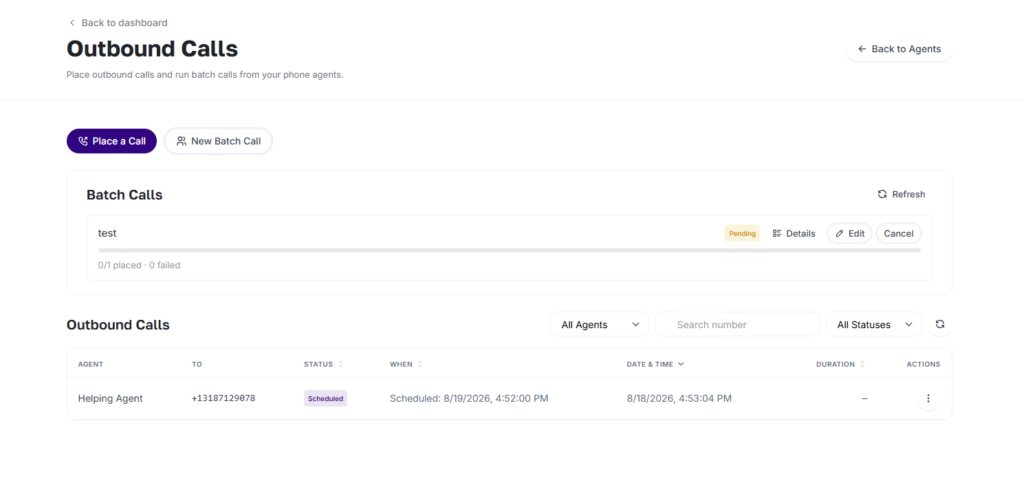
Where Calls Come From
Calls in the outbound list originate from three places:
- Place a Call — a single call placed manually from the form
- Batch call — created by a batch call
- Follow-up — created automatically by a follow-up rule
Users filter the outbound call list by agent using the All Agents dropdown and by status using the All Statuses dropdown, and search by destination number in the Search number box.
Call Logs
Users open any call to see its technical log: status, provider call id, timestamps, duration, and — if it failed — the failure reason. This is the raw call record, separate from the conversation transcript in Call History.
Follow-Up Calls
Follow-up calls let an agent automatically call customers back around key moments — a reminder the day before an appointment, a satisfaction survey after a booking, or a callback after an inbound call. Users define the rules once on the agent, and the system creates and places the calls at the right time on its own. Each follow-up call is an outbound call placed by the same agent, carrying a short instruction that tells the agent why it is calling. Follow-up calls appear in the outbound call list alongside manual and batch calls.
How Follow-Up Calls Work
- Add rules: A user adds one or more rules to the agent.
- Event fires: When a matching event happens — a booking is made, a call ends — the system calculates when to call and creates a scheduled outbound call.
- Call is placed: When that time arrives, the call is placed automatically, subject to the plan’s outbound limits.
- Agent follows the instruction: During the call, the agent follows the rule’s instruction so it knows the purpose.
Configuring Follow-Up Rules
Navigate to Phone Call Agent from the side menu, open the agent editor, and go to Step 3 — Phone Numbers & Usage. In the Follow-Up Calls section, click Configure Follow-Up Calls to open the Follow-Up Call Rules dialog. Add a rule with + Add Rule and set each field. Add as many rules as needed, then click Save Follow-Up Rules.
- Enabled — turn the rule on or off
- When — the trigger that starts the call
- Offset + Unit — how long before or after the event; Unit is Minutes, Hours, or Days, for example 1 day, 2 hours, or 30 minutes
- What the assistant should say — the instruction for that call
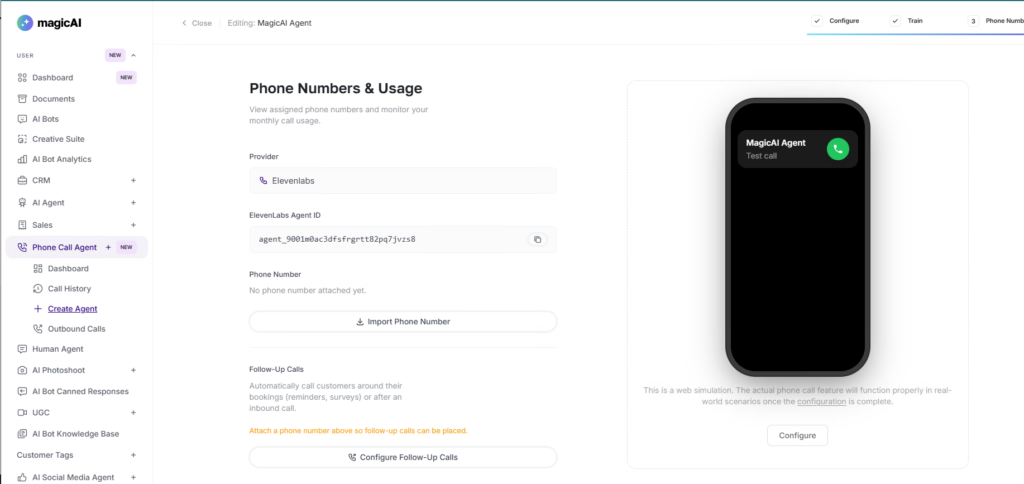
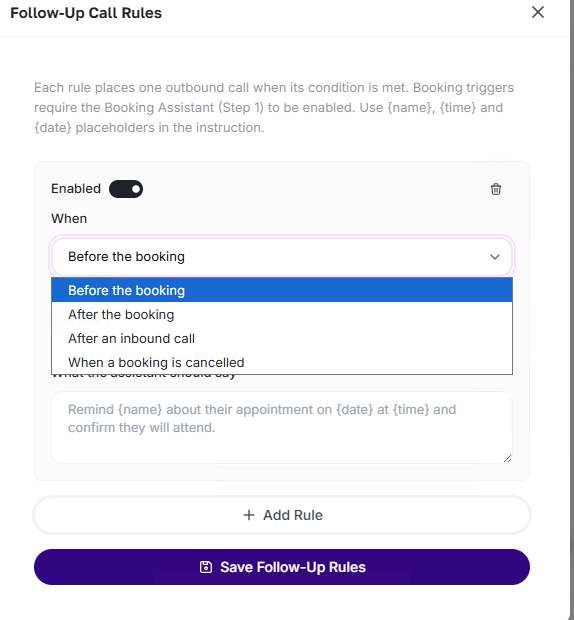
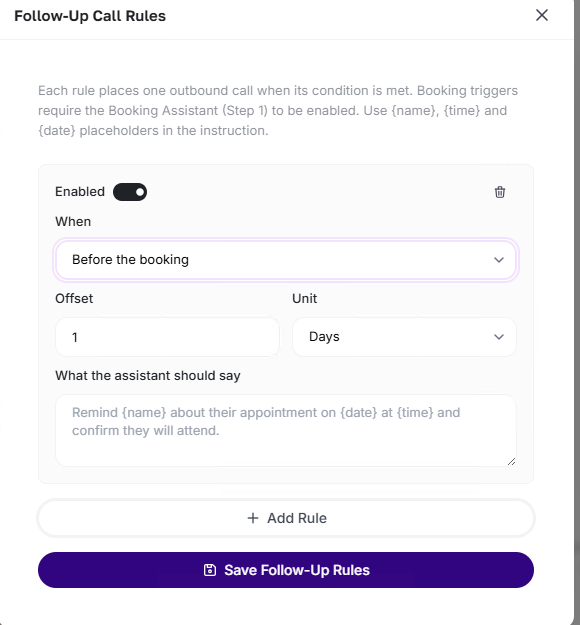
Follow-Up Triggers
- Before the booking — placed the offset before the appointment start; typically a reminder call the day before
- After the booking — placed the offset after the appointment end; typically a satisfaction survey
- After an inbound call — placed the offset after an inbound call ends; a follow-up or survey with the caller
- When a booking is cancelled — placed right away when a booking is cancelled; typically an apology or rebooking offer
Booking triggers — before, after, and on cancel — only fire when the Booking Assistant is enabled and a booking is made through the agent. After an inbound call works for any inbound call and does not need booking.
Personalizing the Message
Users add placeholders to the instruction. They are filled in from the booking:
- {name} — the customer’s name
- {time} — the appointment time
- {date} — the appointment date
Example instruction: Remind {name} about their appointment on {date} at {time} and confirm they will attend.
When Bookings Change
- Booking cancelled — any pending follow-up calls for that booking are cancelled; if an on-cancel rule exists, that call is placed
- Booking rescheduled — pending follow-up calls are re-timed to the new appointment
Conditions for Scheduling
A follow-up call is only scheduled when all of these are true:
The rule is enabled
The agent has a phone number
There is a customer number to call, from the booking or the caller’s number for inbound follow-ups
The calculated time is in the future; a reminder time already in the past is skipped
The plan allows follow-up and outbound calls
Managing Follow-Up Calls
Follow-up calls are ordinary outbound calls once created. On the Outbound Calls page, they appear in the outbound list with their scheduled time and status, and users cancel or reschedule an individual pending follow-up call from its Actions menu.
Admin Controls
Plan-based access and usage limits for outbound and follow-up calling are managed at Finance → Pricing Plans, per plan:
- Enable Outbound Calls — master switch; if off, no outbound calls or campaigns can be placed on the plan
- Outbound Seconds Limit — total outbound talk-time per month; -1 for unlimited, 0 to disable, or a positive number for the maximum seconds
- Outbound Calls Per Day — how many outbound calls can be placed per day; -1 for unlimited, 0 to disable, or a positive number for the maximum per day
- Enable Follow-Up Calls — master switch for automatic follow-up and callback calls; outbound must also be enabled on the plan
When a user hits a limit, calls already scheduled stay in the queue and are placed automatically on following days as the allowance frees up. A single call now that exceeds the limit fails immediately with a reason.
⚠️ Note: Outbound and follow-up access is controlled per plan at Finance → Pricing Plans, not in Phone Call Agent Settings. If a plan does not allow follow-up calls, the Follow-Up section is hidden in the agent editor and no follow-up calls are scheduled.