

CRM is an independent extension that gives your users a full client relationship management workspace — contacts, companies, deals, projects, tasks, invoices, proposals, and reports — all in one place, with an AI assistant running across the entire dataset. It is accessible from the side menu under CRM and Sales.
Requirements
Installation: Install CRM from the Marketplace.
Plan Access: Enable or disable CRM per pricing tier via Finance → Pricing Plans.
Activation
To make CRM available to your users:
- Install: Go to Marketplace and install CRM.
Configure: Go to Admin → Settings → CRM - Settings and enable the modules you want to offer (see Admin Controls section below).
- Enable on Plans: Go to Finance → Pricing Plans, select each plan that should include CRM, and enable it.
CRM Dashboard
The CRM Dashboard is the first screen your users land on. It combines an embedded AI assistant at the top with a full workspace overview below. Navigate to CRM → Dashboard from the side menu.
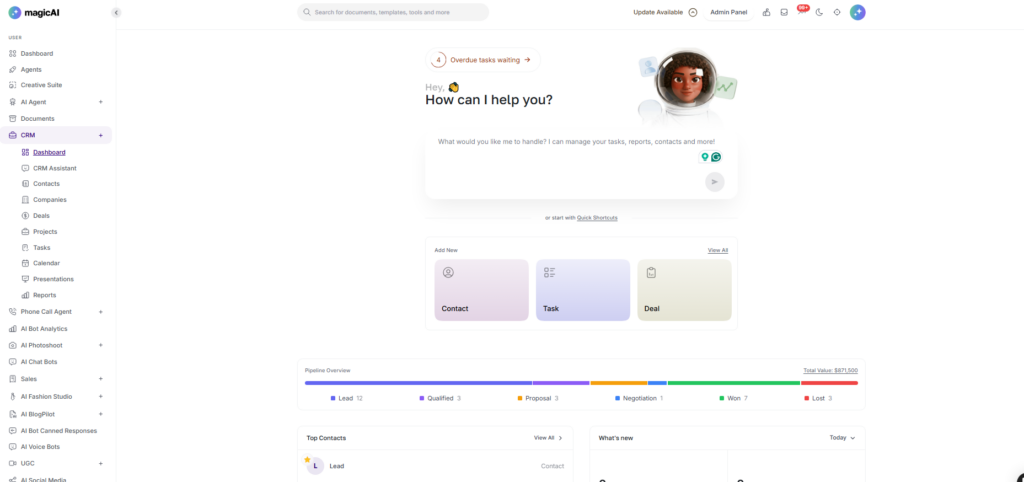
What the dashboard shows
- AI Assistant — an AI chat interface embedded directly on the dashboard. Users type a question or instruction in plain language and the assistant responds using their CRM data — without leaving the dashboard. Quick Shortcuts below the chat let users jump to common prompts (Pipeline summary, Overdue tasks, Top deals, Add a contact, Draft an invoice, Project health, Outstanding balance, Pitch deck)
- Pipeline Overview — total pipeline value and deal count across all six stages: Lead, Qualified, Proposal, Negotiation, Won, Lost
- Quick Shortcuts — Add New cards for Contact, Task, and Deal shown directly below the AI assistant for fast record creation
- Top Contacts — most active or recently added contacts
- What’s New — live counters showing Contacts, Deals, Tasks, and Reports added today
- Upcoming Tasks — tasks due soon, ordered by due date
- Recent Activity — chronological feed of all CRM actions across contacts, deals, tasks, and projects
CRM Assistant
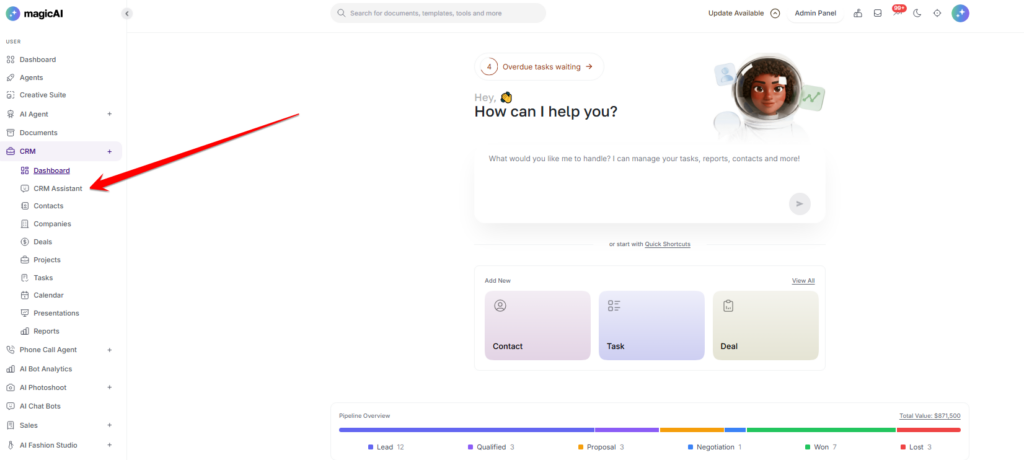
The CRM Assistant is an AI chat interface built into the CRM with direct access to your users’ data. Users ask questions in plain language and get instant answers, summaries, and actions without navigating to different CRM sections. Navigate to CRM → CRM Assistant from the side menu.
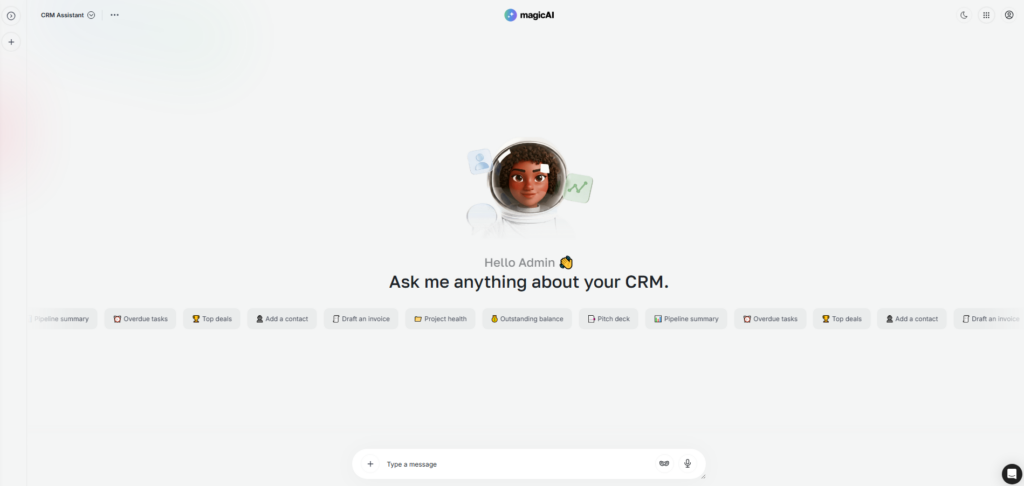
Data scope
Before sending a message, users select which part of the CRM the assistant should look at. Narrower scopes produce faster, more focused answers:
All CRM Data — sends the full CRM snapshot to the AI
Contacts, Companies, Deals, Tasks, Projects, Invoices, Presentations — narrows the scope to a single data type
What users can ask
Built-in quick-start prompts include:
- Pipeline summary — breakdown of deals by stage and total value
- Overdue tasks — list of all tasks past their due date
- Top deals — highest-value or most progressed deals in the pipeline
- Add a contact — create a new contact by describing them in plain language
- Draft an invoice — generate an invoice for a contact or deal
- Project health — status summary of active projects
- Outstanding balance — total unpaid invoices and overdue amounts
- Pitch deck — generate a presentation for a deal
Users can also type any free-form question or instruction in plain language.
Admin Controls
CRM Assistant can be toggled on or off independently at Admin → Settings → CRM Settings → Enable CRM Assistant. Disabling it hides the assistant from all users while keeping the rest of the CRM available.
Contacts
Contacts are the people in your users’ CRM — leads, prospects, and active clients. Contacts are the foundation everything else (deals, projects, tasks, invoices) links back to. Navigate to CRM → Contacts from the side menu.
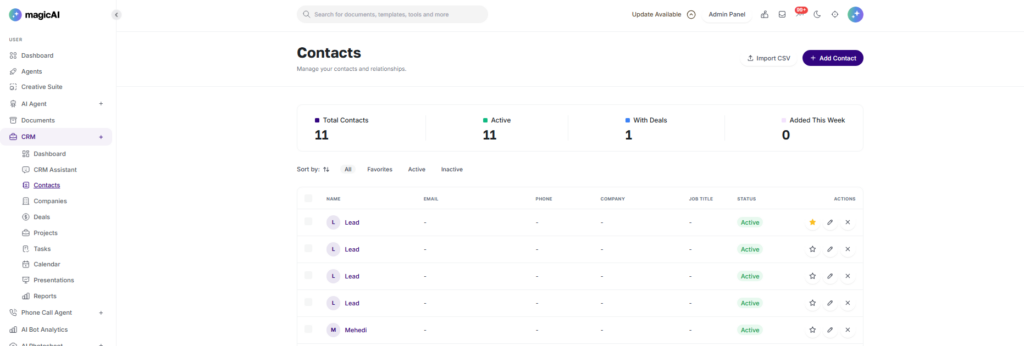
Adding contacts
Users can add contacts in three ways:
- Manually — click Add Contact and fill in the form (First Name, Last Name, Email, Phone, Job Title, Company, Status, Notes, optional Avatar)
- Bulk import — click Import CSV to migrate contacts from another CRM or spreadsheet
- Automatically — via the CRM Assistant (“Add a contact”) or via AI Agent automation (see Contact Sync and CRM AI Agent Builder)
Contact list
The contacts list shows Name, Email, Phone, Company, Job Title, and Status. It is filterable by All, Favourites, Active, or Inactive. Live stats at the top show: Total Contacts, Active, With Deals, and Added This Week.
Companies
Companies are the organisations contacts belong to. They group contacts and deals under a single business record so your users can see all activity related to a client organisation at a glance. Navigate to CRM → Companies from the side menu.
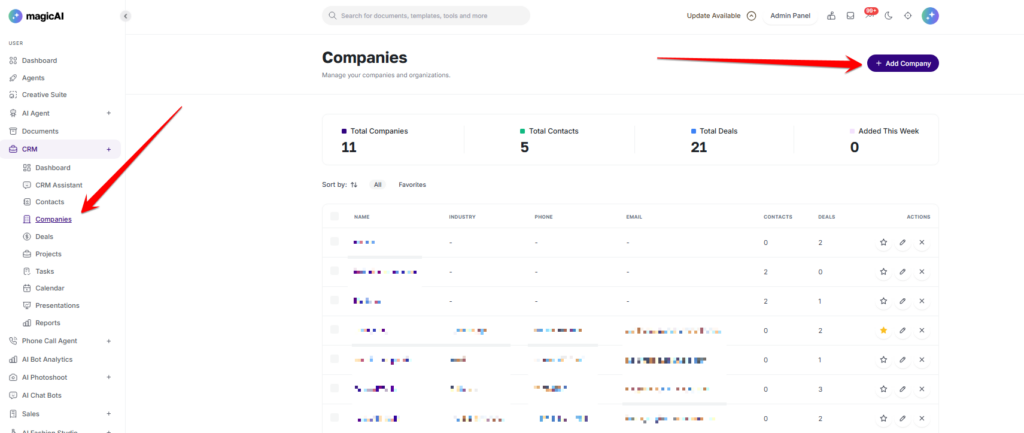
Users create companies by clicking Add Company. Each company shows linked contact count and linked deal count. The companies list is filterable by All or Favourites, and shows live stats: Total Companies, Total Contacts, Total Deals, and Added This Week.
Deals
Deals is the sales pipeline — a drag-and-drop Kanban board where each deal card moves through stages as the opportunity progresses. Navigate to CRM → Deals from the side menu.
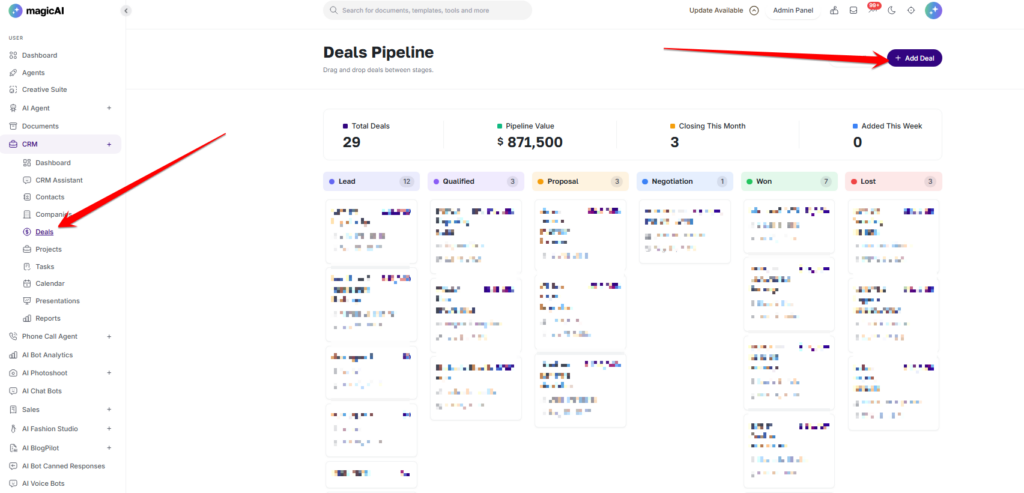
Pipeline stages
- Lead — initial interest, not yet qualified
- Qualified — confirmed as a genuine opportunity
- Proposal — proposal or quote has been sent
- Negotiation — terms are being discussed
- Won — deal closed successfully
- Lost — deal did not close
Using deals
Users add deals by clicking Add Deal. Each deal is linked to a contact and/or company, assigned a monetary value, and given an expected close date. Deals are moved between stages by dragging the card on the Kanban board, or by switching to List View for a table layout. The page shows live stats: Total Deals, Pipeline Value, Closing This Month, and Added This Week.
Projects
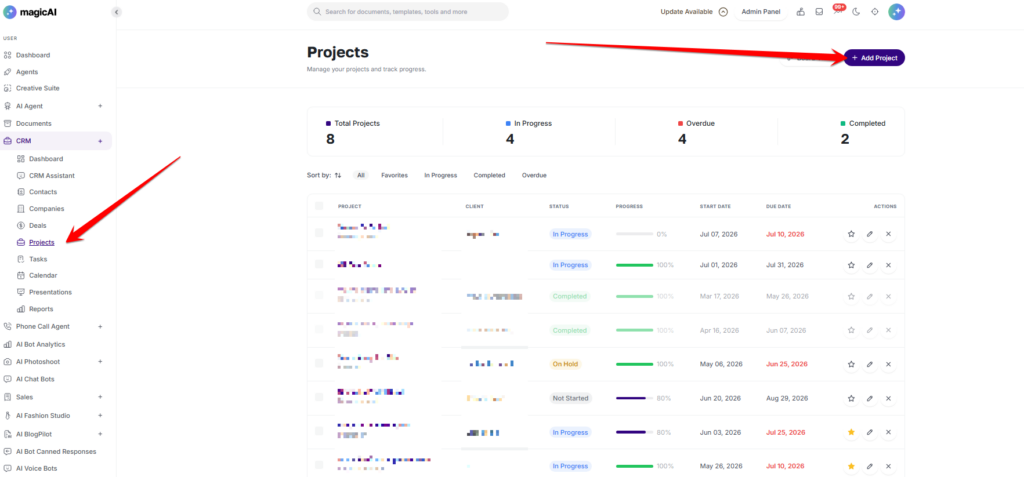
Projects track work being delivered to clients, typically after a deal is won. Each project has a client (contact or company), status, progress percentage, start date, and due date. Navigate to CRM → Projects from the side menu.
Project statuses
- In Progress
- Completed
- Overdue
Using projects
Users add projects by clicking Add Project. The view switches between List View (table) and Board View (Kanban by status). The page shows live stats: Total Projects, In Progress, Overdue, and Completed. Projects can be filtered by All, Favourites, In Progress, Completed, or Overdue.
Tasks
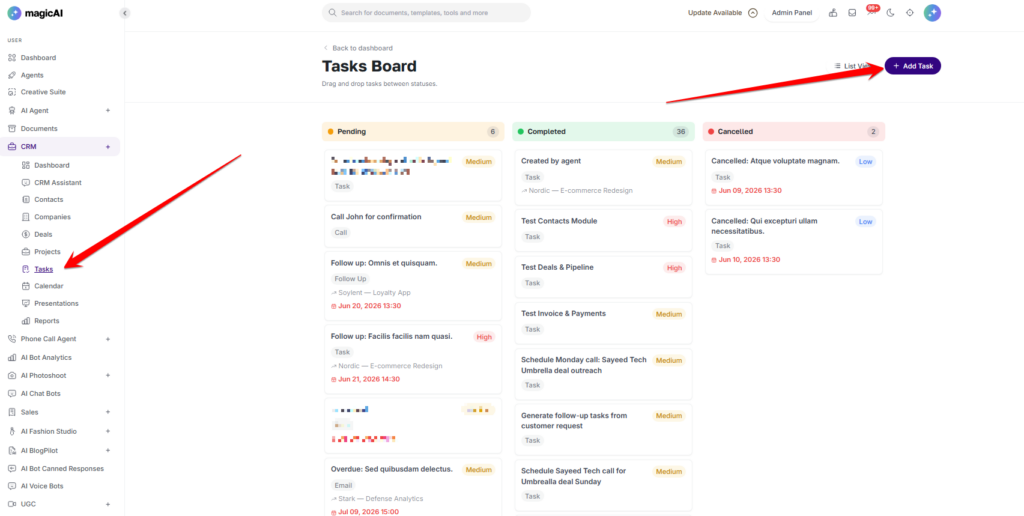
Tasks are individual to-do items that can be linked to contacts, deals, or projects, keeping all action items connected to the relevant CRM record. Navigate to CRM → Tasks from the side menu.
Task statuses
- Pending
- Completed
- Cancelled
Using tasks
Users add tasks by clicking Add Task. Each task has a title, due date, priority, and optional link to a contact, deal, or project. The default view is a Kanban board — tasks can be dragged between columns or managed in List View (table layout).
Calendar
The Calendar pulls tasks, deals, projects, and activities into a single timeline view so your users can see all upcoming deadlines and commitments across the entire CRM without switching between sections. Navigate to CRM → Calendar from the side menu.
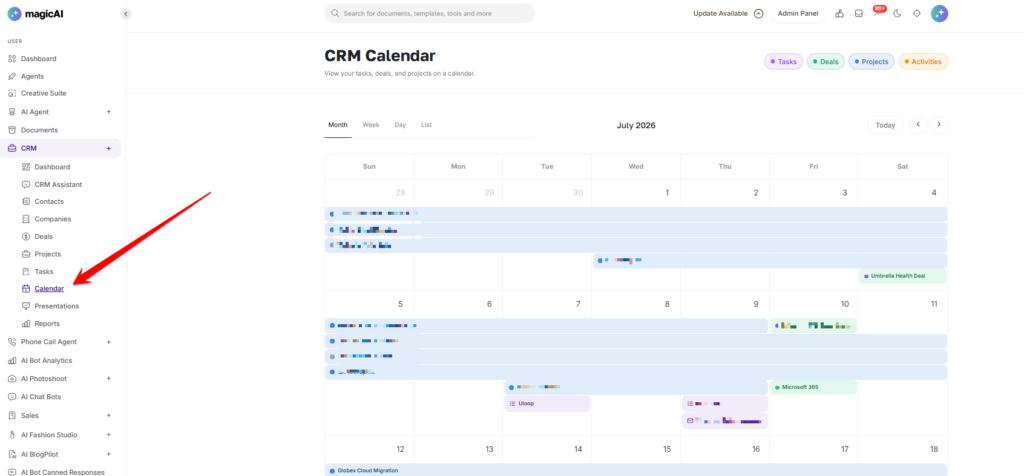
What appears on the calendar
- Tasks — on their due date
- Deals — on their expected close date
- Projects — across their start and due date range
- Activities — logged interactions and notes with a date
Views and filters
Users switch between Month, Week, Day, and List views. Filter chips at the top toggle which data types are visible (Tasks, Deals, Projects, Activities).
Presentations
Presentations generates AI-powered pitch decks linked to deals. Users select a deal and the system produces a structured presentation automatically — covering the deal context, proposed solution, and next steps — ready to share with the prospect. Navigate to CRM → Presentations from the side menu.
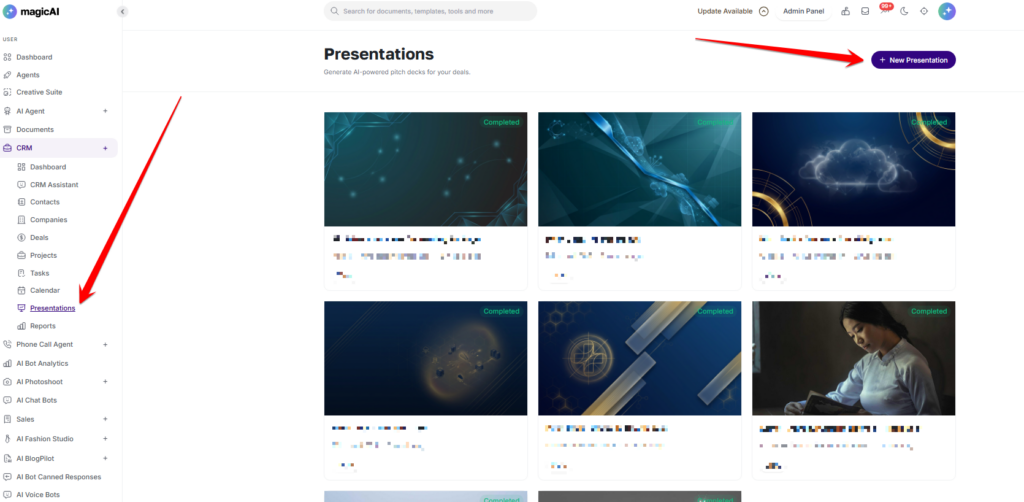
Creating a presentation
Users click New Presentation and select the deal the deck should be based on. The AI generates the presentation using the engine configured in admin settings (Fal AI or Gamma). Presentations are saved and accessible for sharing or editing.
Admin Controls
Presentations can be toggled on or off independently at Admin → Settings → CRM Settings → Enable Presentations. The Presentation Engine is also configured in CRM Settings — Gamma produces full PPTX/PDF decks; Fal AI generates slide images using Nano Banana Pro.
Reports
Reports provides analytics and insights across the full CRM dataset, updated in real time. Navigate to CRM → Reports from the side menu.
Summary metrics
- Contacts — total with week-over-week change
- Active Deals — open pipeline deals with week-over-week change
- Pipeline Value — total monetary value of active deals with week-over-week change
- Pending Tasks — incomplete tasks, with count completed this week
Charts and analytics
- Pipeline Overview — deal counts and values per stage
- Revenue Forecast — projected closed revenue over time based on deal close dates
- Win Rate — percentage of won deals vs total closed (won + lost)
- Win / Loss Ratio — visual comparison of won vs lost deals
- Deal Conversion Funnel — how many deals pass through each pipeline stage
- Pipeline Velocity — how quickly deals move between stages
- Task Activity — task volume over time (weekly view)
- Contact Growth — new contacts added over time (monthly view)
- Deal Value by Stage — total monetary value of deals at each pipeline stage
Sales
Sales covers the financial documents generated during and after the sales process. It is accessible from the side menu under Sales and includes four sections: Invoices, Payments, Proposals, and Estimates.
Invoices
Create and manage invoices sent to clients. Each invoice is linked to a contact or company and tracked through its lifecycle. Navigate to Sales → Invoices.
- Statuses: Draft, Sent, Paid, Partial, Overdue, Cancelled
- Stats: Total Invoices, Revenue, Unpaid, Overdue
Payments
Track all payments received from clients against invoices. Payments are recorded manually and the invoice balance updates automatically. Navigate to Sales → Payments.
- Statuses: Completed, Pending, Refunded
Proposals
Create formal proposals for prospects before a deal is confirmed. Proposals are linked to a contact or company and tracked through approval. Navigate to Sales → Proposals.
- Statuses: Draft, Sent, Accepted, Rejected, Expired
Estimates
Create quotes for potential clients before committing to a proposal or invoice. Navigate to Sales → Estimates.
- Statuses: Draft, Sent, Accepted, Rejected, Expired
Admin Controls
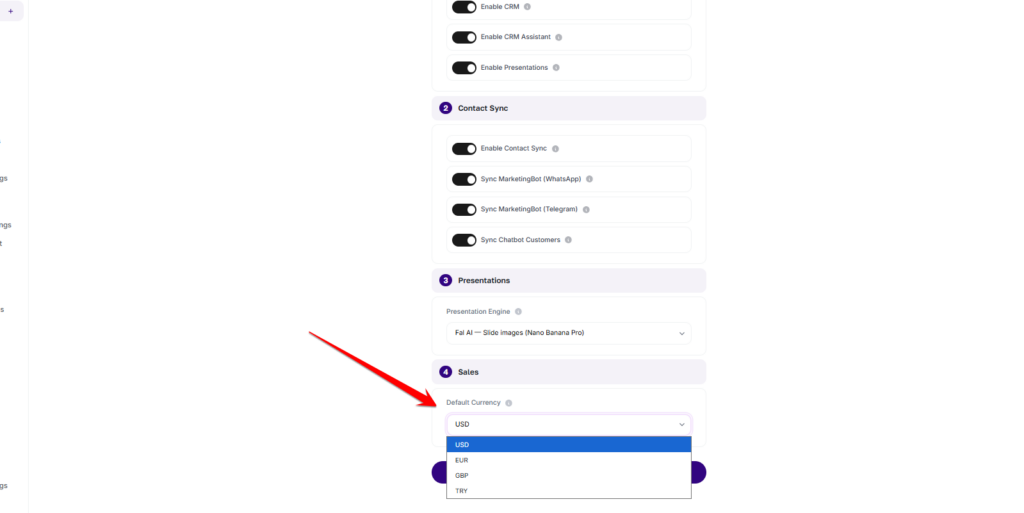
The default currency for all Sales documents is set at Admin → Settings → CRM Settings → Sales → Default Currency. Available options: USD, EUR, GBP, TRY.
Contact Sync
Contact Sync automatically populates CRM Contacts from other platform data sources. When enabled, contacts from connected channels (WhatsApp, Telegram) and chatbot conversations are synced into the CRM without any manual import.
Available sync sources
- Sync MarketingBot (WhatsApp) — imports contacts from connected WhatsApp accounts
- Sync MarketingBot (Telegram) — imports contacts from connected Telegram accounts
- Sync Chatbot Customers — imports contacts from chatbot conversations
Admin Controls
Contact Sync is configured at Admin → Settings → CRM Settings → Contact Sync. Toggle Enable Contact Sync on first, then enable each individual source. Sources only appear if the corresponding extension (MarketingBot, Chatbot) is installed and active.
Admin Controls
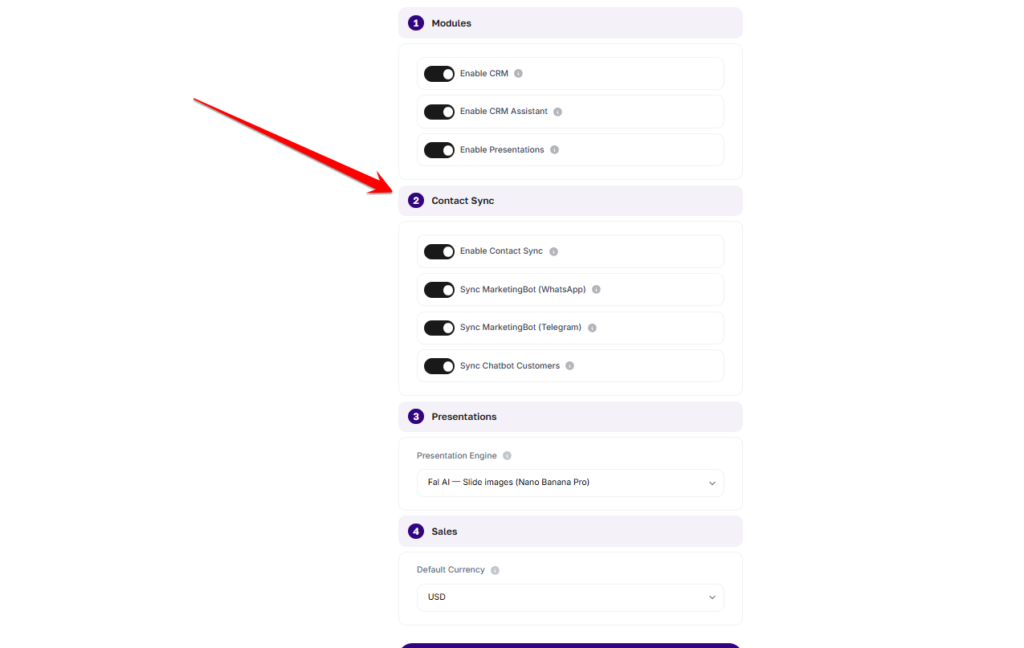
All CRM admin settings are managed at Admin → Settings → CRM Settings. The settings are organised into four sections.
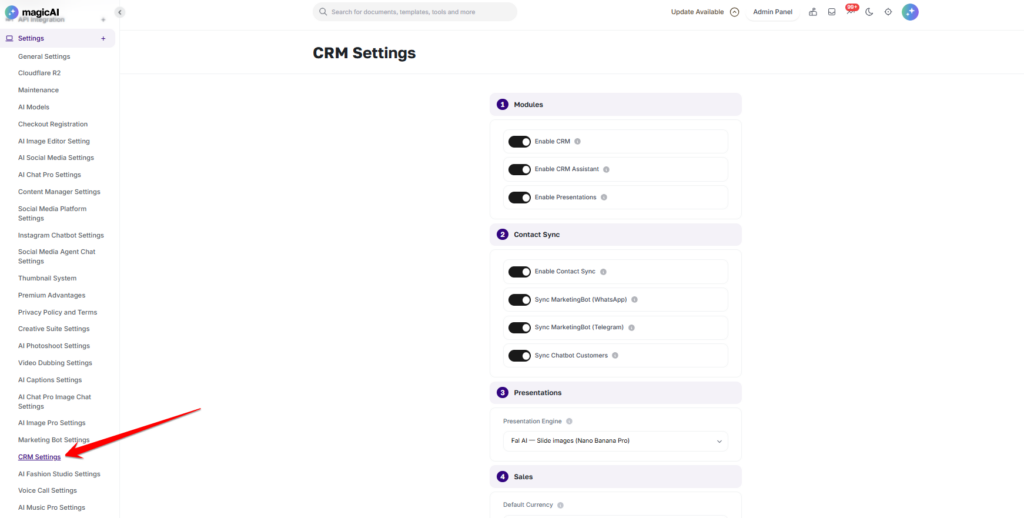
Modules
Controls which parts of the CRM are available to your users:
- Enable CRM — master toggle for the entire CRM extension. Disabling this hides CRM from all users regardless of their plan.
- Enable CRM Assistant — toggles the AI chat assistant. Disable to offer the CRM without the AI layer.
- Enable Presentations — toggles the AI pitch deck feature. Disable if you have not configured the Presentation Engine or do not want to offer it.
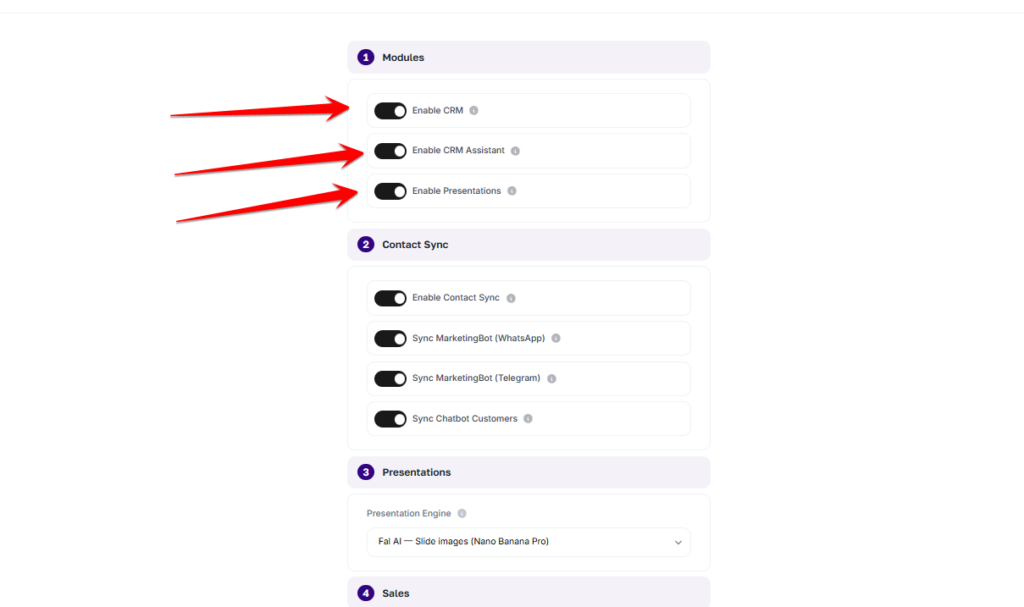
Contact Sync
- Enable Contact Sync — master toggle for automatic contact syncing
- Sync MarketingBot (WhatsApp) — sync contacts from connected WhatsApp accounts
- Sync MarketingBot (Telegram) — sync contacts from connected Telegram accounts
- Sync Chatbot Customers — sync contacts from chatbot conversations
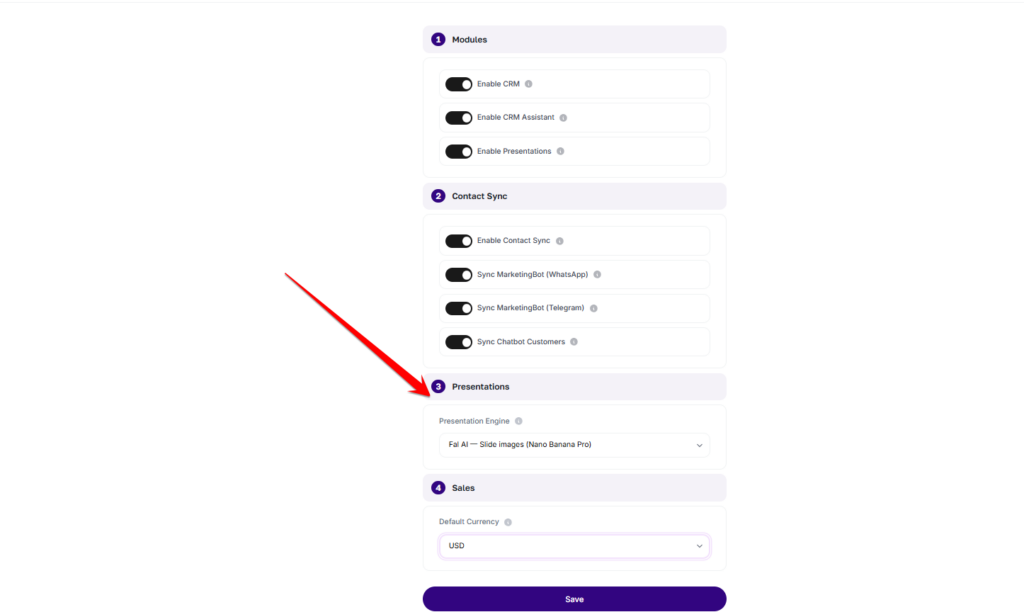
Presentation
- Presentation Engine — select which AI engine generates pitch decks:
- Fal AI — Slide images (Nano Banana Pro) — generates individual slide images using Nano Banana Pro
- Gamma — Full deck (PPTX/PDF) — generates a complete downloadable presentation in PPTX or PDF format
Sales
- Default Currency — sets the currency used on all invoices, proposals, and estimates. Options: USD, EUR, GBP, TRY
Click Save after making any changes.
⚠️ Note: Enabling or disabling CRM for individual pricing tiers is managed via Finance → Pricing Plans, not in CRM Settings. CRM Settings controls global feature toggles that apply across all plans.