

The AI Agent Builder connects directly to the CRM and automates CRM workflows without manual effort. Agents run on triggers — an incoming message, a scheduled time, or a webhook — and execute a sequence of CRM actions automatically. Six pre-built CRM agent templates are available to get started immediately, and users can also build custom CRM agents from scratch using the visual canvas
Requirements
- Prerequisite: Both AI Agent Builder and CRM must be installed and active on your workspace. CRM AI Agent Builder is a child extension and cannot run independently without both parent extensions.
- Installation: Install CRM for AI Agent Builder from the Marketplace.
Activation
Before users can access CRM agent templates and automation, complete the following steps:
- Step 1 — Install AI Agent Builder: Go to Marketplace and install AI Agent Builder if not already installed.
- Step 2 — Install CRM: Go to Marketplace and install CRM if not already installed.
- Step 3 — Install CRM AI Agent Builder: Go to Marketplace and install CRM — AI Agent Builder. This extension adds the six CRM agent templates and CRM action nodes to the AI Agent Builder.
- Step 4 — Enable on Plans: Go to Finance → Pricing Plans, select each plan that should include CRM automation, and enable CRM — AI Agent Builder.
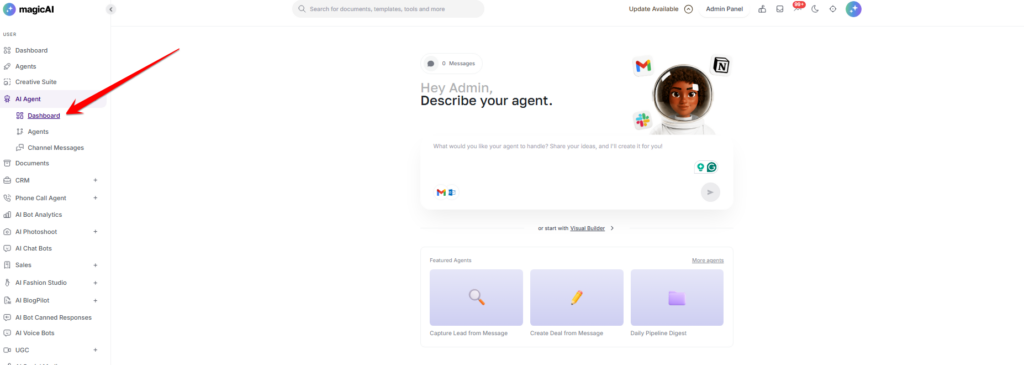
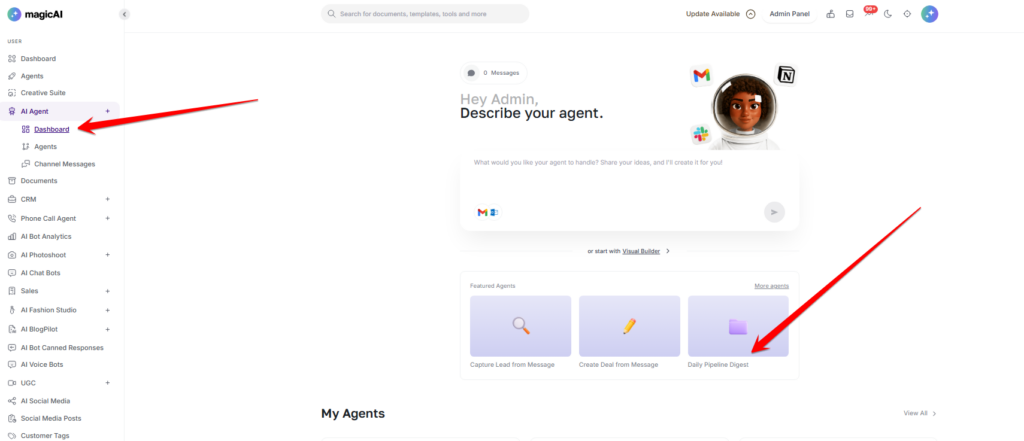
Navigate to AI Agent from the side menu, then click Visual Builder or New Agent to access the agent templates and canvas.
Accessing CRM Agent Templates
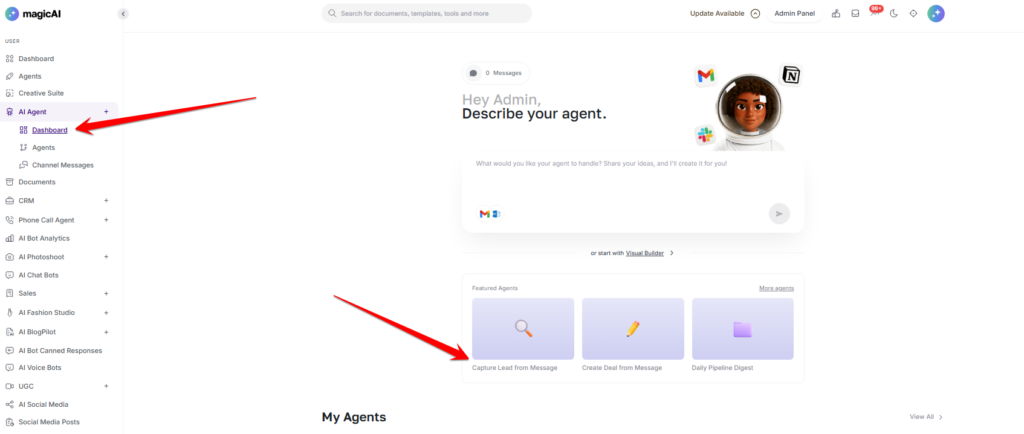
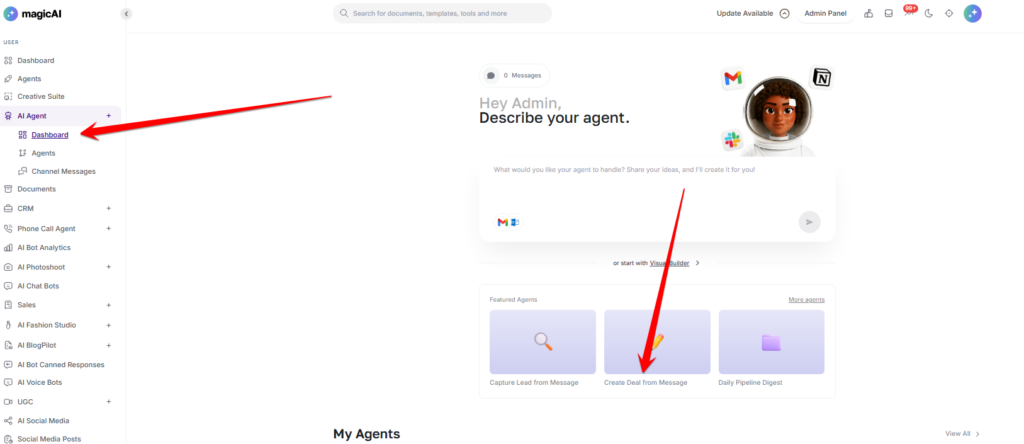
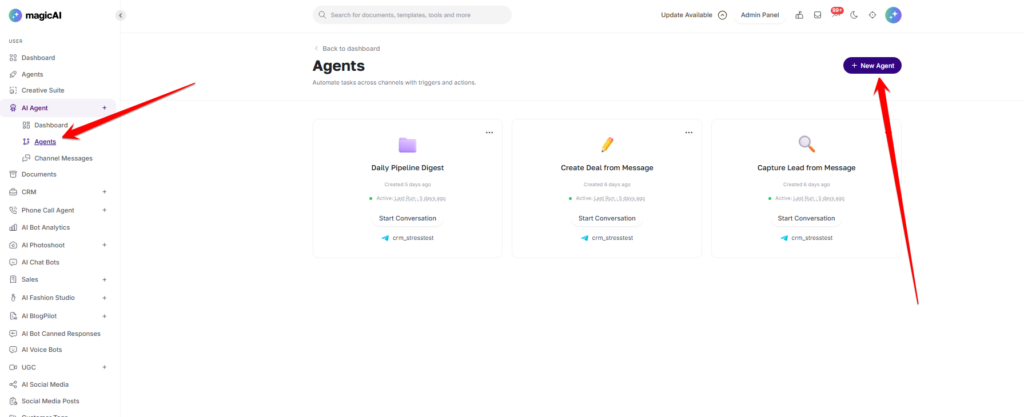
From the Agents page, click New Agent to open the template picker. Select the CRM filter tab to show only CRM-related templates. Six templates are available. Click any template to open it in the visual builder, where the full workflow is pre-built and ready to activate or customize.
Capture Lead from Message
Reads an incoming channel message, extracts the sender’s contact details with AI, and creates a new CRM contact automatically — without any manual data entry.
When to use this
Use this agent when your business receives enquiries through a connected channel (WhatsApp, Telegram, web chat, etc.) and you want every inbound message from a potential lead to automatically become a CRM contact. It removes the manual step of copying name, email, and phone from a message into the CRM.
How it works
- Trigger — Channel Message: The agent activates whenever a message arrives on any connected channel.
- Ask Agent — Extract lead details: The AI reads the message and determines whether it contains identifiable contact information (name, email, or phone number).
- Path — Lead found: If contact details are present, the workflow takes the “Lead found” branch.
-
- CRM Agent — Create Contact: The extracted details are used to create a new contact record in the CRM automatically.
- Send Message: The sender receives a confirmation reply: “Thanks! We’ve saved your details and a team member will follow up shortly.”
4. Path — No lead details: If the message does not contain enough contact information, the workflow takes the “No lead details” branch.
-
- Send Message: The sender is prompted to provide their details: “Thanks for reaching out! Send your name and the best email or phone number and I will pass you to the right person.”
What gets created in the CRM
A new contact record is created in CRM → Contacts with the name, email, and/or phone number extracted from the message. The contact status is set to Active by default.
How to activate
- Open the template from the CRM filter in the New Agent panel.
- Confirm the channel trigger is set to the channel you want to monitor.
- Click Save, then set the agent to Active.
Create Deal from Message
Reads an incoming channel message describing a sales opportunity, summarises it into a deal title with AI, and opens a new deal in the CRM pipeline automatically.
When to use this
Use this agent when your team receives opportunity messages through a connected channel and you want each one to immediately become a deal in the pipeline. It ensures no opportunity is missed because it was not logged manually.
How it works
- Trigger — Channel Message: The agent activates whenever a message arrives on a connected channel.
- Ask Agent — Summarise opportunity: The AI reads the message and generates a concise deal title from the opportunity described.
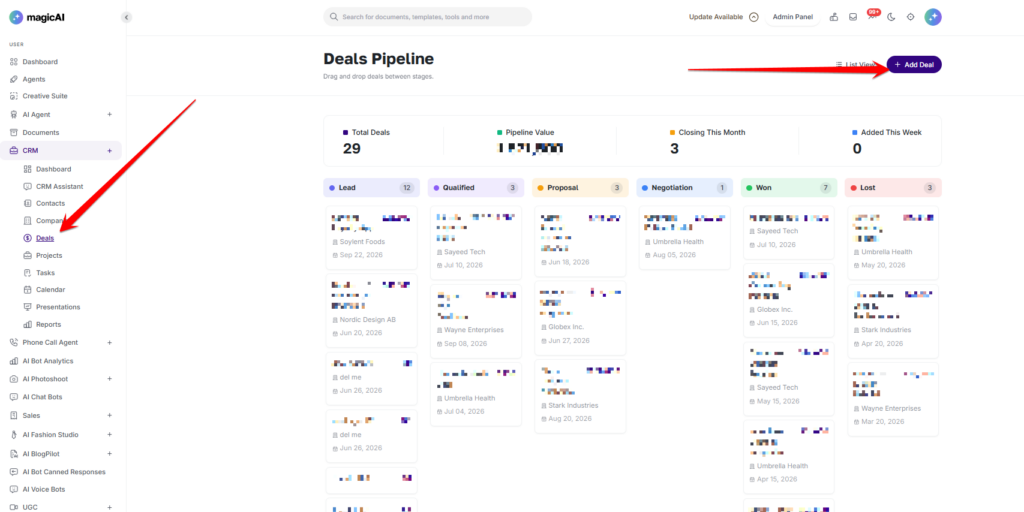
- CRM Agent — Create Deal: A new deal is created in the CRM pipeline using the AI-generated title. The deal is placed in the
- Send Message: A confirmation is sent to the channel confirming the deal has been created.
What gets created in the CRM
A new deal record is created in CRM → Deals at the Lead stage. The deal title is the AI-generated summary of the opportunity message.
How to activate
- Open the template from the CRM filter in the New Agent panel.
- Confirm the channel trigger is set to the channel where opportunity messages arrive.
- Click Save, then set the agent to Active.
Log Interaction as Note
Logs every incoming channel message as an activity note on the related CRM contact’s record, building a complete interaction history automatically.
When to use this
Use this agent when your team communicates with clients or leads through a connected channel and you want every conversation automatically recorded against the right contact in the CRM. It eliminates manual note-taking and keeps the contact record up to date.
How it works
- Trigger — Channel Message: The agent activates whenever a message arrives on any connected channel.
- Ask Agent — Identify contact: The AI analyses the message and attempts to identify which CRM contact the message relates to by matching names or email addresses mentioned.
- Path — Contact identified: If a matching contact is found, the workflow takes the “Contact identified” branch.
-
- CRM Agent — Add Note: The message is logged as an activity note on the identified contact’s CRM record.
- Send Message: A confirmation is sent: “Noted — we’ve logged this on [contact name]’s record.”
- Path — No contact named: If no matching contact can be identified, the workflow takes the fallback branch.
-
- Send Message: The sender is asked to clarify: “Thanks for your message! Tell me who it is about — a name or an email — and I will log it on their record.”
What gets created in the CRM
An activity note is added to the contact’s record in CRM → Contacts, visible in the contact’s activity history.
How to activate
- Open the template from the CRM filter in the New Agent panel.
- Confirm the channel trigger is set to the channel your team uses to communicate with contacts.
- Click Save, then set the agent to Active.
Message to Follow-up Task
Reads an incoming channel message, uses AI to draft a follow-up task title from it, and creates a CRM task so no action item is forgotten.
When to use this
Use this agent when your team receives messages that require follow-up action and you want each one to automatically become a task in the CRM. It ensures every commitment or request gets captured as an actionable item without manual task creation.
How it works
- Trigger — Channel Message: The agent activates whenever a message arrives on a connected channel.
- Ask Agent — Draft task title: The AI reads the message and generates a clear, actionable task title from the content.
- CRM Agent — Create Task: A new task is created in the CRM using the AI-generated title, set to Pending status.
- Send Message: A confirmation is sent to the channel confirming the task has been created.
What gets created in the CRM
A new task record is created in CRM → Tasks with Pending status. The task title is the AI-generated summary of the follow-up action from the message.
How to activate
- Open the template from the CRM filter in the New Agent panel.
- Confirm the channel trigger is set to the channel where follow-up requests arrive.
- Click Save, then set the agent to Active.
Daily Pipeline Digest
Fetches CRM pipeline analytics every morning, writes a concise digest with AI, and sends it to a connected channel automatically.
When to use this
Use this agent to start every workday with an automatic summary of where the pipeline stands — without opening the CRM or running manual reports. It keeps the team informed without any daily effort.
How it works
- Trigger — Schedule: The agent runs every morning at 9:00 AM UTC.
- CRM Agent — Get CRM Analytics: The agent fetches the current pipeline data: deal counts per stage, total pipeline value, won/lost deals, and other key metrics.
- Ask Agent — Write digest: The AI processes the analytics data and writes a concise, readable pipeline digest summarising the current state and any notable changes.
- Send Message: The digest is posted to the connected channel.
What you receive
A daily message on your channel containing a plain-language summary of the CRM pipeline: stage-by-stage deal counts, total value, and any highlights the AI considers worth surfacing.
How to activate
- Open the template from the CRM filter in the New Agent panel.
- Set the channel where the digest should be posted.
- Optionally adjust the schedule time to match your timezone.
- Click Save, then set the agent to Active.
Note: The schedule runs in UTC. Adjust the trigger time to match your local timezone.
Weekly Deal Review
Delivers an executive CRM pipeline review every Monday morning, highlighting deal momentum, stalled opportunities, and deals that need attention.
When to use this
Use this agent to begin every week with a structured overview of the sales pipeline. It surfaces deals that have moved, deals that haven’t progressed, and where effort should be focused — without requiring a manual review session.
How it works
- Trigger — Schedule: The agent runs every Monday at 9:00 AM UTC.
- CRM Agent — Get CRM Analytics: The agent retrieves the full pipeline dataset: all deals with their stage, value, last activity date, and close date.
- Ask Agent — Write executive review: The AI analyses the data and produces a structured weekly review, highlighting momentum deals (progressing through stages), stalled deals (no recent activity), deals closing soon, and an overall pipeline health summary.
- Send Message: The review is posted to the connected channel.
What you receive
A weekly Monday message on your channel containing a structured deal review: deals moving forward, deals that need attention, upcoming closings, and an AI assessment of pipeline health.
How to activate
- Open the template from the CRM filter in the New Agent panel.
- Set the channel where the review should be posted.
- Optionally adjust the schedule time to match your timezone.
- Click Save, then set the agent to Active.
Note: The schedule runs in UTC. Adjust the trigger time to match your local timezone.
Building a Custom CRM Agent
In addition to the six pre-built templates, users can build fully custom CRM automation workflows from scratch using the visual canvas. Navigate to AI Agent → New Agent and select Start from Scratch.
Describe your agent
Type a description of what the agent should do in the chat panel on the left. The AI builds the workflow automatically based on the description. For example:
- “When a message arrives, check if the contact exists in the CRM and create one if not, then log the message as a note”
- “Every Friday at 5pm, get all deals closing this month and send me a summary”
- “When a message mentions a meeting, create a task with the follow-up details and confirm it”
The AI interprets the description and builds the node sequence on the canvas. Users can then edit individual nodes, add branches, or modify the configuration.
Available CRM actions in the visual builder
When building a custom agent, the following CRM-specific actions are available as nodes:
- CRM Agent — Create Contact — creates a new contact record from extracted data
- CRM Agent — Create Deal — creates a new deal in the pipeline at a specified stage
- CRM Agent — Create Task — creates a new CRM task with a title and status
- CRM Agent — Add Note — logs a note against a specific contact’s record
- CRM Agent — Get CRM Analytics — fetches pipeline metrics, deal data, and CRM statistics for AI processing
Available triggers
- Channel Message — activates when a message arrives on any connected channel (WhatsApp, Telegram, web chat, etc.)
- Schedule — activates at a set time and frequency (daily, weekly, specific days and times)
- Webhook — activates when an external system sends a request to the agent’s webhook URL
Managing agents
All created agents are listed on the Agents page. From each agent’s options menu:
- Edit — open the visual builder to modify the workflow
- Pause — stop the agent from running without deleting it
- Show Logs — review the run history and any errors per execution
- Delete — permanently remove the agent
- Start Conversation — manually trigger the agent or chat with it directly to test its behaviour