

Phone Call Agent is a child extension of External Chatbot that lets users create AI-powered voice agents and connect them to real phone numbers. When a customer calls, the AI agent answers, speaks naturally in real-time, and can handle customer support, booking, sales inquiries, FAQs, and appointment management. It is accessible from the side menu under Phone Call Agent.
Requirements
- Prerequisite: External Chatbot must be installed and active on your workspace. Phone Call Agent is a child extension of External Chatbot and cannot run independently.
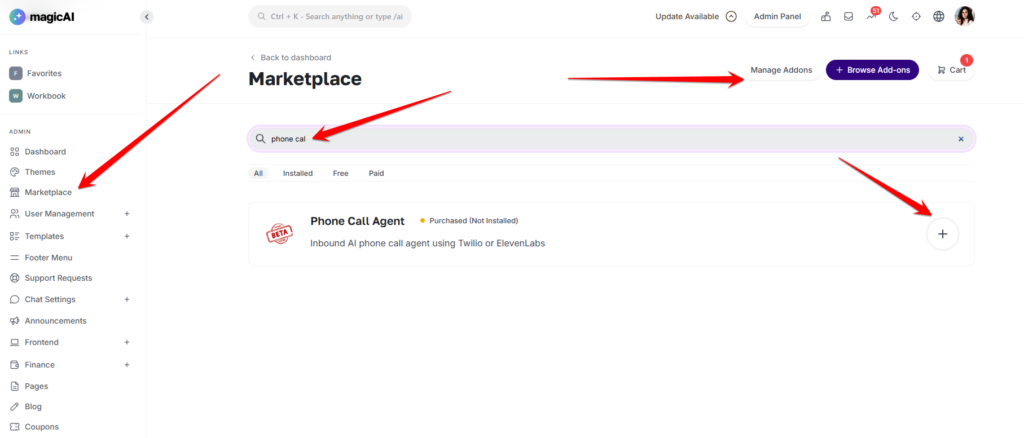
- Installation: Install Phone Call Agent from the Marketplace.
Activation
Before users can create and receive calls, complete the following steps:
- Step 1 — Install: Go to Marketplace and install Phone Call Agent.
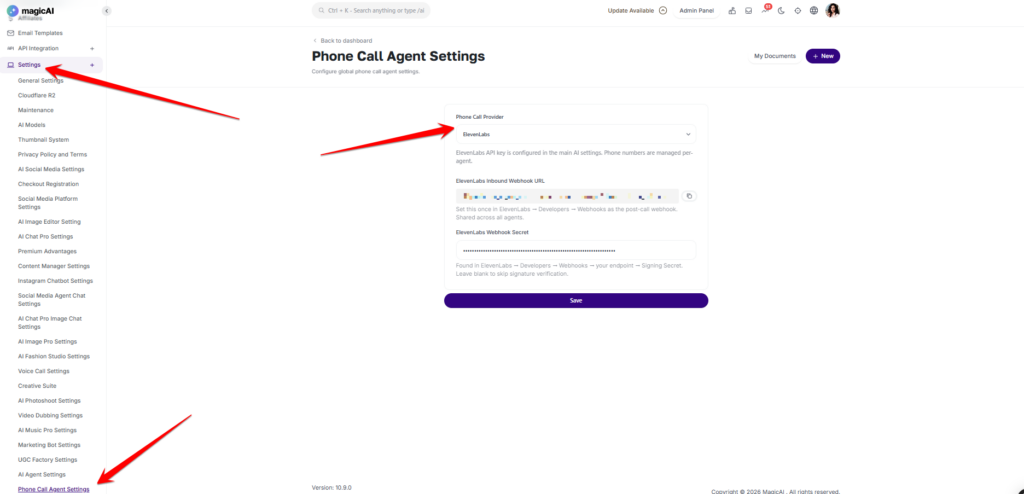
- Step 2 — Choose a provider: Go to Admin → Phone Call Agent Settings and set Phone Call Provider to either ElevenLabs or Twilio. This is a global setting that applies to all agents.
- Step 3 — Configure the provider: Follow the provider-specific steps in the ElevenLabs or Twilio sections below.
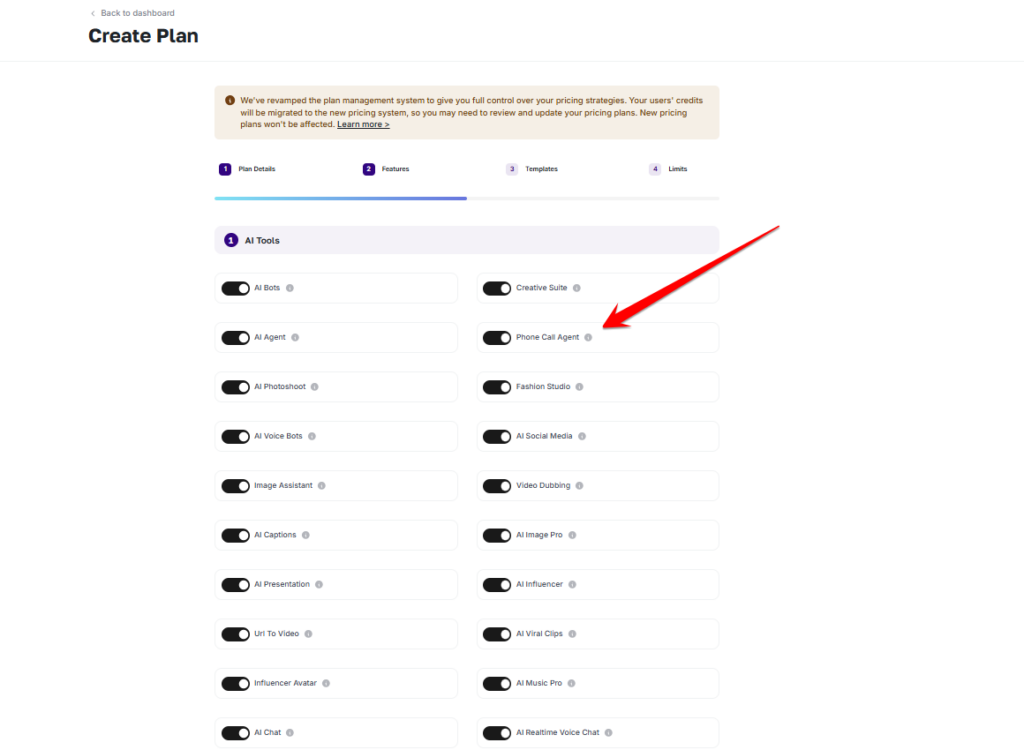
- Step 4 — Enable on Plans: Go to Finance → Pricing Plans, select each plan that should include Phone Call Agent, and enable it.
Providers
Phone Call Agent supports two providers. The active provider is selected globally at Admin → Phone Call Agent Settings and applies to all agents on the workspace
ElevenLabs
When ElevenLabs is the active provider, ElevenLabs handles the full call pipeline — speech-to-text, AI conversation, and text-to-speech. Phone numbers are managed inside ElevenLabs and imported into the platform per agent. The ElevenLabs API key is shared with other ElevenLabs features on the platform (Voice Clone, Voice Chat, etc.).
- Add ElevenLabs API key: Go to Admin → Settings → TTS and enter your ElevenLabs API key.
- Set provider: Go to Admin → Phone Call Agent Settings, set Phone Call Provider to ElevenLabs, and save.
- Configure Inbound Webhook: Copy the ElevenLabs Inbound Webhook URL shown in settings. In ElevenLabs, go to Developers → Webhooks and set this as the post-call webhook. This is a workspace-wide setting — set it once for all agents.
- Webhook Secret (optional): Copy the Signing Secret from ElevenLabs Webhooks and paste it into ElevenLabs Webhook Secret in admin settings. Leave blank to skip signature verification.
Twilio
When Twilio is the active provider, Twilio handles call routing and STT (via Deepgram), TTS (via Amazon Polly or Google Cloud TTS), and the AI conversation is powered by the platform’s configured LLM (OpenAI, Anthropic, Gemini, DeepSeek). Each user connects their own Twilio account per agent — there are no global Twilio credentials required in admin settings.
Twilio agents require a WebSocket relay server to be running alongside the main application. This must be configured before agents can receive calls.
- Set provider: Go to Admin → Phone Call Agent Settings, set Phone Call Provider to Twilio, and save.
- Start the relay server: Run php artisan phone-call-agent:relay-server –port=8090 as a supervised background process (e.g. using Supervisor). This WebSocket relay is required for Twilio ConversationRelay to function.
- Configure nginx: Add a proxy rule inside your server block to route WebSocket connections to the relay server:
location /api/phone-call-agent/ws/twilio/ { proxy_pass http://127.0.0.1:8090; proxy_http_version 1.1; proxy_set_header Upgrade $http_upgrade; proxy_set_header Connection “Upgrade”; proxy_read_timeout 3600s; }
- Ensure LLM API keys are set: Twilio agents use the global AI settings for their LLM. Confirm the relevant API key (OpenAI, Anthropic, Gemini, or DeepSeek) is configured in Admin → Settings → AI Models.
- Configure nginx: Add a proxy rule inside your server block to route WebSocket connections to the relay server:
Creating a Phone Call Agent
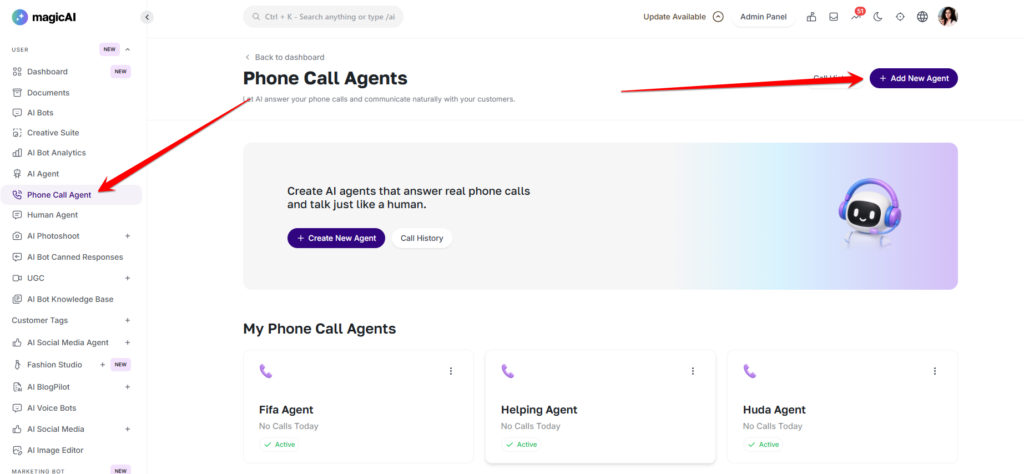
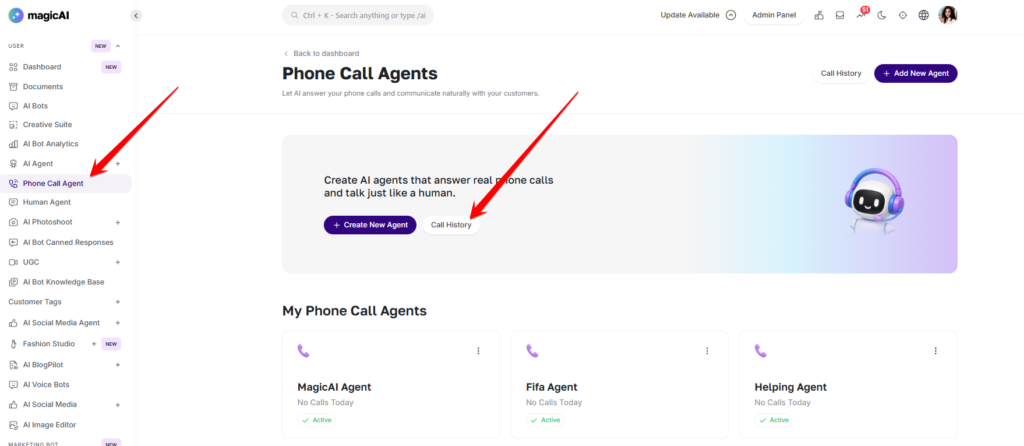
Navigate to Phone Call Agent from the side menu and click + Add New Agent. Agent creation has three steps:
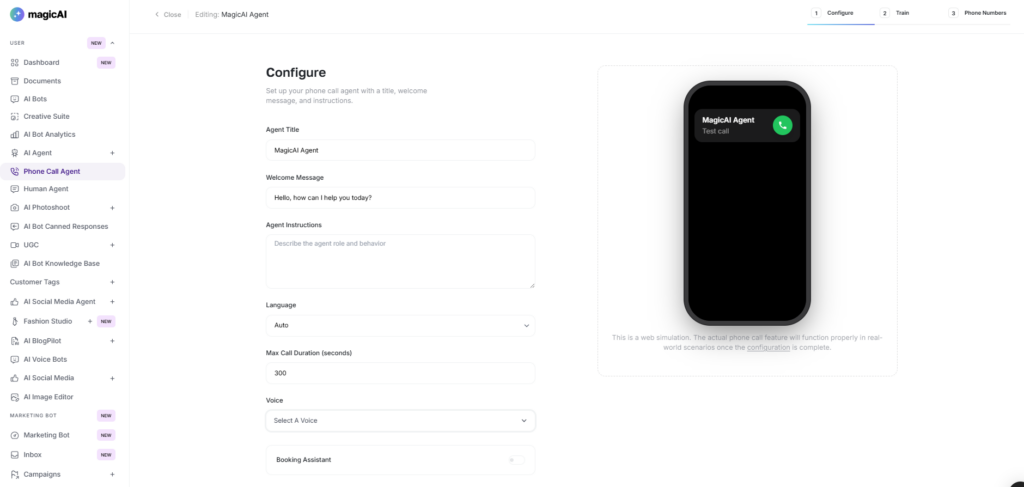
Step 1 — Configure
The Configure step fields differ depending on the active provider. Fields common to both providers appear first, followed by provider-specific fields.
Fields available on both providers
- Agent Title — internal name used to identify the agent in the dashboard
- Welcome Message — the first thing the AI says when a call connects (e.g. “Hello, how can I help you today?”)
- Agent Instructions — the system prompt that defines the agent’s role, persona, and behaviour during calls
- Language — sets the speech-to-text and text-to-speech language; Auto detects the caller’s language
- Max Call Duration (seconds) — the maximum length of a single call before it is ended automatically (default: 300 seconds)
- Booking Assistant — optional toggle to enable appointment booking during calls (see Booking section below)
ElevenLabs provider — additional fields
When ElevenLabs is the active provider, the Configure step includes one additional field:
- Voice — select the AI voice the agent speaks in. Voices are pulled from the ElevenLabs voice library (e.g. Rachel, Aria, Roger). The language setting determines which ElevenLabs model is used: English-only agents use eleven_turbo_v2; multilingual agents use eleven_flash_v2_5.
Twilio provider — additional fields
When Twilio is the active provider, the Configure step includes two additional fields:
- AI Model — the LLM used to power the conversation. Select from models across OpenAI (GPT-4o, o1, o3), Anthropic (Claude), Google (Gemini), and DeepSeek. API keys for the selected model’s provider must be configured in global AI settings.
- Voice (TTS) — the text-to-speech voice the agent speaks in. Twilio agents use Amazon Polly Neural or Google Cloud TTS voices (e.g. Joanna — US English, Female). Voice options are not pulled from ElevenLabs.
A phone simulation preview on the right reflects the agent’s name and welcome message in real time. Click Next to save and proceed.
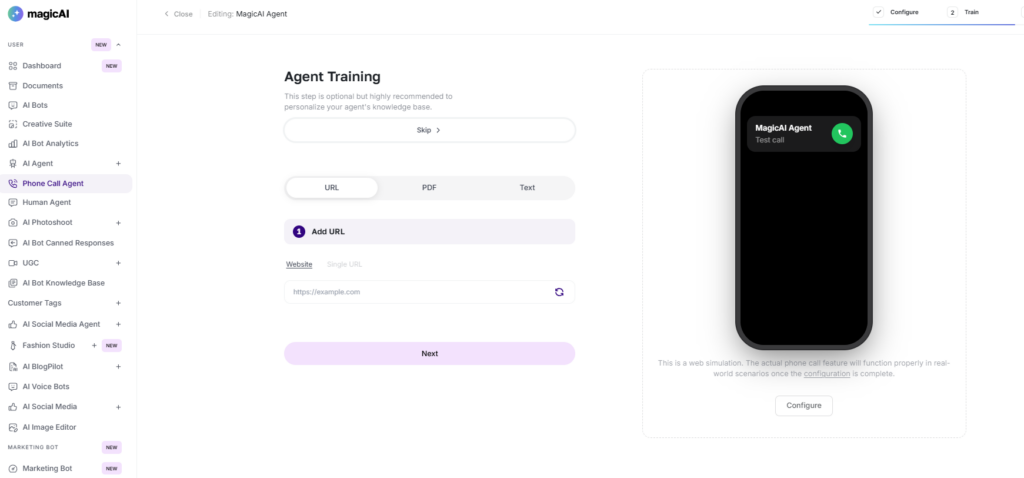
Step 2 — Train (Optional)
Add knowledge base content to personalise the agent’s responses. Training is optional but recommended for domain-specific agents. Three input types are supported:
- URL — crawl a website or single page and extract its content
- PDF — upload a document; supported formats include PDF, DOCX, and TXT
- Text — paste raw text directly into the knowledge base
Trained content is injected into the agent’s system prompt at call time, giving the AI access to the information during conversations. Click Next or Skip to proceed.
Step 3 — Phone Numbers & Usage
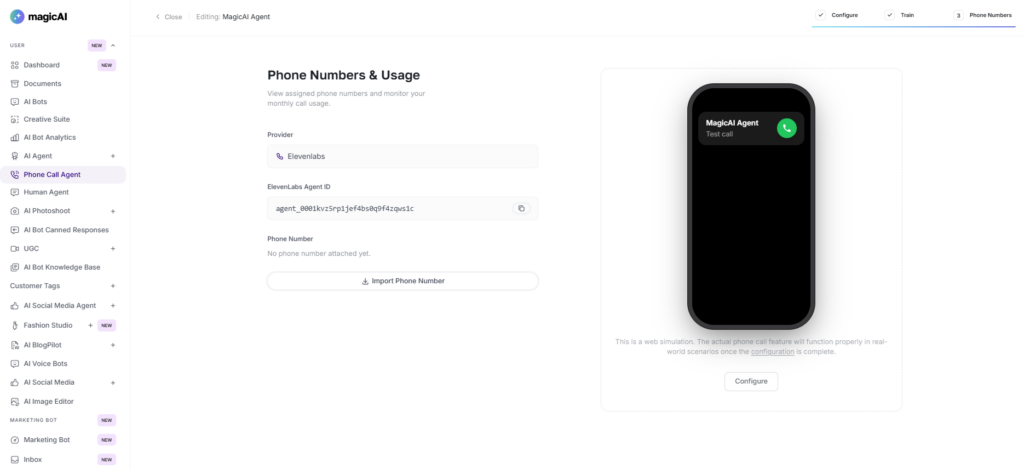
Assign a phone number to the agent so it can receive inbound calls. The setup process differs by provider:
- Twilio — enter Twilio Account SID, Auth Token, Phone Number (E.164 format), and an optional Label
- SIP Trunk — enter SIP Address, Transport (auto/udp/tcp/tls), and optional Username/Password
- Exotel — enter Account SID, API Key, API Token, API Subdomain, App ID, and optional Applet URL
Click Import & Attach to register the number with ElevenLabs and assign it to this agent in one step. Previously imported numbers appear under Your Imported Numbers and can be attached without re-importing.
- Twilio Account SID (starts with AC…)
- Twilio Auth Token
- Phone Number in E.164 format (e.g. +16184237161)
Click Connect & Configure. The platform automatically sets the Voice webhook and Status callback on the Twilio number — no manual configuration in the Twilio console is needed. The credentials are stored encrypted on the agent.
This tab also displays the ElevenLabs Agent ID (for ElevenLabs provider) and the monthly usage for the agent.
Booking Assistant for Phone Call Agents
The Booking Assistant allows the AI agent to check availability, create, cancel, and reschedule appointments during a call. It connects to Cal.com as the booking provider. Calendly support may be added in a future release.
Booking is configured per agent in the Configure step. Toggle Booking Assistant on to reveal the booking fields:
- Booking Provider — select Cal.com
- Event Type ID — the numeric ID of the Cal.com event type to book (found in the event URL: app.cal.com/event-types/123 — the ID is 123)
- API Key — a Cal.com Personal Access Token (go to app.cal.com → Settings → Developer → API Keys → Add)
The agent can perform four booking actions during a call:
- Check Availability — query open slots for a given date
- Create Booking — confirm an appointment; requires the caller’s name, email, preferred slot, and timezone
- Cancel Booking — cancel an existing booking by its UID
- Reschedule Booking — move an existing booking to a new slot
How booking works depends on the active provider:
- ElevenLabs provider: The four booking tools are created automatically on the ElevenLabs agent when Booking Assistant is toggled on and saved. No manual dashboard action is required. The tools are removed automatically when booking is toggled off. Do not add these tools manually in the ElevenLabs dashboard — manually-added tools conflict with the inline tools managed by the platform.
- Twilio provider: The tool loop is handled internally by the platform. No changes are needed in Twilio or ElevenLabs. The platform automatically appends booking capability context to the agent’s system prompt when booking is fully configured.
⚠️ Note: The APP_URL environment variable must be set to your public HTTPS domain for ElevenLabs booking webhooks to work. ElevenLabs cannot reach localhost.
Call History
All calls are logged automatically. Access call history by clicking Call History from the Phone Call Agent dashboard. Each record includes:
- Call status (completed, failed)
- Duration
- Full transcript of the conversation
- Timestamps (start and end)
- Assigned agent
Transcripts are stored in real time during each call. The call history view can be filtered by provider using the ?provider=twilio or ?provider=elevenlabs parameter.
Admin Controls
All global Phone Call Agent settings are managed at Settings → Phone Call Agent Settings:
- Phone Call Provider — select ElevenLabs or Twilio as the active provider for all agents
- ElevenLabs Inbound Webhook URL — read-only; copy this URL and set it as the post-call webhook in ElevenLabs → Developers → Webhooks
- ElevenLabs Webhook Secret — optional signing secret for webhook signature verification
Plan-based access and usage limits are managed at Finance → Pricing Plans:
- Enable/disable Phone Call Agent per pricing plan
- phone_call_agent_seconds_limit — set “-1” for unlimited, “0” to disable calls entirely, or a positive number to cap monthly call seconds per user
Troubleshooting
ElevenLabs
- invalid_api_key on agent creation: API key not set at Admin → Settings → TTS → ElevenLabs.
- Voice list empty: API key is invalid or ElevenLabs service is unavailable.
- Training upload fails: File too large or unsupported format. ElevenLabs supports PDF, DOCX, and TXT.
- Knowledge base not reflecting on calls: Click Save on the Configure tab after adding training data to sync it to ElevenLabs.
- Booking tools not created: Booking toggle is off, or save failed. Confirm APP_URL is a public HTTPS domain.
- both_tools_and_tool_ids_provided error: Booking tools were added manually in the ElevenLabs dashboard. Remove the manually-added tools — the platform manages them automatically.
Twilio
- Twilio shows “Application Error”: Webhook URL is unreachable or returning a non-200 response. Check app logs.
- Twilio shows “ConversationRelay failed”: Relay server is not running or the nginx proxy rule is missing.
- Caller hears silence: Relay server is running but the LLM API key is missing or incorrect. Check global AI settings.
- 403 / request could not be verified: The agent’s stored Twilio Auth Token doesn’t match the account that owns the number, or the public webhook URL differs from what Twilio signed.
- “Invalid Twilio credentials” when connecting number: Account SID or Auth Token is wrong, or the phone number is not in that Twilio account.
- Caller hears “Monthly call limit reached”: The user’s plan seconds budget for the month is exhausted.
- Transcripts not appearing: Relay server crashed mid-call. Check relay server logs.
Booking
- No slots returned: Wrong event type ID, or the requested date is outside the event type’s scheduling window in Cal.com.
- 400 error on booking creation: The event type has required custom fields. Check Cal.com event type settings and add instructions for the agent to collect the required information.
- API key rejected: The Cal.com key may have expired or been revoked. Regenerate it in Cal.com → Settings → Developer → API Keys.
- Agent doesn’t use booking tools: Booking toggle is off, or Booking Provider / Event Type ID fields are empty in the Configure step.